> ## Documentation Index
> Fetch the complete documentation index at: https://guide.garde.app/llms.txt
> Use this file to discover all available pages before exploring further.
# DoorDash
> Download and upload DoorDash deposit statements.
This section we'll cover how to upload your DoorDash delivery deposits statements.
## Download the Deposit Report
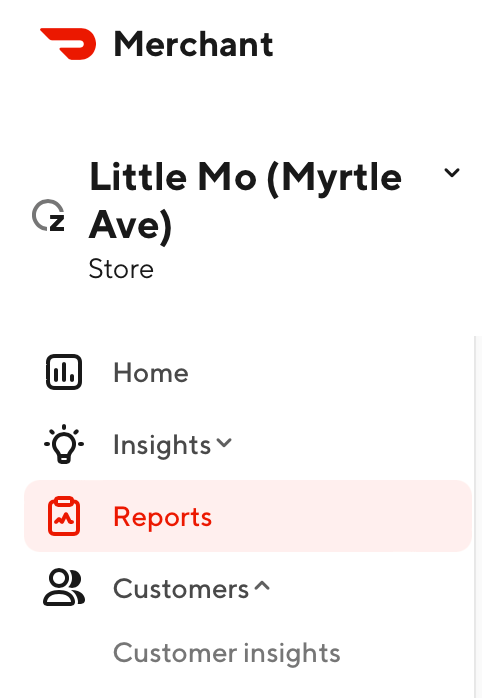
Login into your merchant account and click **Reports**
 You should see something like:
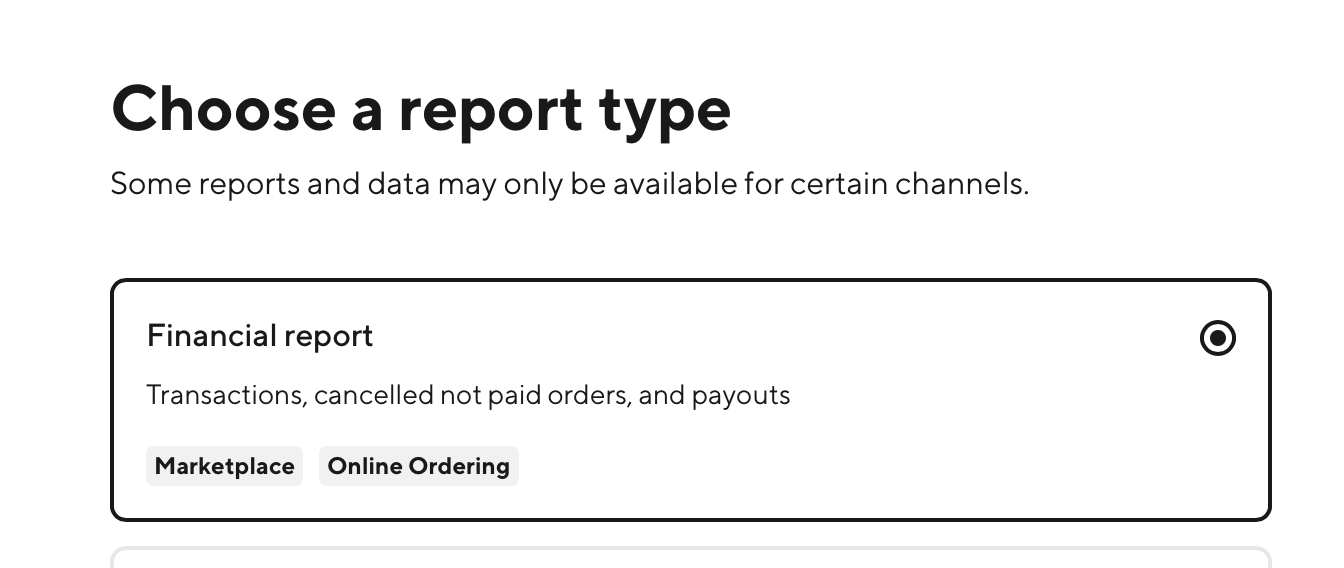
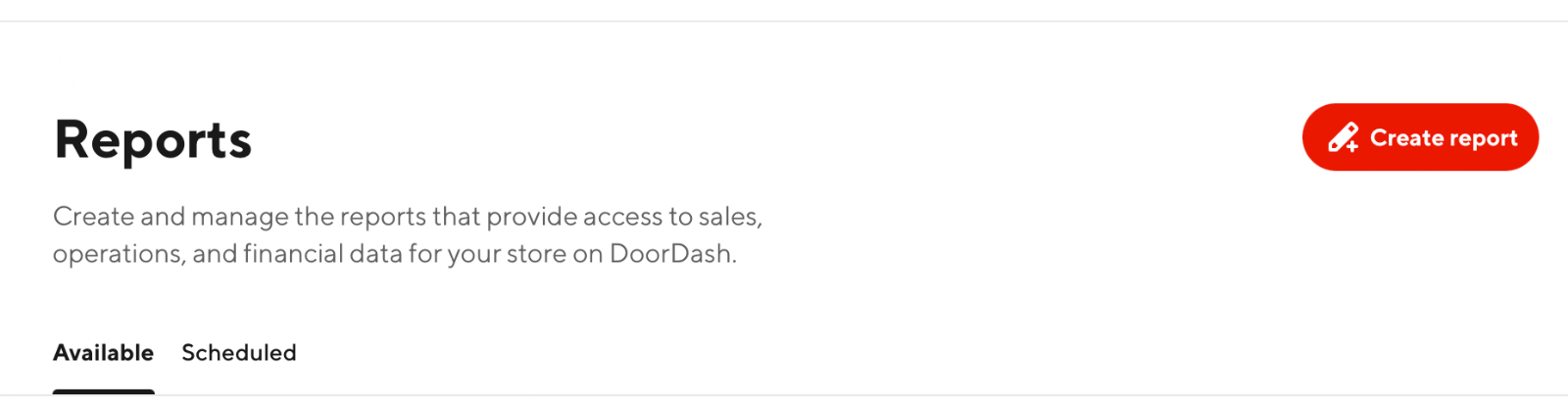 Choose the **Financial Report**
 Then, choose **By date range.**
> **IMPORTANT:** If you want your exported report to match the PDF monthly statement, choose the date range for the full month (i.e. March 1-March 31).
Afterwards, you only need to make sure the **Payouts** and **Transactions breakdown** are selected (We recommend the default!):
Then, choose **By date range.**
> **IMPORTANT:** If you want your exported report to match the PDF monthly statement, choose the date range for the full month (i.e. March 1-March 31).
Afterwards, you only need to make sure the **Payouts** and **Transactions breakdown** are selected (We recommend the default!):
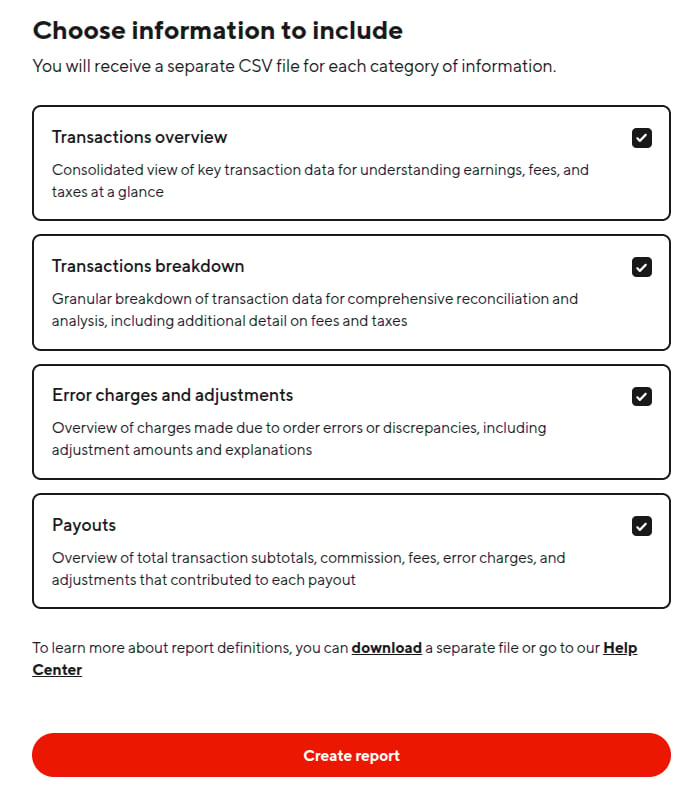 Then, click **Create Report** and you should see it:
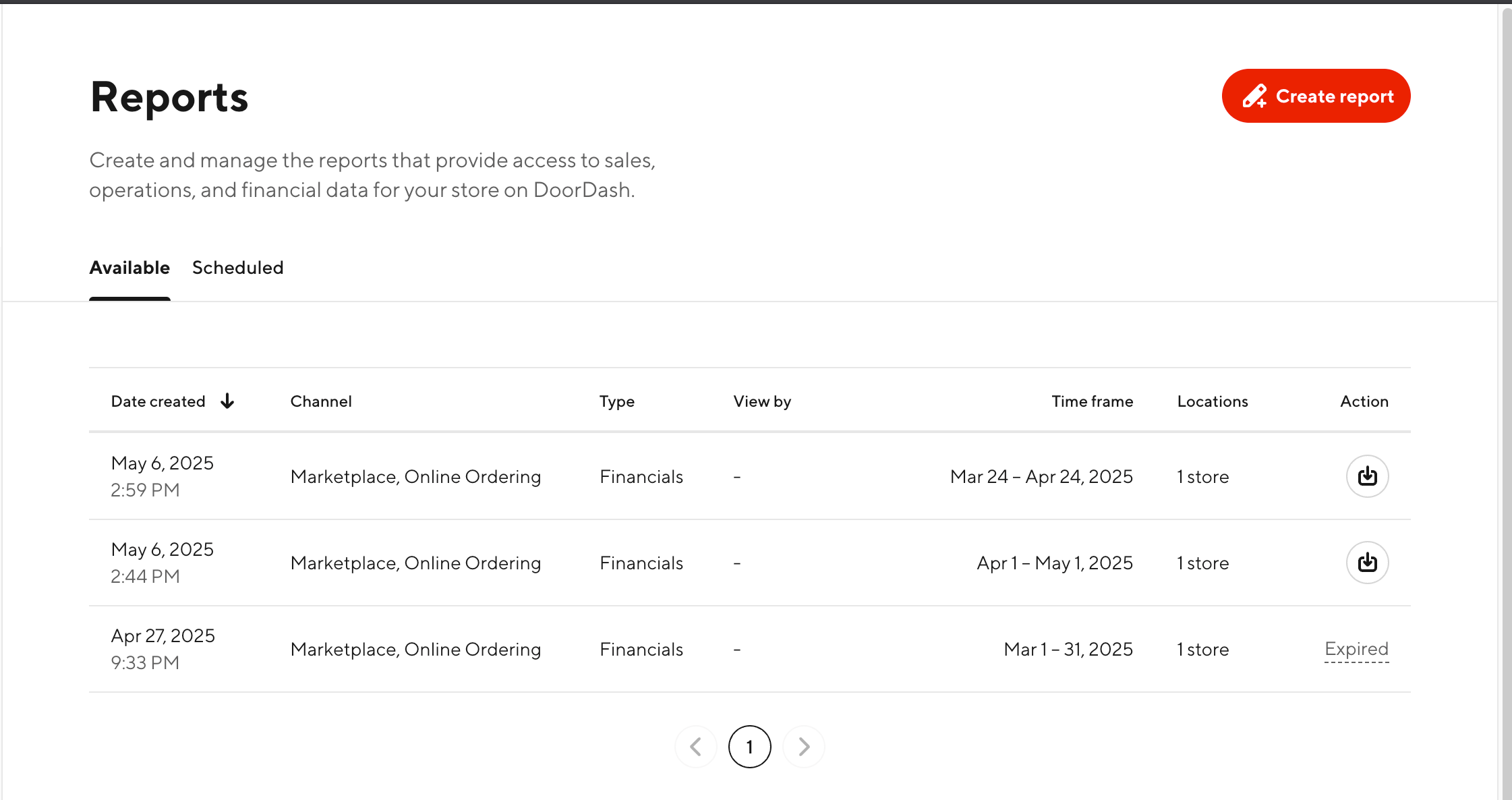 > If you have multiple locations, note which reports correspond to which store. Unlike any other delivery platform, DoorDash only displays the number of stores instead of the store names. We **highly recommend that you rename the** `.zip` when you download it!
>
> You can verify the location by extracting the `zip` file and viewing the `.csv`.
### Uploading the Report
Just upload the full `.zip` file! **Do not upload just the** `.csv`!!
> If you have multiple locations, note which reports correspond to which store. Unlike any other delivery platform, DoorDash only displays the number of stores instead of the store names. We **highly recommend that you rename the** `.zip` when you download it!
>
> You can verify the location by extracting the `zip` file and viewing the `.csv`.
### Uploading the Report
Just upload the full `.zip` file! **Do not upload just the** `.csv`!!