> ## Documentation Index
> Fetch the complete documentation index at: https://guide.garde.app/llms.txt
> Use this file to discover all available pages before exploring further.
# Grubhub
> Export Grubhub deposit data for delivery journals.
## New Export: Financials > Reports
This is the new method to export your Grubhub deposits data. It's more accurate (handles Ad Spend, Grubhub Direct better).
Log into your merchant account.
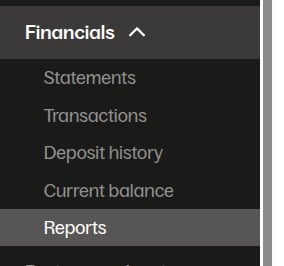
Select `Financials > Reports`
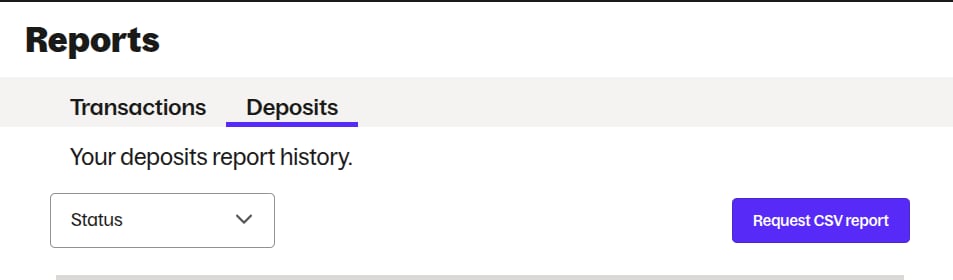
 Click `Deposits` and `Request CSV report`
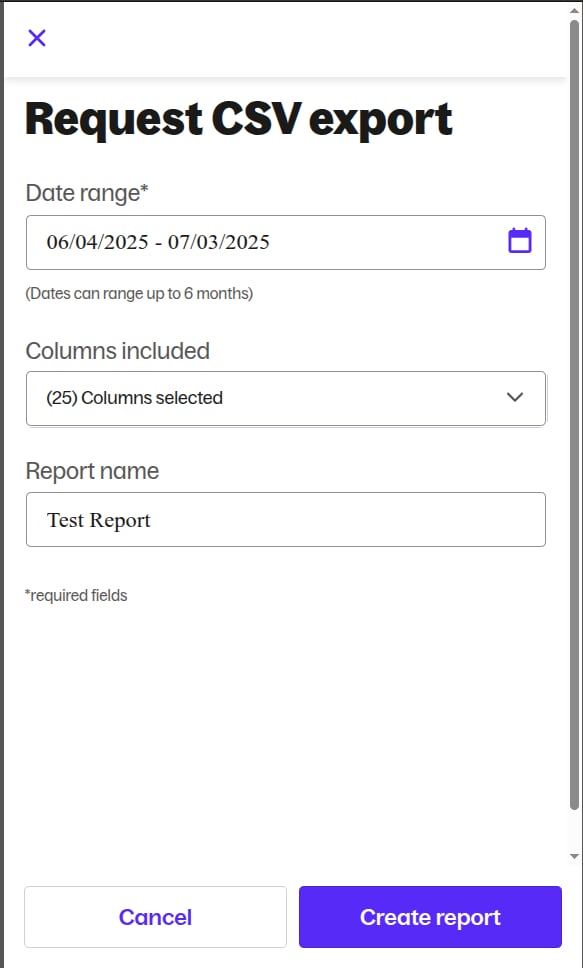
 Select your date range and name the report. Then click `Create Report`
> **IMPORTANT:** If you want your exported CSV to match the date ranges on the PDF monthly statement, you need to select a date range like `06/04/2025-07/03/2025` instead of `06/01/2025-06/31/2025` because the date range is for payout dates, not the order dates.
Select your date range and name the report. Then click `Create Report`
> **IMPORTANT:** If you want your exported CSV to match the date ranges on the PDF monthly statement, you need to select a date range like `06/04/2025-07/03/2025` instead of `06/01/2025-06/31/2025` because the date range is for payout dates, not the order dates.
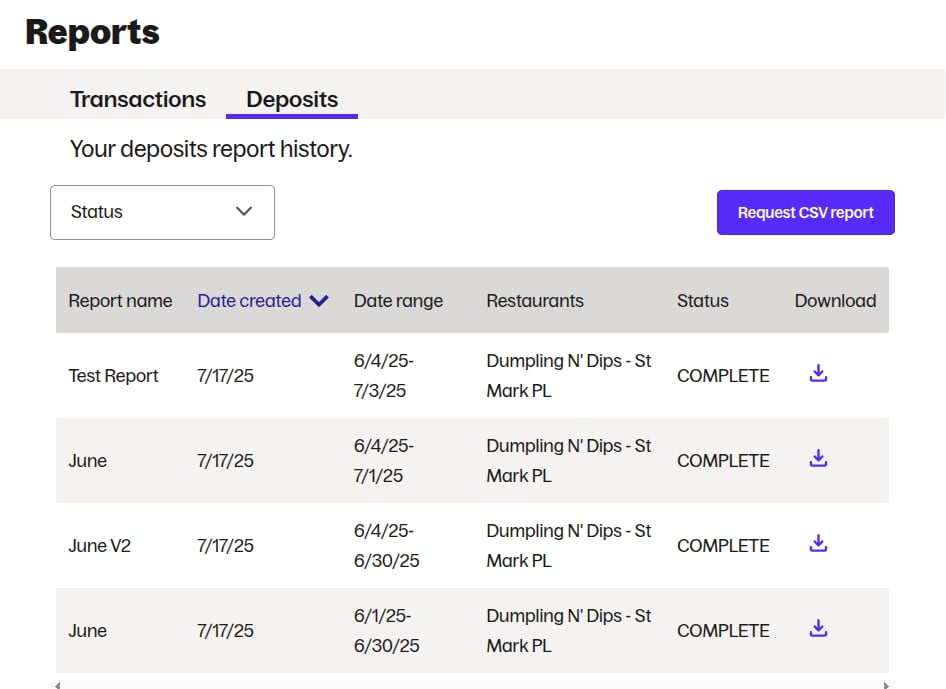
 Your dashboard should end up looking like:
 ## Old Export: Via Reports
Log into your merchant account.
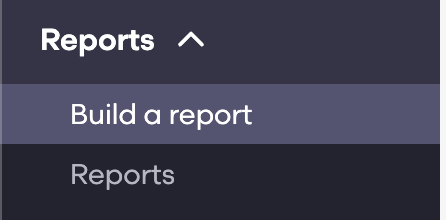
Then select `Reports > Build a Report`
## Old Export: Via Reports
Log into your merchant account.
Then select `Reports > Build a Report`
 Select the settings:
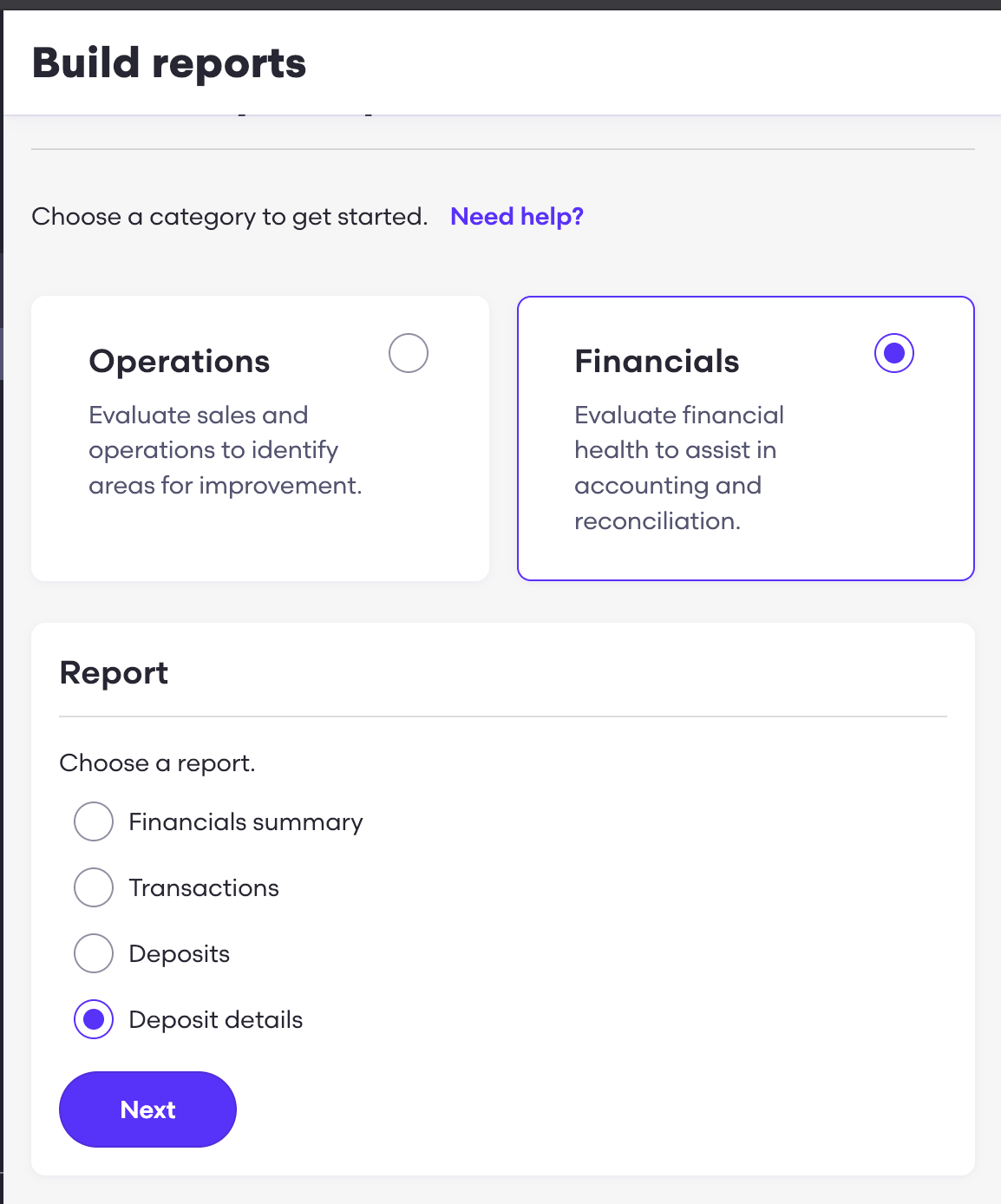 Click **Next** and then specify your date range. The date range will determine the **payout dates**, NOT the transactions dates.
> This means that if you want the exported report to match Grubhub PDF monthly statement, you need to select a date range that starts a bit later than the 1st-End of Month.
>
> For example, for April 2025, select April 5th, 2025-May 5th 2025. This must be done because Grubhub's payouts are always a couple days after the actual transaction dates.
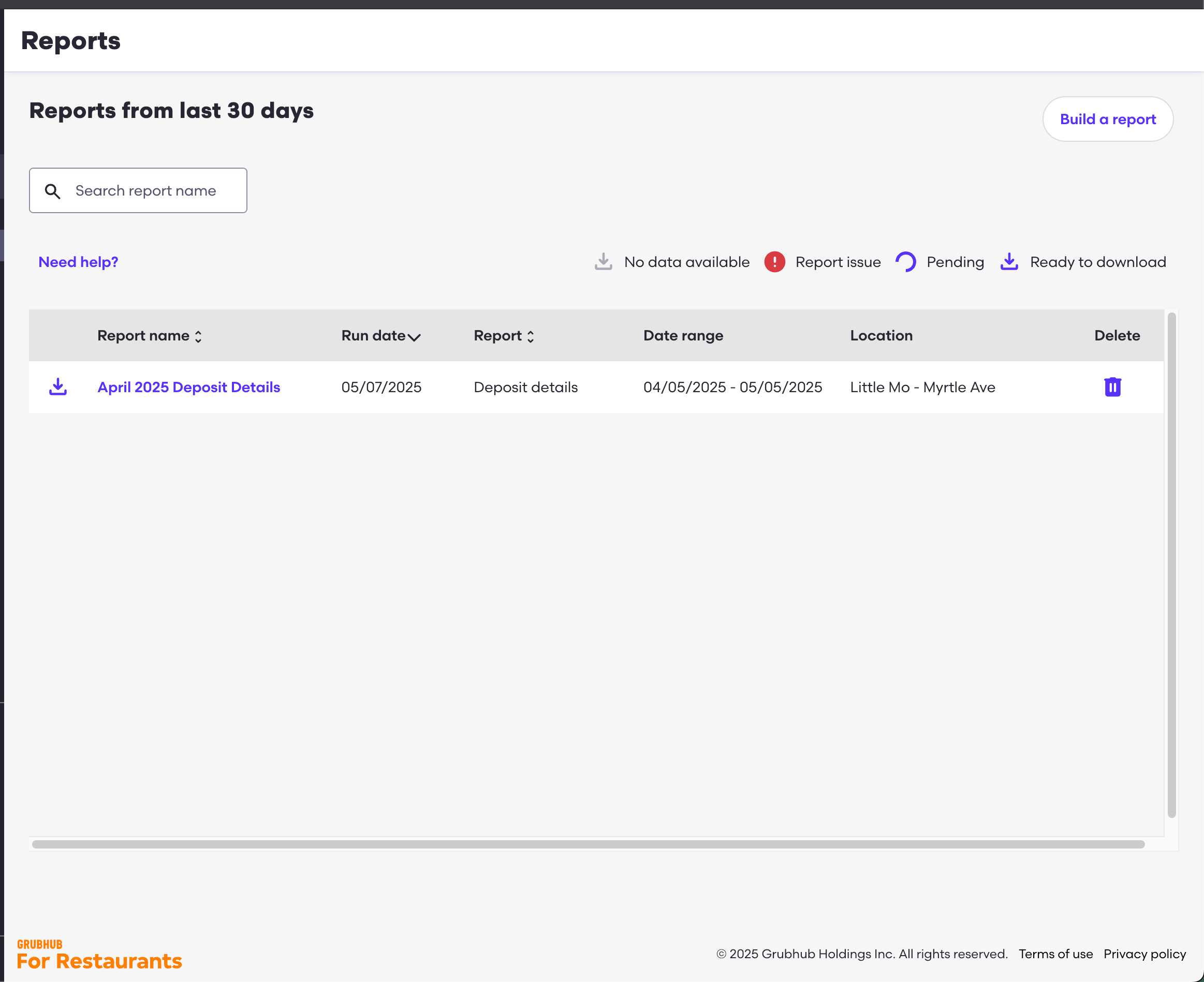
Lastly, specify the Locations and Name and click **Request Report.** The reports dashboard should end up like:
Click **Next** and then specify your date range. The date range will determine the **payout dates**, NOT the transactions dates.
> This means that if you want the exported report to match Grubhub PDF monthly statement, you need to select a date range that starts a bit later than the 1st-End of Month.
>
> For example, for April 2025, select April 5th, 2025-May 5th 2025. This must be done because Grubhub's payouts are always a couple days after the actual transaction dates.
Lastly, specify the Locations and Name and click **Request Report.** The reports dashboard should end up like:
 ## Uploading the Report
Upload the `.csv` file normally. You can rename it to however you'd like!
## Common Issues
### Unbalanced Entry
If you have an unbalanced entry, download the monthly PDF statement compare the deposits. Each entry corresponds to a line in the deposit entry.
> Right now, **Ad Spend** is currently not available in the exported CSV. You'll need to manually add it into one of the lines (i.e. Marketing Fees).
## Uploading the Report
Upload the `.csv` file normally. You can rename it to however you'd like!
## Common Issues
### Unbalanced Entry
If you have an unbalanced entry, download the monthly PDF statement compare the deposits. Each entry corresponds to a line in the deposit entry.
> Right now, **Ad Spend** is currently not available in the exported CSV. You'll need to manually add it into one of the lines (i.e. Marketing Fees).