> ## Documentation Index
> Fetch the complete documentation index at: https://guide.garde.app/llms.txt
> Use this file to discover all available pages before exploring further.
# UberEats
> Download and upload Uber Eats payout reports.
Login to your merchant account. Then, select **Reports**
Select **Payout Summary**
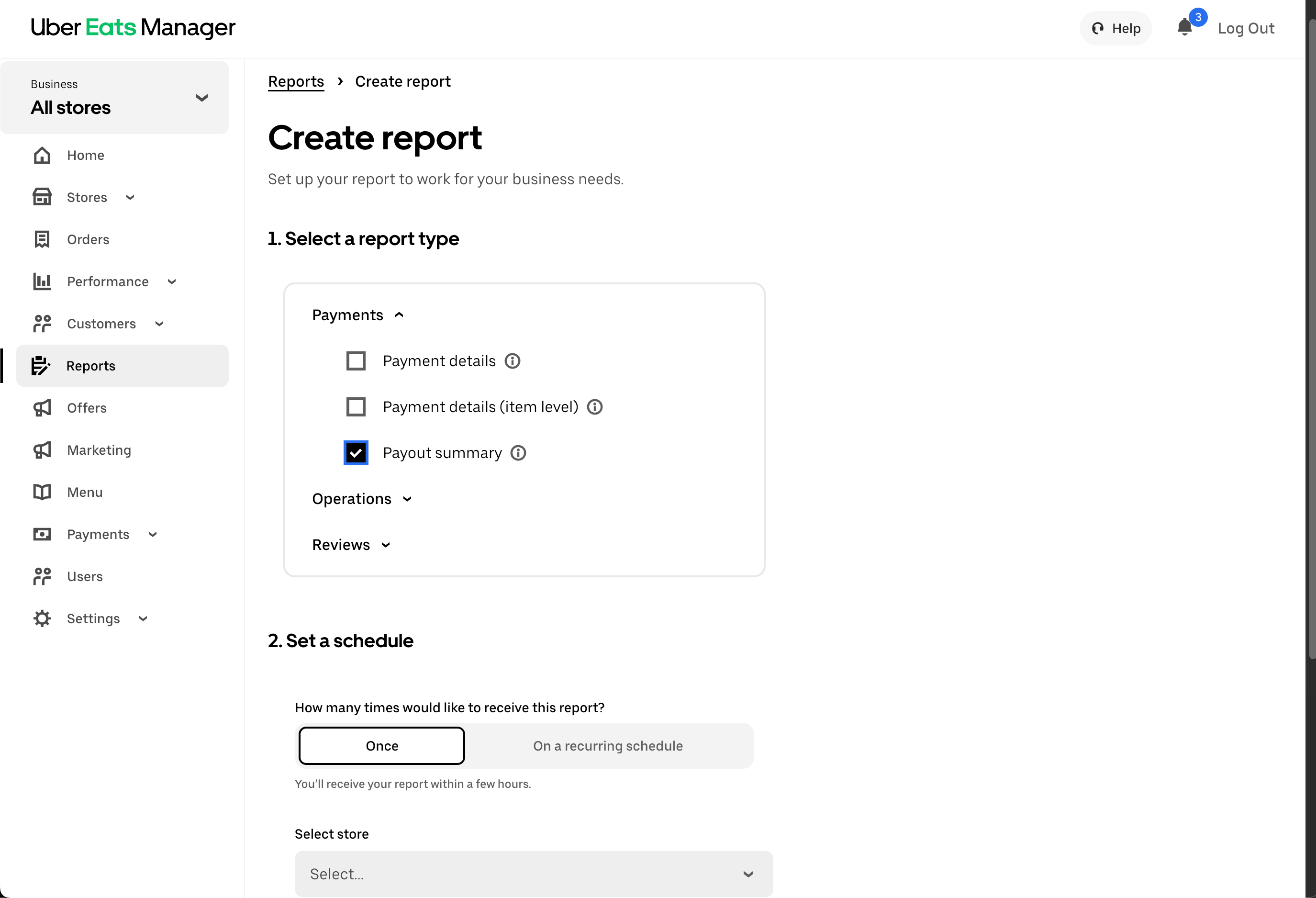 Then select your locations and date range. The date range filters by the **payout date.** So, if you only want your March payouts, select March 1-March 31.
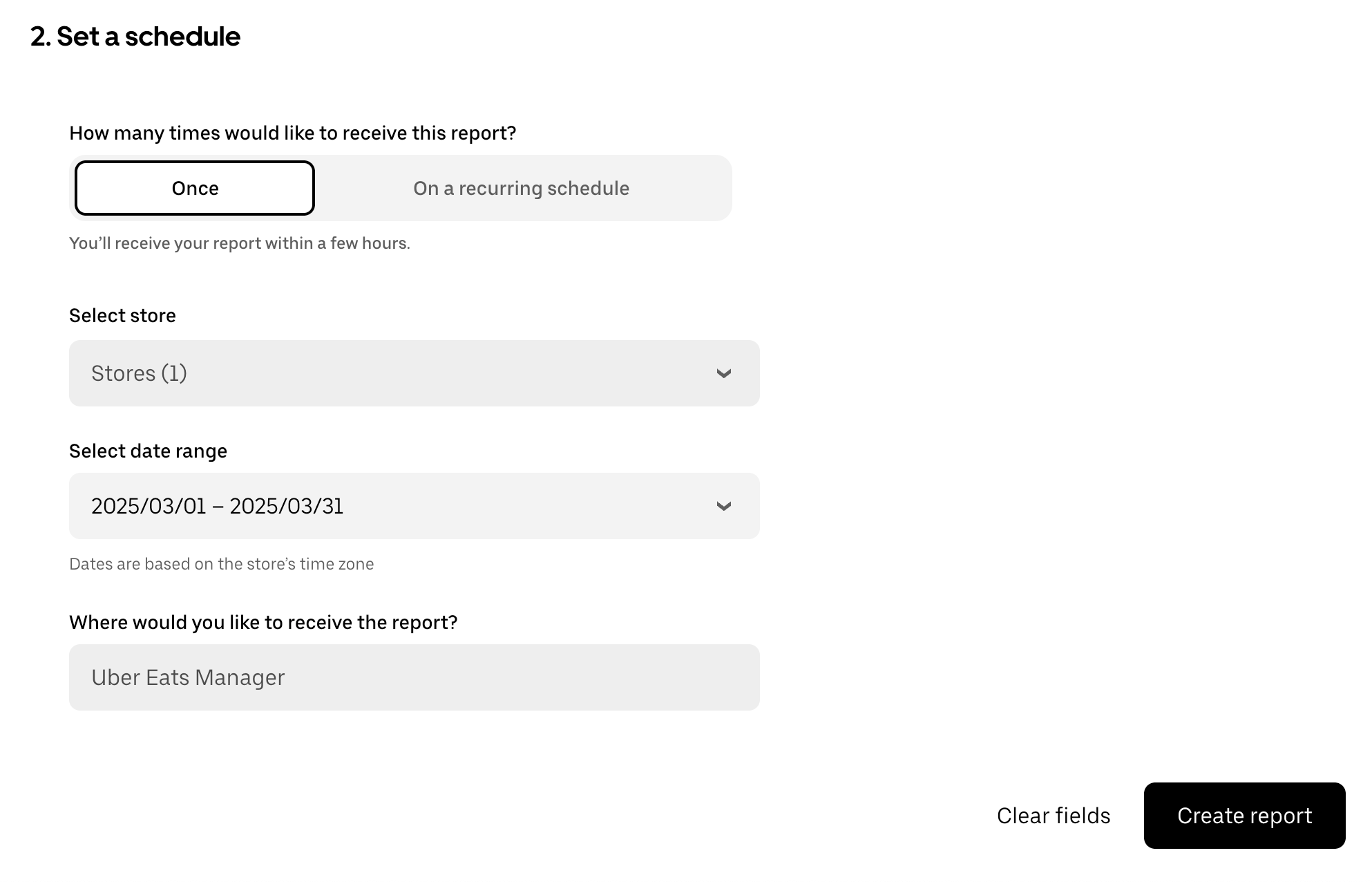
Once you're done, it should look something like below. Click **Create report** to generate the report.
Then select your locations and date range. The date range filters by the **payout date.** So, if you only want your March payouts, select March 1-March 31.
Once you're done, it should look something like below. Click **Create report** to generate the report.
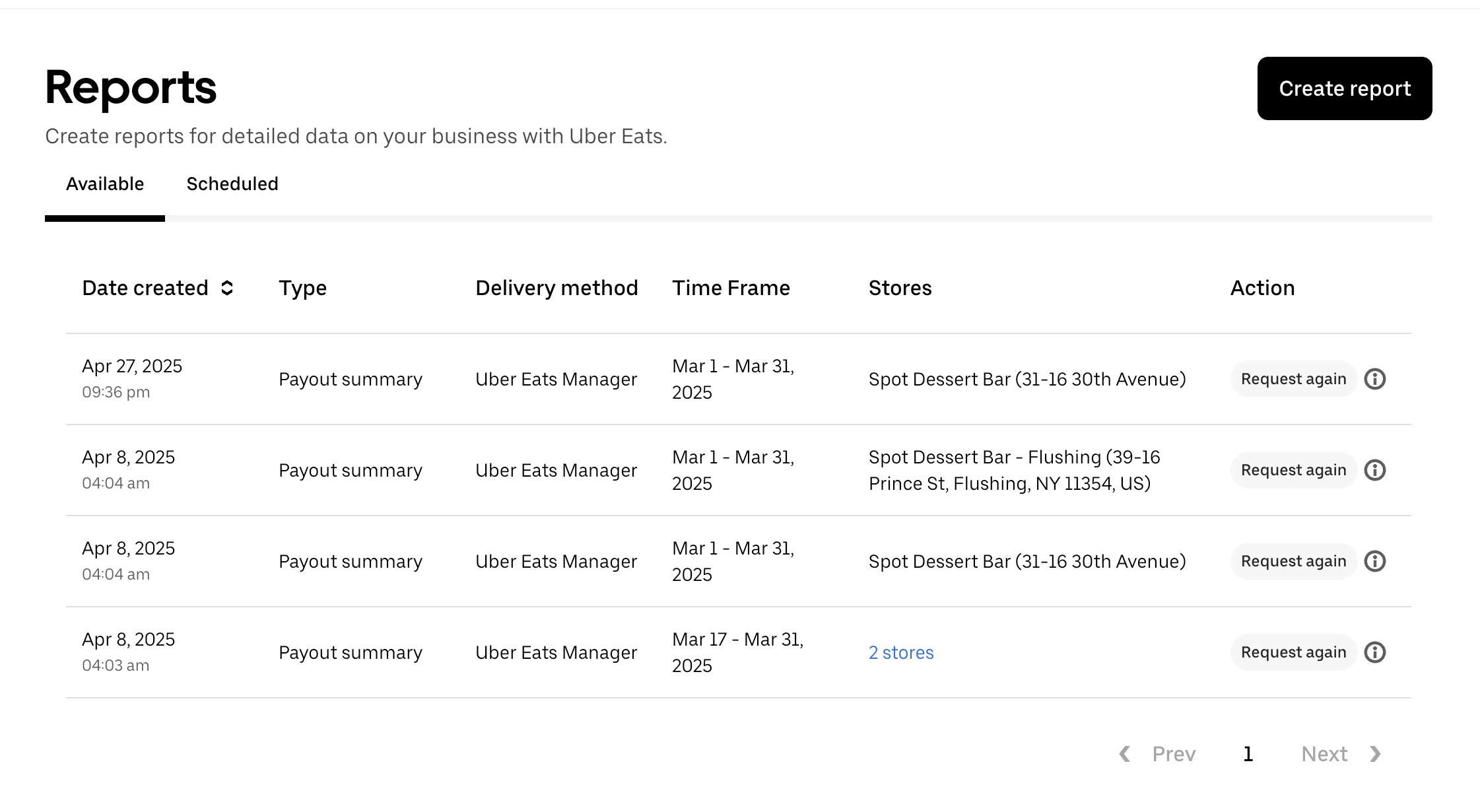
 The final result should look like:
 ## Uploading the Report
Just upload the `.csv` file and you should be good to go! You can rename it however you'd like!
> Double check whether the csv file is same location as your selected location on the dashboard!
## Uploading the Report
Just upload the `.csv` file and you should be good to go! You can rename it however you'd like!
> Double check whether the csv file is same location as your selected location on the dashboard!