> ## Documentation Index
> Fetch the complete documentation index at: https://guide.garde.app/llms.txt
> Use this file to discover all available pages before exploring further.
# Your weekly home
> The landing page and your daily starting point.
**Home** is where you land after sign-in. One screen answers the question you actually have every morning: is the restaurant on track this week?
Without it, that answer costs you five open tabs: POS sales, labor report, tips, guest counts. Home pulls all of it into one report you can read in two minutes.
 ## What's on the report
Top to bottom:
* **Daily / Weekly toggle**: flip between today's report and the running week. Weekly is the default habit; Daily is for "what happened last night".
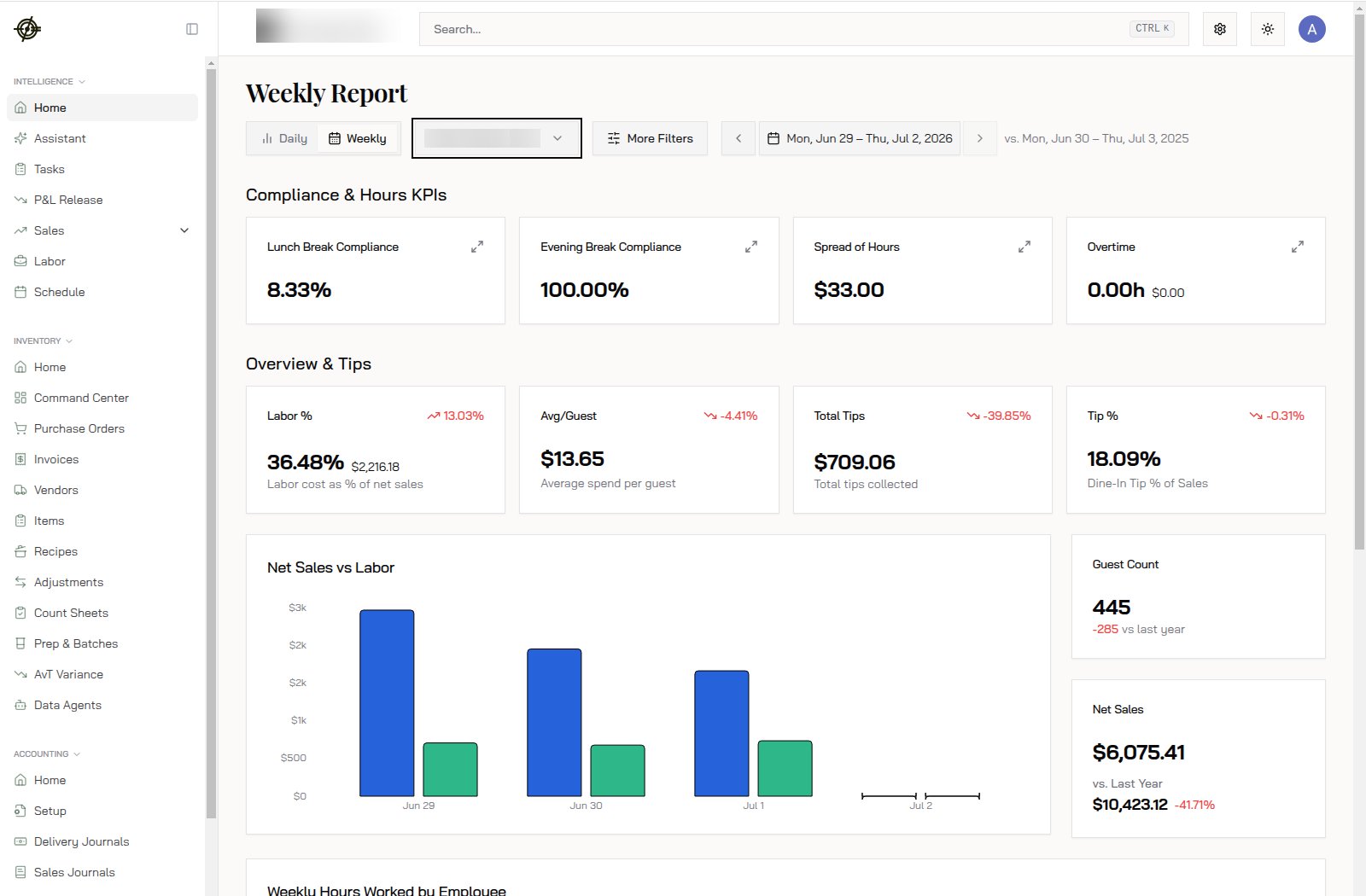
* **Compliance & Hours KPIs**: break compliance, spread of hours, and overtime. A lunch break compliance of 8.33% means almost nobody took their break. That's a lawsuit line item, not a footnote.
* **Overview & Tips**: labor as a percent of net sales, average spend per guest, total tips, tip percent. Each card shows the change vs. the comparison period in red or green.
* **Net Sales vs Labor chart**: bars per day, sales next to labor. This is the fastest way to spot a day where labor didn't scale down with sales.
* **Guest Count and Net Sales cards**: this week against the same week last year. A week at 445 guests and $6,075.41 net sales against $10,423.12 last year is a conversation, not a chart.
* **Weekly Hours Worked by Employee**: who's on pace for overtime before it happens.
## How to read it
1. Open it with your morning coffee. Two minutes.
2. Scan the red numbers first. Red on Labor % means labor grew faster than sales.
3. Check the vs.-last-year cards. Down week over week can be weather; down year over year is a trend.
4. Something looks off? Click through to [Sales](/dashboard/sales) or [Labor](/dashboard/labor) and find out why.
5. Nothing looks off? Close the laptop and run the restaurant.
## Know-how
* The comparison period is the same dates a year earlier (shown next to the date picker, e.g. "vs. Mon, Jun 30 – Thu, Jul 3, 2025"). Change the date range with the arrows or calendar.
* **Labor % is labor cost over net sales for the same window.** A 36.48% labor week on $6,075 of sales means $2,216 went to labor. Over 30% deserves a look; over 35% deserves action.
* Overtime showing 0.00h midweek doesn't mean you're safe. Check **Weekly Hours Worked by Employee** at the bottom for who's already past 30 hours by Wednesday.
* **More Filters** lets you cut the report by dining option or other dimensions when a number needs a second look.
* Multi-location? The location dropdown under the title controls the whole report. Wrong store is the #1 cause of "these numbers are wrong".
## Tasks
**Tasks** (in the Intelligence section) is the Work Pipeline: a prioritized queue of things that need a human, generated from your data and from teammates.
## What's on the report
Top to bottom:
* **Daily / Weekly toggle**: flip between today's report and the running week. Weekly is the default habit; Daily is for "what happened last night".
* **Compliance & Hours KPIs**: break compliance, spread of hours, and overtime. A lunch break compliance of 8.33% means almost nobody took their break. That's a lawsuit line item, not a footnote.
* **Overview & Tips**: labor as a percent of net sales, average spend per guest, total tips, tip percent. Each card shows the change vs. the comparison period in red or green.
* **Net Sales vs Labor chart**: bars per day, sales next to labor. This is the fastest way to spot a day where labor didn't scale down with sales.
* **Guest Count and Net Sales cards**: this week against the same week last year. A week at 445 guests and $6,075.41 net sales against $10,423.12 last year is a conversation, not a chart.
* **Weekly Hours Worked by Employee**: who's on pace for overtime before it happens.
## How to read it
1. Open it with your morning coffee. Two minutes.
2. Scan the red numbers first. Red on Labor % means labor grew faster than sales.
3. Check the vs.-last-year cards. Down week over week can be weather; down year over year is a trend.
4. Something looks off? Click through to [Sales](/dashboard/sales) or [Labor](/dashboard/labor) and find out why.
5. Nothing looks off? Close the laptop and run the restaurant.
## Know-how
* The comparison period is the same dates a year earlier (shown next to the date picker, e.g. "vs. Mon, Jun 30 – Thu, Jul 3, 2025"). Change the date range with the arrows or calendar.
* **Labor % is labor cost over net sales for the same window.** A 36.48% labor week on $6,075 of sales means $2,216 went to labor. Over 30% deserves a look; over 35% deserves action.
* Overtime showing 0.00h midweek doesn't mean you're safe. Check **Weekly Hours Worked by Employee** at the bottom for who's already past 30 hours by Wednesday.
* **More Filters** lets you cut the report by dining option or other dimensions when a number needs a second look.
* Multi-location? The location dropdown under the title controls the whole report. Wrong store is the #1 cause of "these numbers are wrong".
## Tasks
**Tasks** (in the Intelligence section) is the Work Pipeline: a prioritized queue of things that need a human, generated from your data and from teammates.
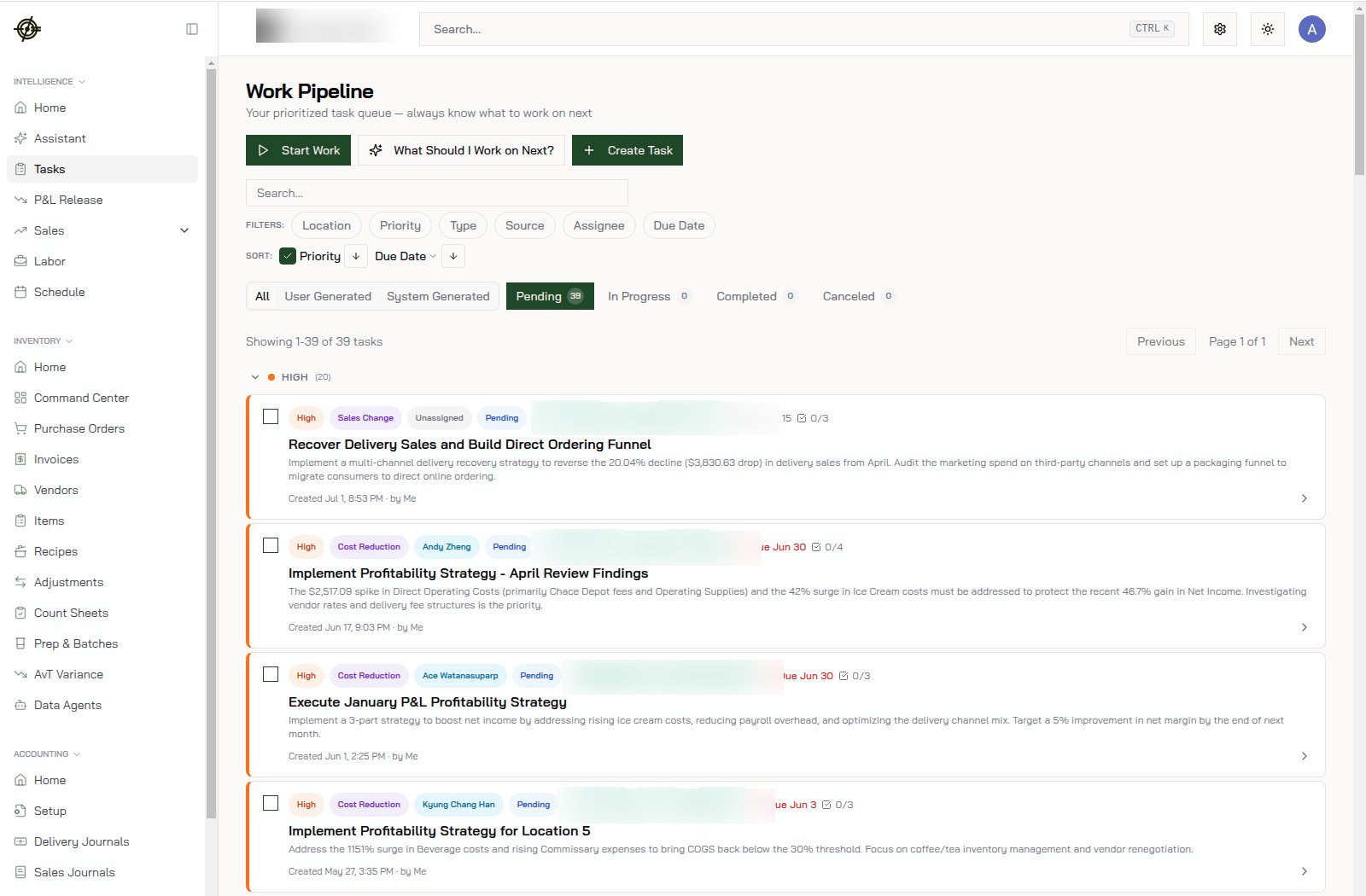 * Tasks come in two flavors: **user generated** (someone created it) and **system generated** (the AI spotted something, like a 20% delivery sales decline, and wrote up the fix).
* Each task carries a priority, an assignee, a due date, and sub-steps. Filter by location or assignee to see just your plate.
* Not sure where to start? Hit **What Should I Work on Next?** and let it pick.
* Check it after Home each morning. Clear it before it clears you.
## Ask instead of digging
Not sure where a number comes from? Ask the [Assistant](/dashboard/assistant) instead of hunting through pages.
* Tasks come in two flavors: **user generated** (someone created it) and **system generated** (the AI spotted something, like a 20% delivery sales decline, and wrote up the fix).
* Each task carries a priority, an assignee, a due date, and sub-steps. Filter by location or assignee to see just your plate.
* Not sure where to start? Hit **What Should I Work on Next?** and let it pick.
* Check it after Home each morning. Clear it before it clears you.
## Ask instead of digging
Not sure where a number comes from? Ask the [Assistant](/dashboard/assistant) instead of hunting through pages.