> ## Documentation Index
> Fetch the complete documentation index at: https://guide.garde.app/llms.txt
> Use this file to discover all available pages before exploring further.
# The daily check-in
> Five minutes on Inventory Home and Tasks — Garde surfaces what needs you.
**Who:** the manager on duty.
**When:** once a day, coffee in hand.
## Inventory Home
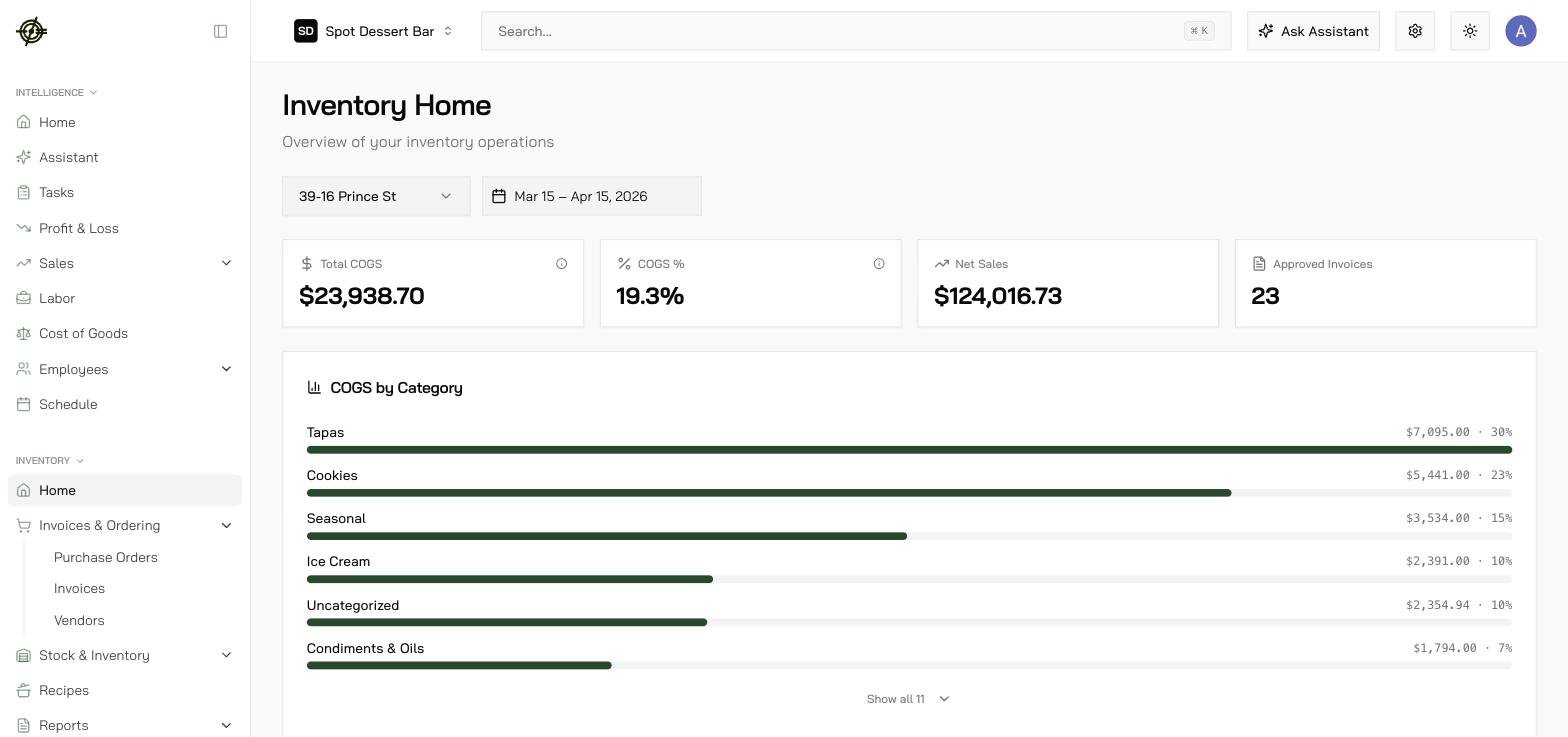
Go to **Inventory → Home**. One screen shows:
 * **Incoming Orders** — pending orders, what needs pickup or delivery, dollars in flight, anything delayed past ETA.
* **Stock** — out of stock, **expired (pull from stock)**, **expiring soon (sell first)**.
* **Total COGS, COGS %, Net Sales** for the range, plus **COGS by Category**.
* **Biggest Price Movers (30 days)** — the items whose invoice prices moved most.
* **Action Items** — invoices pending review, items missing vendor mapping, items needing conversions, recipes needing attention.
Treat **Action Items** as the manager's to-do list. Every one you clear makes costs, counts, and variance more accurate — they're ranked cleanup, not busywork.
## Tasks
The **Tasks** page is the **Work Pipeline** — every task in one queue, board or table view.
* **Incoming Orders** — pending orders, what needs pickup or delivery, dollars in flight, anything delayed past ETA.
* **Stock** — out of stock, **expired (pull from stock)**, **expiring soon (sell first)**.
* **Total COGS, COGS %, Net Sales** for the range, plus **COGS by Category**.
* **Biggest Price Movers (30 days)** — the items whose invoice prices moved most.
* **Action Items** — invoices pending review, items missing vendor mapping, items needing conversions, recipes needing attention.
Treat **Action Items** as the manager's to-do list. Every one you clear makes costs, counts, and variance more accurate — they're ranked cleanup, not busywork.
## Tasks
The **Tasks** page is the **Work Pipeline** — every task in one queue, board or table view.
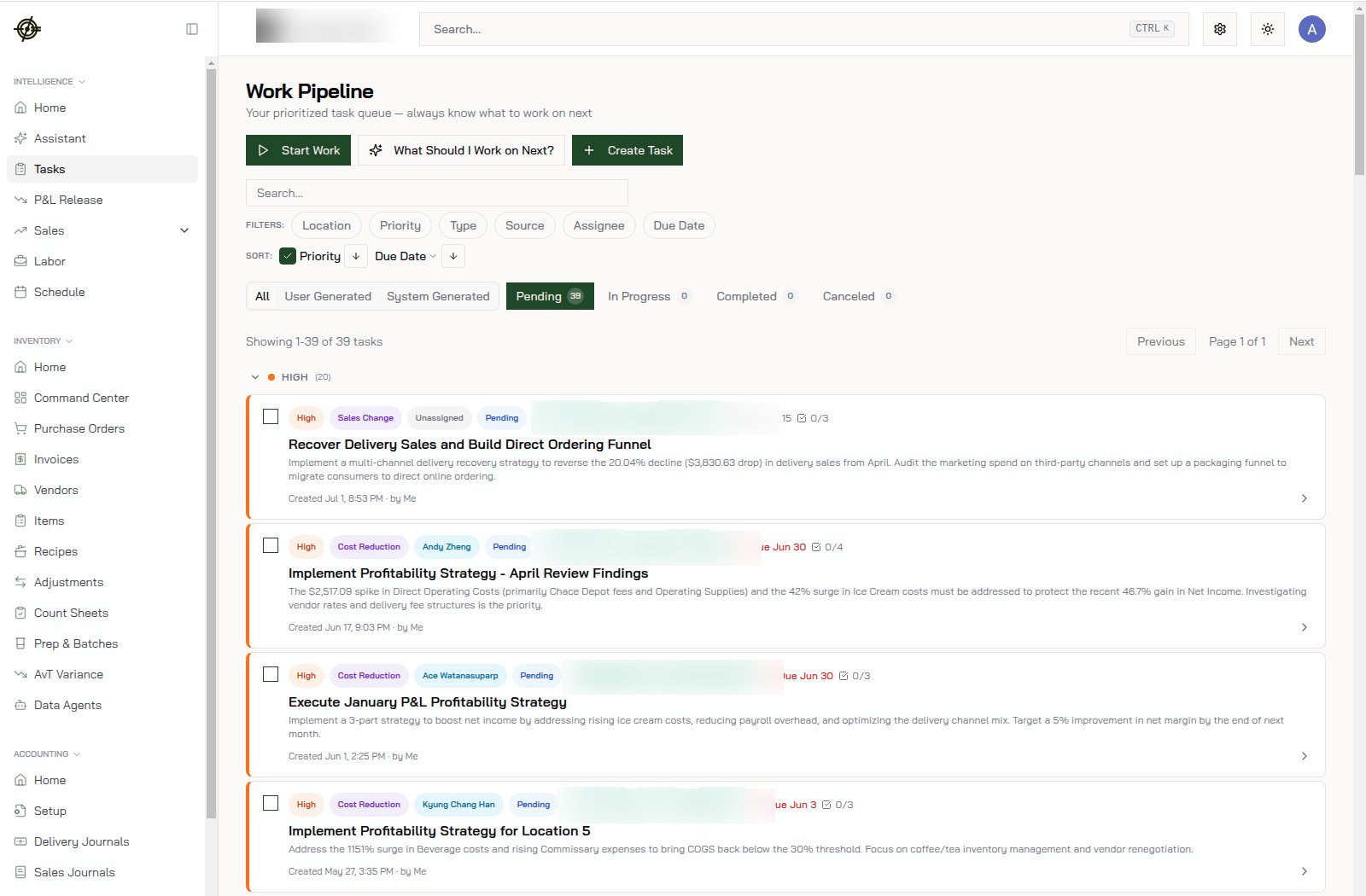 * Tasks are **User Generated** (your team) or **System Generated** (Garde — e.g. an invoice needs review).
* Filter by assignee, location, priority, due date; statuses run **Pending → In Progress → Completed**.
* Not sure where to start? **What Should I Work on Next?** picks for you — then **Start Work**.
* Tasks are **User Generated** (your team) or **System Generated** (Garde — e.g. an invoice needs review).
* Filter by assignee, location, priority, due date; statuses run **Pending → In Progress → Completed**.
* Not sure where to start? **What Should I Work on Next?** picks for you — then **Start Work**.