> ## Documentation Index
> Fetch the complete documentation index at: https://guide.garde.app/llms.txt
> Use this file to discover all available pages before exploring further.
# Scanning & reviewing invoices
> The daily habit that powers COGS, price tracking, and your books.
**Who:** anyone receiving deliveries scans; a manager reviews and approves.
**When:** scan the moment a delivery lands; review once a day.
Every approved invoice feeds COGS, price history, and accounting. This is the single highest-leverage daily habit in Garde.
## Get invoices in — two ways
**The easy way — email.** Every location has its own Garde invoice address (press **New Invoice** to see and copy it). Give it to vendors or forward invoices to it and they're ingested automatically — Garde marks it *Recommended* for a reason. One rule: each emailed file is treated as one invoice, so combine multi-page invoices into a single file before sending.
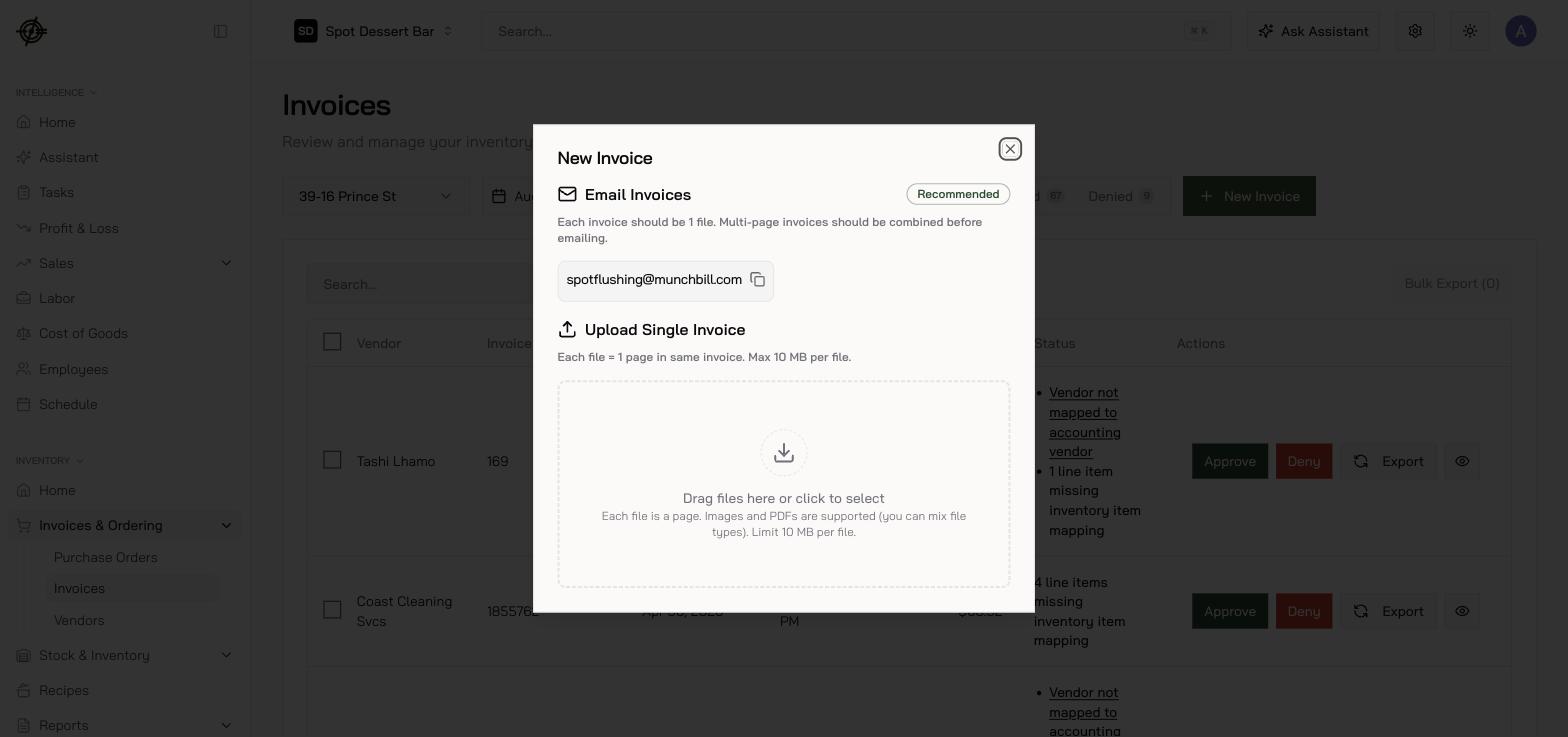 **The everyday way — upload.** Best done from a phone: whoever signs for the delivery photographs it on the spot in the [Garde app](/mobile/inventory#upload-an-invoice), before the paper can wander off.
1. On the dashboard, go to **Inventory → Invoices & Ordering → Invoices**.
2. Press **New Invoice** and drop the invoice pages into **Upload Single Invoice** — phone photos or PDFs, max 10 MB per file.
3. Keep **one invoice per upload**. Multi-page invoice? Every page goes in the *same* upload — each file counts as one page.
Before you upload: make sure the **date and vendor** are legible (write them on if not — the AI reads handwriting), and mark any **refunds or credits** on the page. Never mix two invoices in one upload.
## Review
Uploads show as **Processing** (about a minute), then land in **Needs Review**.
**The everyday way — upload.** Best done from a phone: whoever signs for the delivery photographs it on the spot in the [Garde app](/mobile/inventory#upload-an-invoice), before the paper can wander off.
1. On the dashboard, go to **Inventory → Invoices & Ordering → Invoices**.
2. Press **New Invoice** and drop the invoice pages into **Upload Single Invoice** — phone photos or PDFs, max 10 MB per file.
3. Keep **one invoice per upload**. Multi-page invoice? Every page goes in the *same* upload — each file counts as one page.
Before you upload: make sure the **date and vendor** are legible (write them on if not — the AI reads handwriting), and mark any **refunds or credits** on the page. Never mix two invoices in one upload.
## Review
Uploads show as **Processing** (about a minute), then land in **Needs Review**.
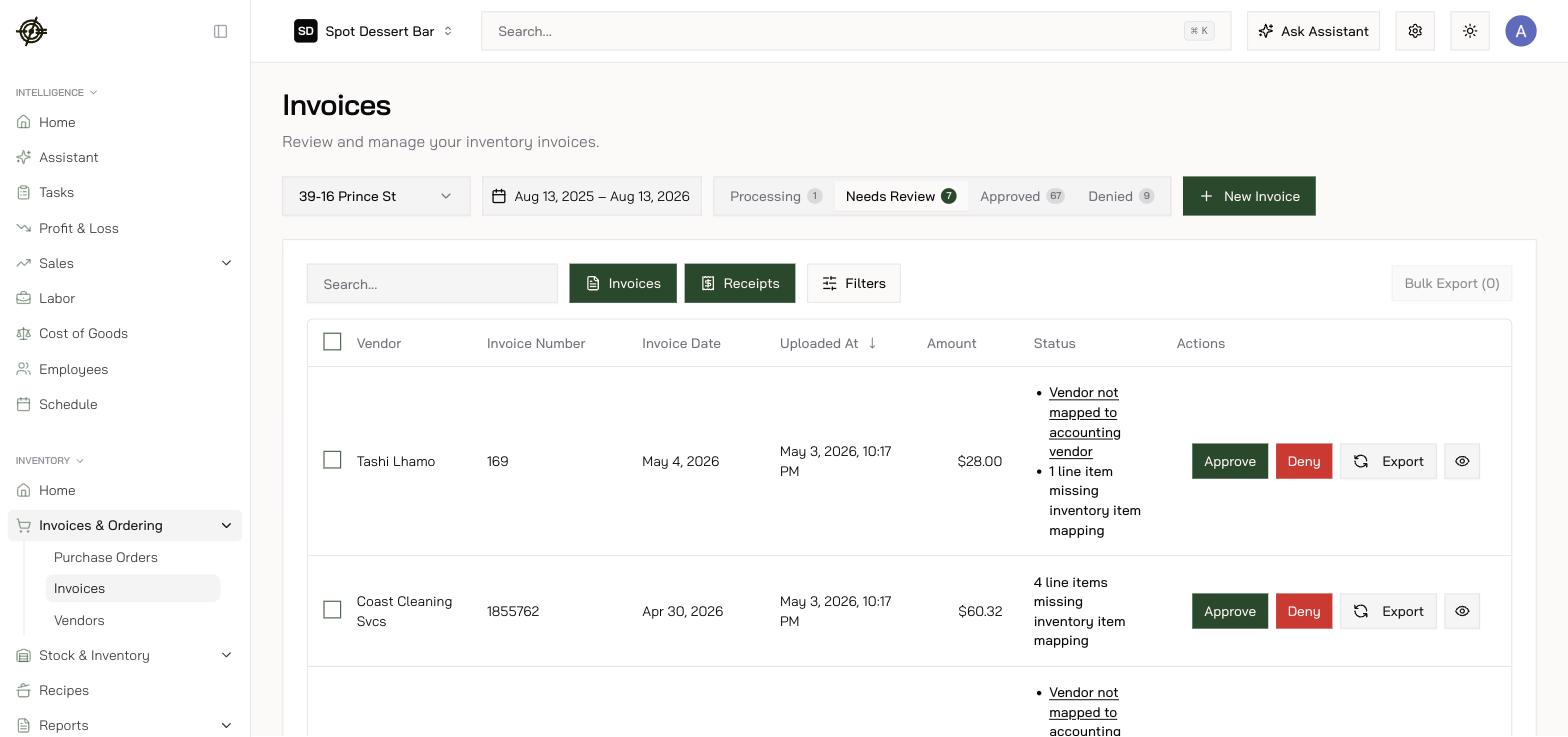 The list is a worklist — four tabs with live counts, next/previous navigation, and the original scan **side by side** with the extracted data (rotate control included for sideways phone photos).
1. Open an invoice in **Needs Review**. Reviewers without accounting access get the guided **Tour** — one line at a time; accounting users land in the full **List View** table.
2. Confirm **Vendor, Invoice Number, Invoice Date, Due Date**.
3. Answer **Record items individually or merge into one?** — choose **Keep items separate** for anything you stock (almost always). **Merge into one item** is only for quickly booking a service or non-COGS expense like pest control or rent.
4. Check each line's match to a **vendor item**; fix quantities and prices. Lines marked **Needs Inventory Item** aren't linked yet — link them or the purchase can't deplete or cost anything. Mixed case on one line? Correct the quantity and press **Add Line Item** to split it across items.
5. Watch the **price-change warnings** — compared against what *this location* last paid, with a **Previous Invoice** link (**View Source Invoice** in the Tour) jumping to the exact past purchase.
6. Confirm the **line-item total matches** the invoice total; add missing lines, discounts, taxes, refunds.
7. Approve — or deny (the uploader is emailed automatically). **Only approved invoices move stock and feed costs**; approved ones export to accounting as bills, and anything blocked names exactly what's missing.
The list is a worklist — four tabs with live counts, next/previous navigation, and the original scan **side by side** with the extracted data (rotate control included for sideways phone photos).
1. Open an invoice in **Needs Review**. Reviewers without accounting access get the guided **Tour** — one line at a time; accounting users land in the full **List View** table.
2. Confirm **Vendor, Invoice Number, Invoice Date, Due Date**.
3. Answer **Record items individually or merge into one?** — choose **Keep items separate** for anything you stock (almost always). **Merge into one item** is only for quickly booking a service or non-COGS expense like pest control or rent.
4. Check each line's match to a **vendor item**; fix quantities and prices. Lines marked **Needs Inventory Item** aren't linked yet — link them or the purchase can't deplete or cost anything. Mixed case on one line? Correct the quantity and press **Add Line Item** to split it across items.
5. Watch the **price-change warnings** — compared against what *this location* last paid, with a **Previous Invoice** link (**View Source Invoice** in the Tour) jumping to the exact past purchase.
6. Confirm the **line-item total matches** the invoice total; add missing lines, discounts, taxes, refunds.
7. Approve — or deny (the uploader is emailed automatically). **Only approved invoices move stock and feed costs**; approved ones export to accounting as bills, and anything blocked names exactly what's missing.
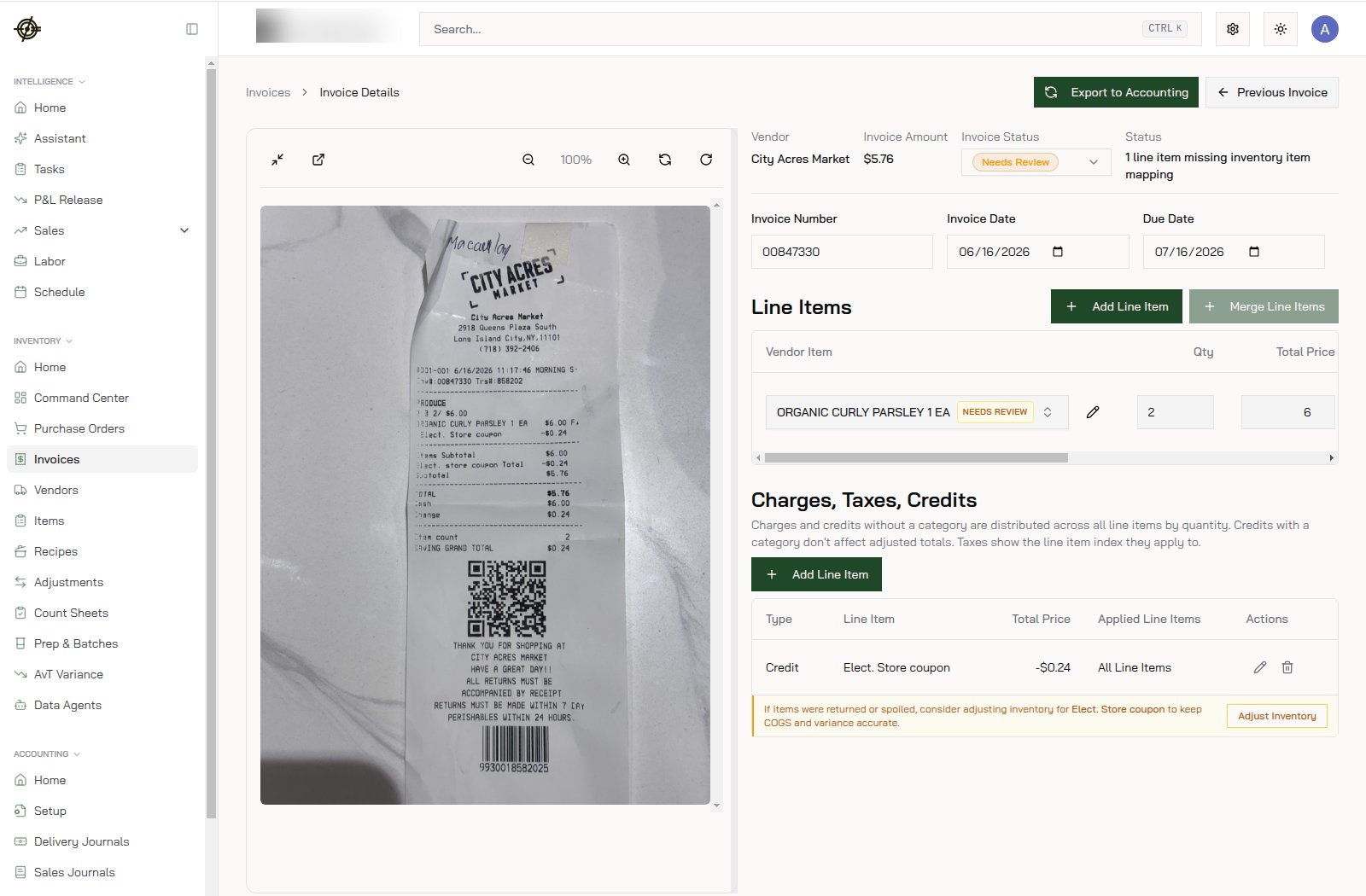 The AI **learns from your corrections** — expect over 95% accuracy after a few weeks. Sharp price changes get flagged so you know which lines to double-check. You can also teach the parser per vendor: see **Vendor Memory** in [Vendors & vendor items](/operating-guide/setup-vendors).