> ## Documentation Index
> Fetch the complete documentation index at: https://guide.garde.app/llms.txt
> Use this file to discover all available pages before exploring further.
# Ordering from Commissary
> How to create, review, and submit a commissary purchase order in Garde.
**Who:** the store manager or whoever places commissary orders.
**When:** your commissary order days — before the warehouse cutoff.
## Creating and Submitting a New Commissary Purchase Order
### 1. Log in to the platform [0:00](https://loom.com/share/06e1c8fe1c0745e2a4fd84843c80b1d4?t=0)
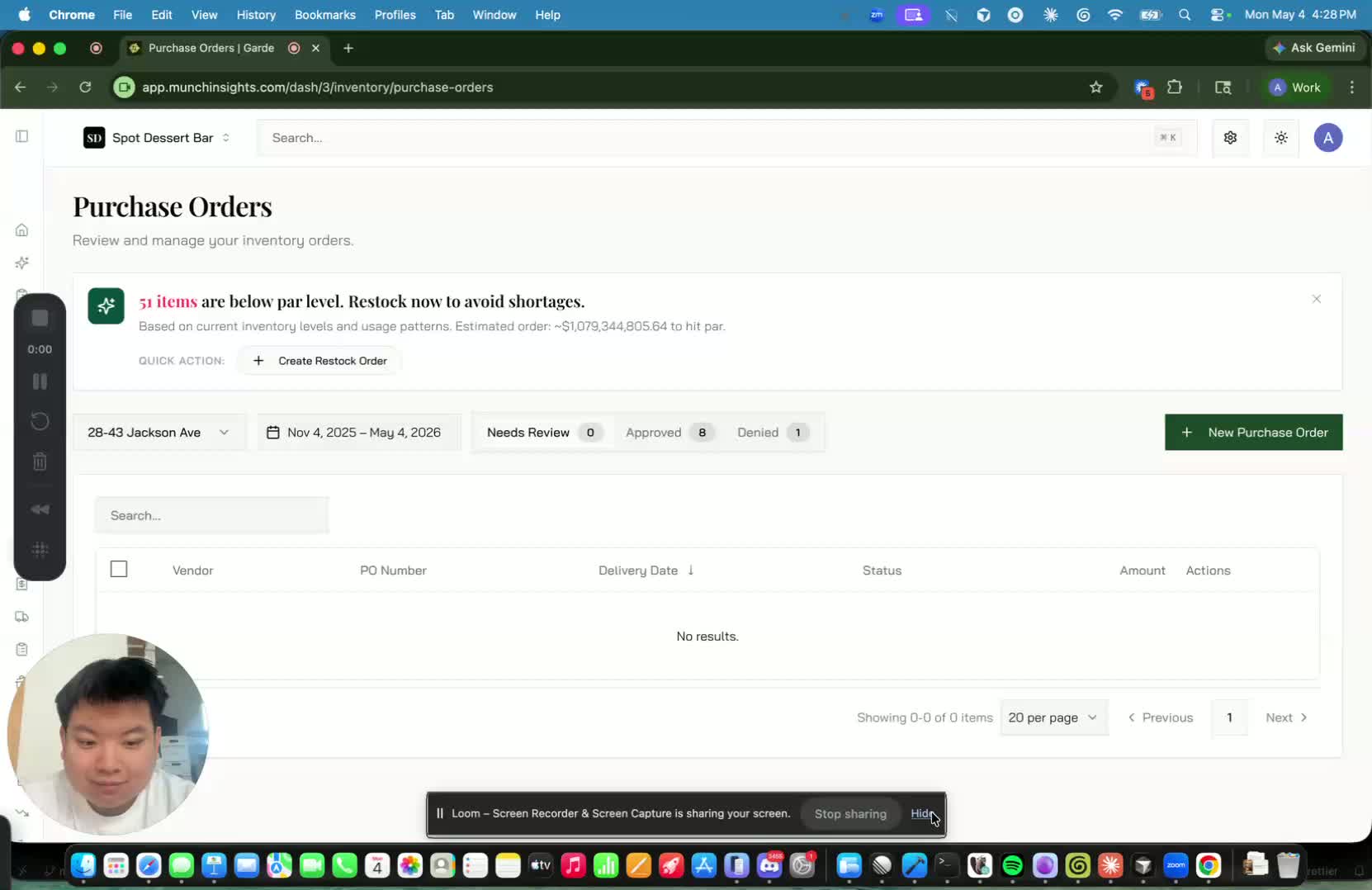
* Open the platform at **app.munchinsights.com**.
* Log in using your assigned credentials.
* Confirm you have access before proceeding to the ordering workflow.
### 2. Navigate to Purchase Orders under Invoices & Ordering [0:17](https://loom.com/share/06e1c8fe1c0745e2a4fd84843c80b1d4?t=17)
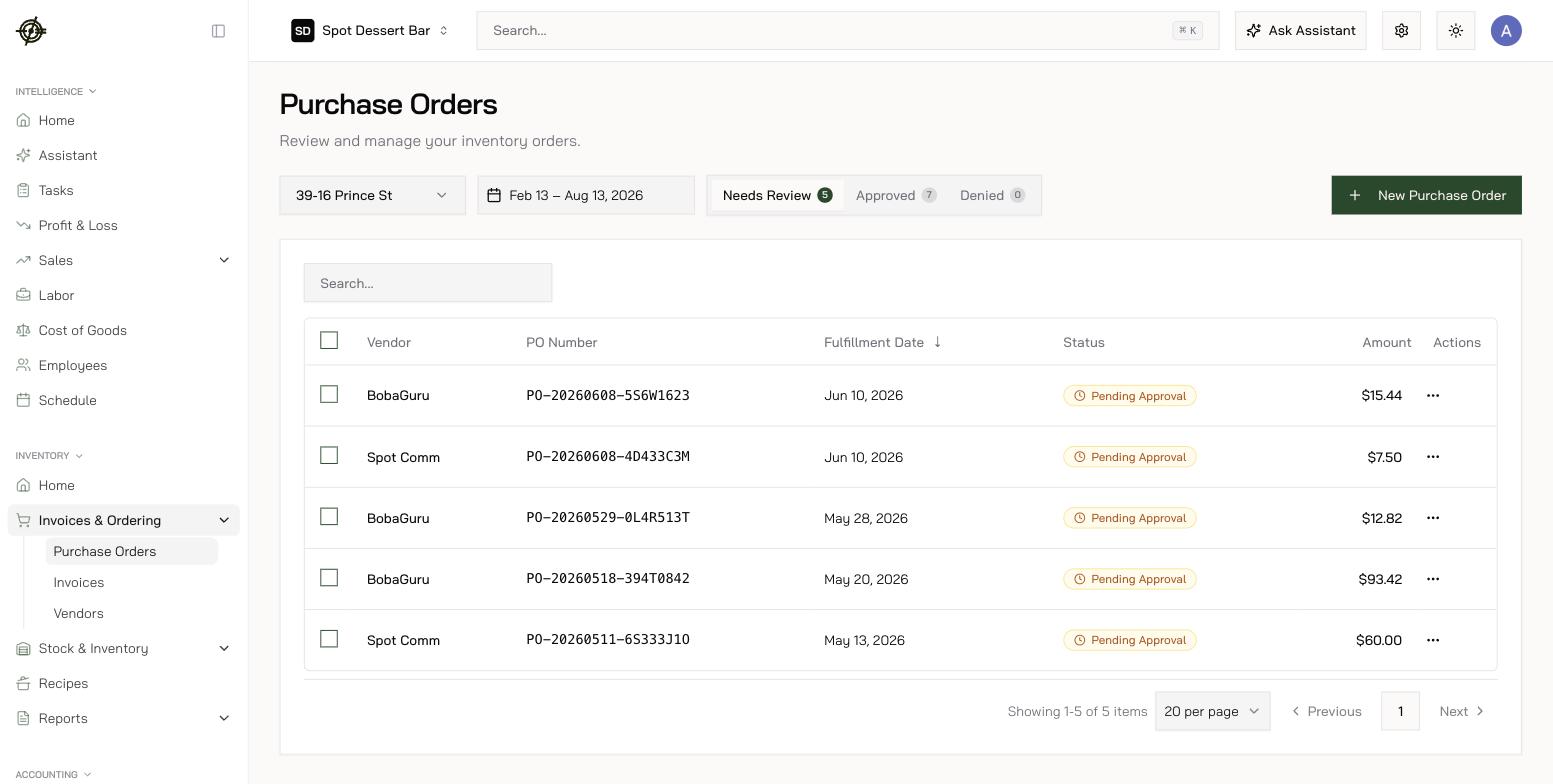 * In the sidebar, open **Inventory → Invoices & Ordering**.
* Select **Purchase Orders**.
* Click **New Purchase Order** on the right side of the screen to begin a new order.
### 3. Review the restock order screen and stock suggestions [0:28](https://loom.com/share/06e1c8fe1c0745e2a4fd84843c80b1d4?t=28)
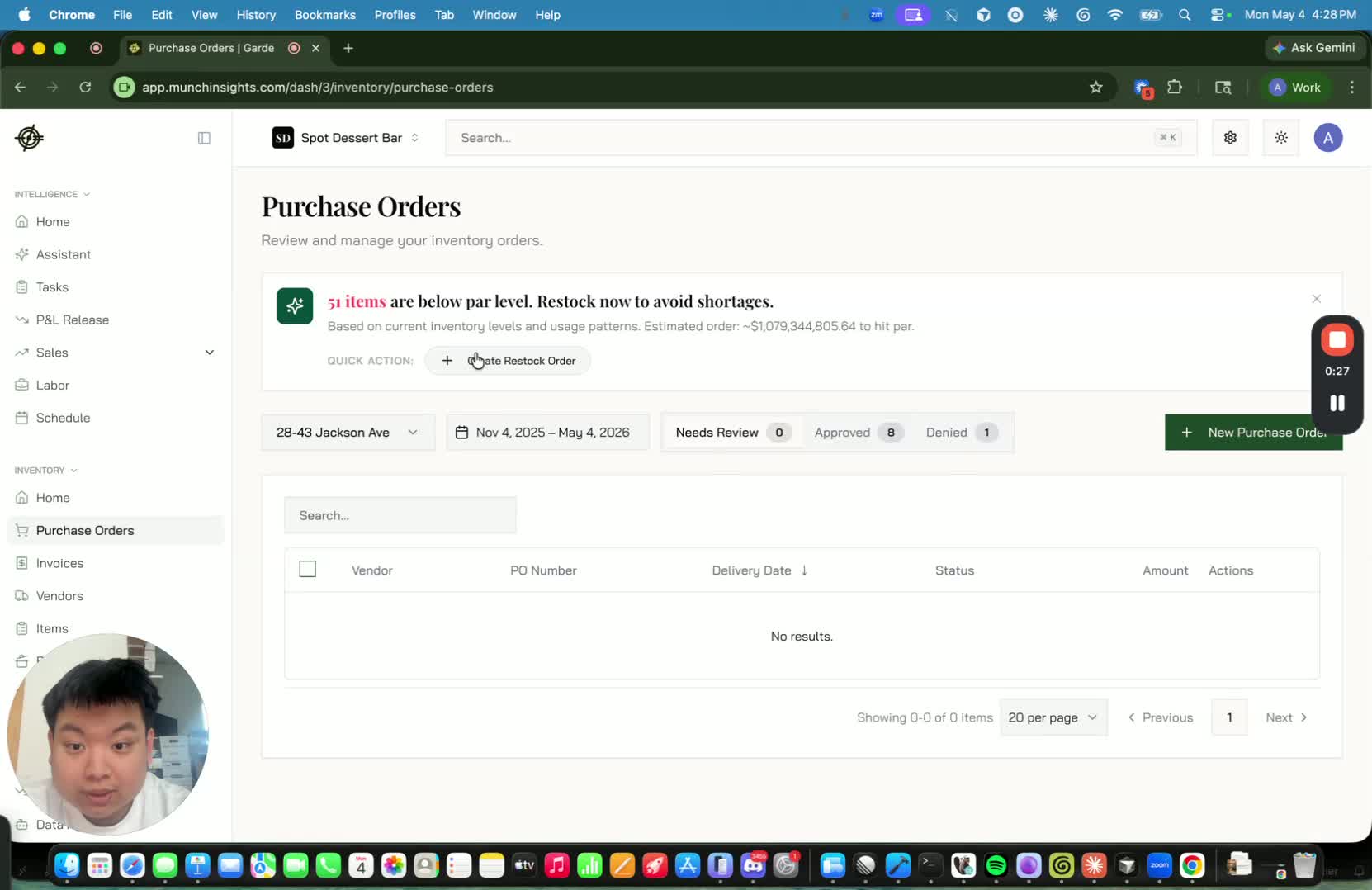
* The system may display a **Create Restock Order** view with suggested stock levels.
* If inventory counts have not yet been entered consistently, the suggested stock values may be inaccurate.
* For the initial rollout period, ignore the suggested stock quantities until the system has had time to learn accurate levels.
### 4. Open the commissary vendor [0:47](https://loom.com/share/06e1c8fe1c0745e2a4fd84843c80b1d4?t=47)
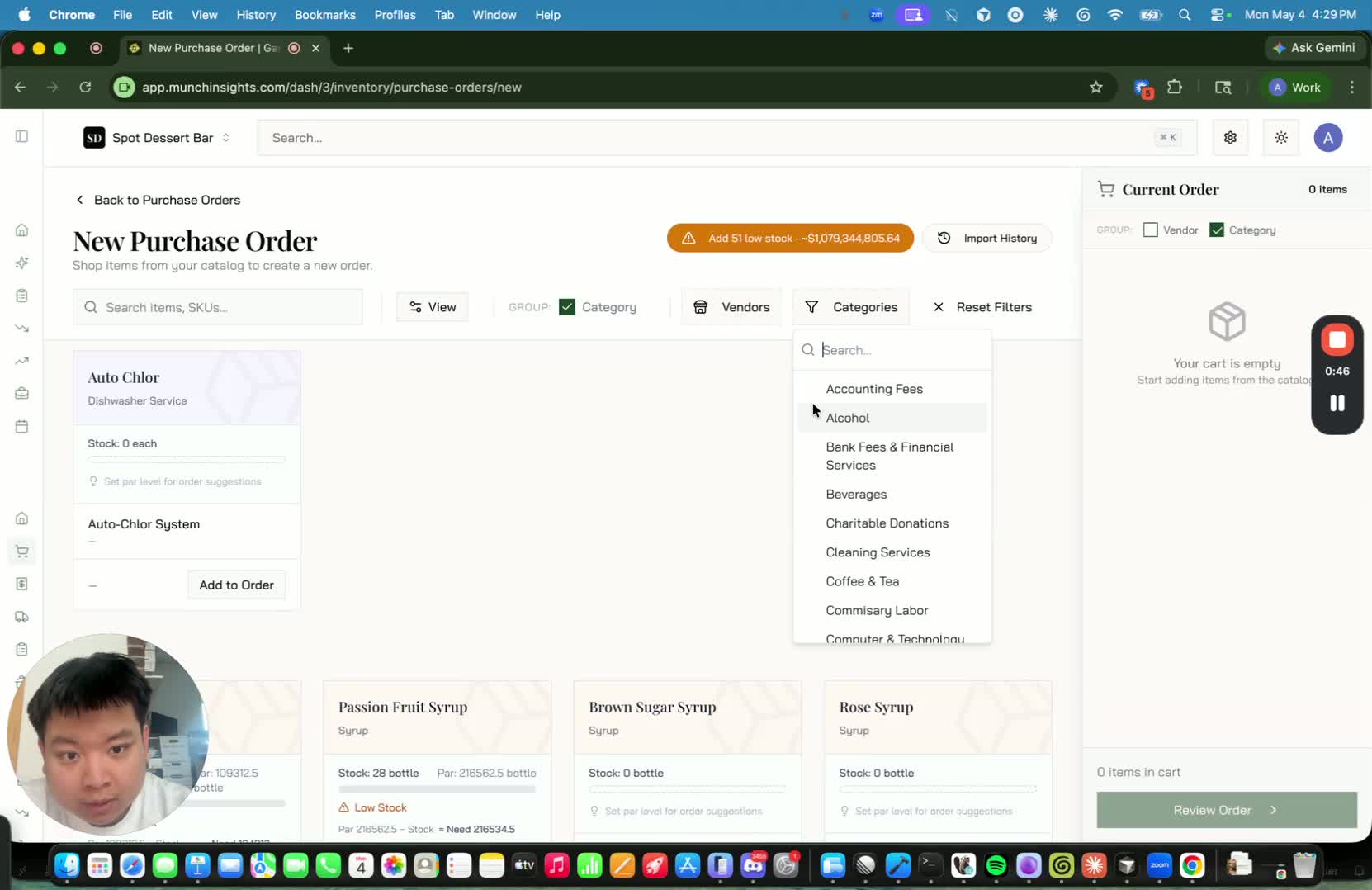
* Go to **Vendors**.
* Select the commissary vendor.
* Select your commissary as the vendor.
### 5. Add items to the order [1:06](https://loom.com/share/06e1c8fe1c0745e2a4fd84843c80b1d4?t=66)
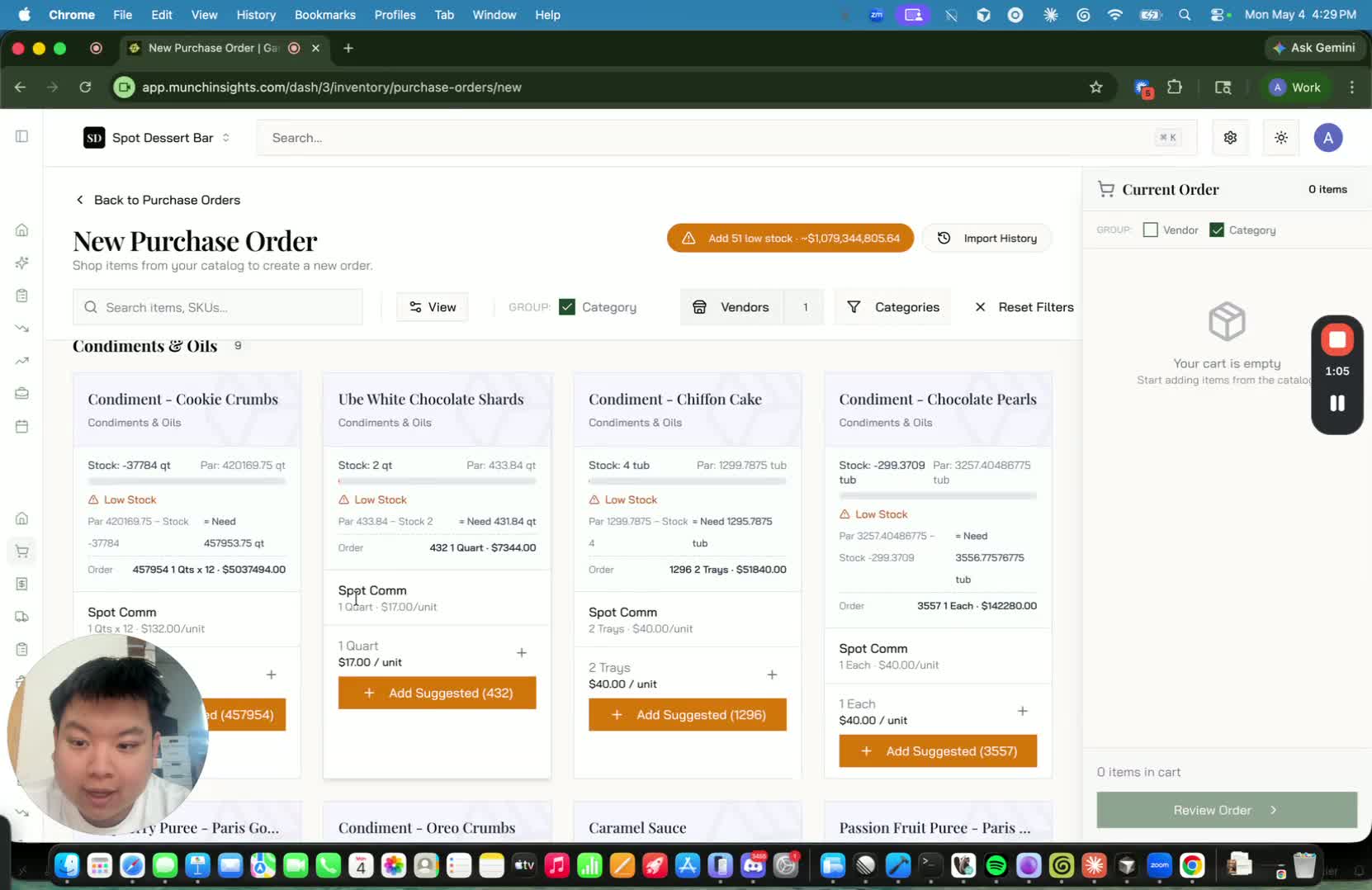
* Add the items you need to the purchase order.
* Enter the quantities required for each item.
* Do not rely on the suggested stock values yet if inventory counts are still being established.
### 6. Place and approve the order [1:14](https://loom.com/share/06e1c8fe1c0745e2a4fd84843c80b1d4?t=74)
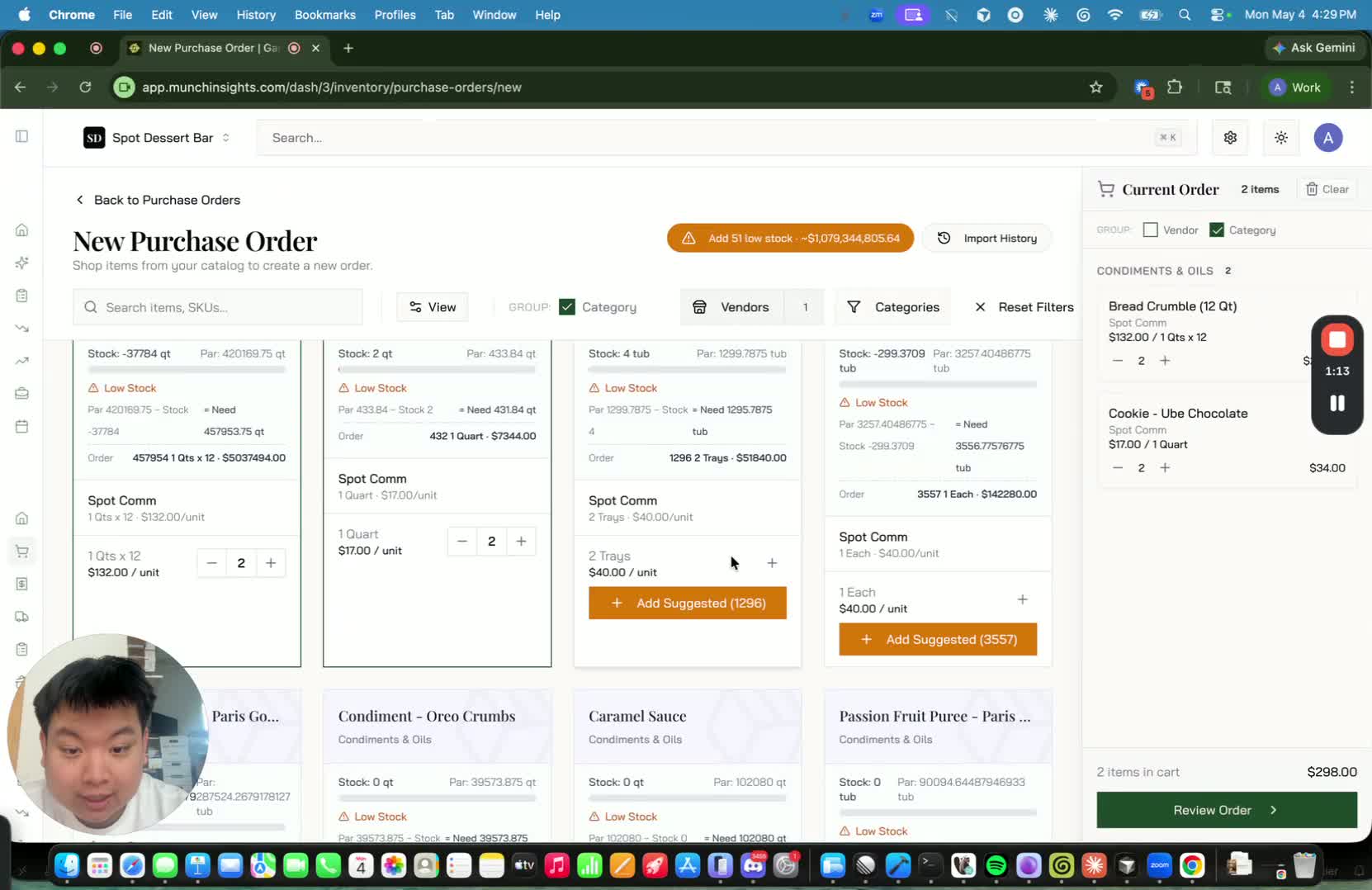
* Once all items and quantities are entered, press **Review Order**, check quantities, then press **Place Orders**.
* Review the order for accuracy.
* If everything looks correct, open the order under **Needs Review** and click **Approve Order** to send it to the commissary.
### 7. Understand the commissary review and fulfillment process [1:20](https://loom.com/share/06e1c8fe1c0745e2a4fd84843c80b1d4?t=80)
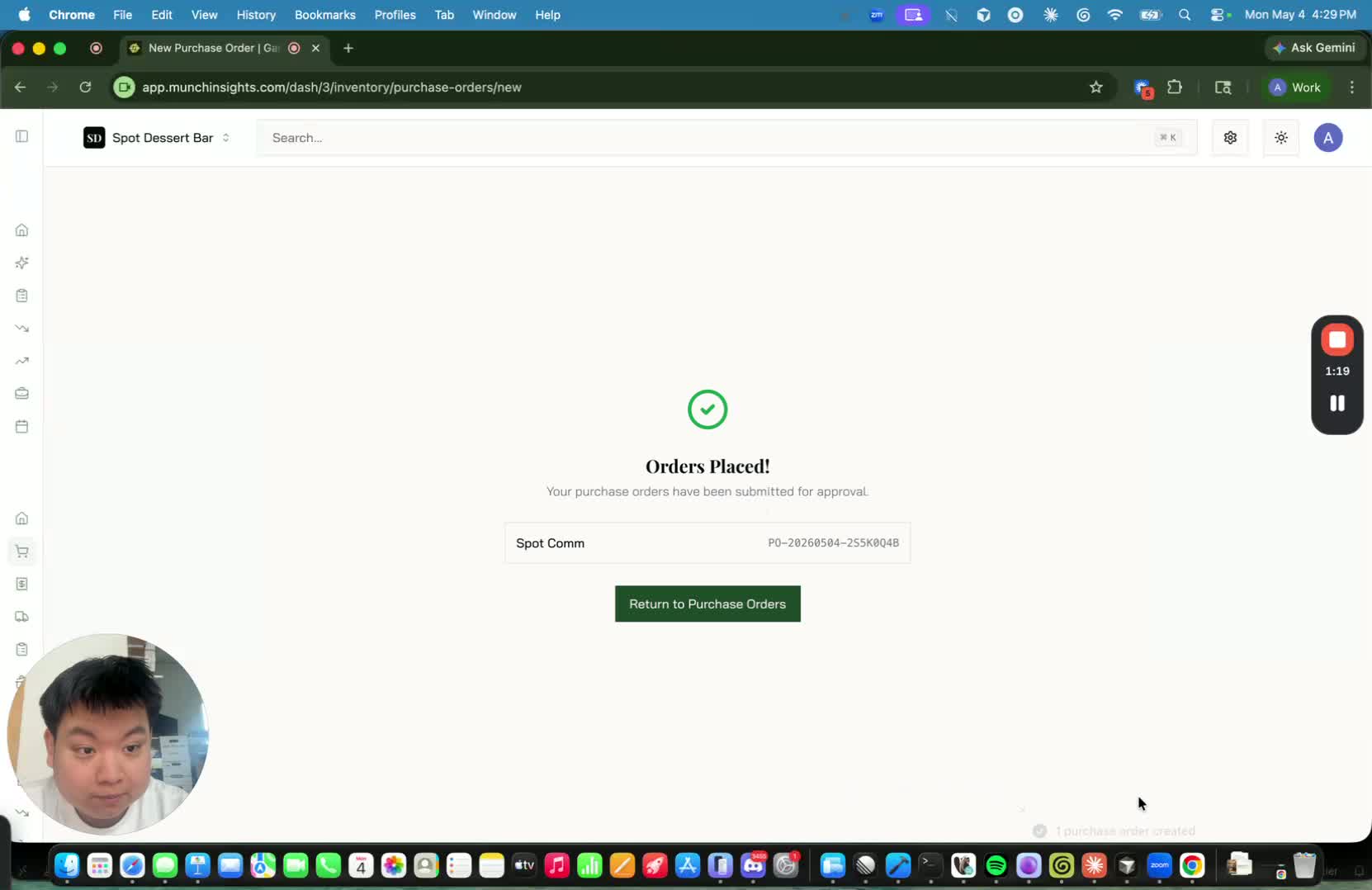
* The commissary will review the order after submission.
* They may **confirm** or **deny** the order (see [Running the commissary](/operating-guide/commissary-running)) — once confirmed, you can no longer edit it.
* If certain items are unavailable, those items may be removed from the order before approval.
### 8. Confirm invoice and inventory updates [1:36](https://loom.com/share/06e1c8fe1c0745e2a4fd84843c80b1d4?t=96)
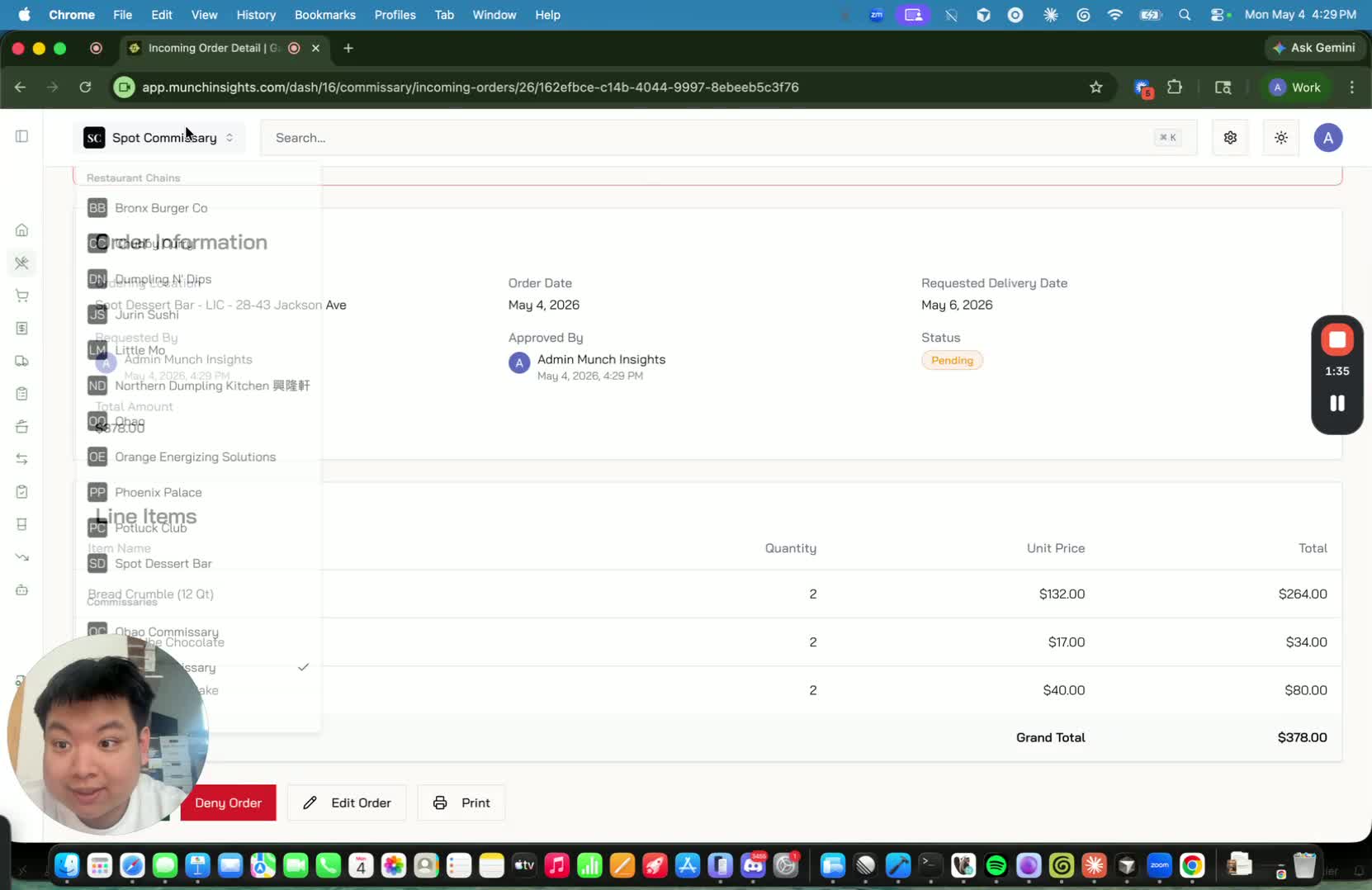
* After approval, the invoice flows automatically into the invoicing system.
* Inventory stock is updated automatically once the invoice is processed.
* This replaces manual forms and helps centralize ordering and accounting.
## Cautionary Notes
**Do not rely on suggested stock levels** until the system has been populated with accurate inventory counts over time. Inventory accuracy may take about a month to stabilize, depending on how consistently counts are entered.
* **This workflow is for your commissary vendor.** For outside vendors, see [Ordering & receiving](/operating-guide/weekly-ordering-receiving).
* **Review the order carefully before approving** to avoid submitting incorrect quantities or items.
* Be aware that the commissary may remove unavailable items before final approval.
## Tips
* Keep a consistent inventory counting routine so suggested stock levels become accurate faster.
* Use the platform instead of manual forms to reduce data entry and accounting errors.
* Verify item quantities before clicking **Approve** to avoid rework.
* Once the system is fully configured, use the centralized ordering workflow to streamline future vendor purchases and stock management.
* In the sidebar, open **Inventory → Invoices & Ordering**.
* Select **Purchase Orders**.
* Click **New Purchase Order** on the right side of the screen to begin a new order.
### 3. Review the restock order screen and stock suggestions [0:28](https://loom.com/share/06e1c8fe1c0745e2a4fd84843c80b1d4?t=28)

* The system may display a **Create Restock Order** view with suggested stock levels.
* If inventory counts have not yet been entered consistently, the suggested stock values may be inaccurate.
* For the initial rollout period, ignore the suggested stock quantities until the system has had time to learn accurate levels.
### 4. Open the commissary vendor [0:47](https://loom.com/share/06e1c8fe1c0745e2a4fd84843c80b1d4?t=47)

* Go to **Vendors**.
* Select the commissary vendor.
* Select your commissary as the vendor.
### 5. Add items to the order [1:06](https://loom.com/share/06e1c8fe1c0745e2a4fd84843c80b1d4?t=66)

* Add the items you need to the purchase order.
* Enter the quantities required for each item.
* Do not rely on the suggested stock values yet if inventory counts are still being established.
### 6. Place and approve the order [1:14](https://loom.com/share/06e1c8fe1c0745e2a4fd84843c80b1d4?t=74)

* Once all items and quantities are entered, press **Review Order**, check quantities, then press **Place Orders**.
* Review the order for accuracy.
* If everything looks correct, open the order under **Needs Review** and click **Approve Order** to send it to the commissary.
### 7. Understand the commissary review and fulfillment process [1:20](https://loom.com/share/06e1c8fe1c0745e2a4fd84843c80b1d4?t=80)

* The commissary will review the order after submission.
* They may **confirm** or **deny** the order (see [Running the commissary](/operating-guide/commissary-running)) — once confirmed, you can no longer edit it.
* If certain items are unavailable, those items may be removed from the order before approval.
### 8. Confirm invoice and inventory updates [1:36](https://loom.com/share/06e1c8fe1c0745e2a4fd84843c80b1d4?t=96)

* After approval, the invoice flows automatically into the invoicing system.
* Inventory stock is updated automatically once the invoice is processed.
* This replaces manual forms and helps centralize ordering and accounting.
## Cautionary Notes
**Do not rely on suggested stock levels** until the system has been populated with accurate inventory counts over time. Inventory accuracy may take about a month to stabilize, depending on how consistently counts are entered.
* **This workflow is for your commissary vendor.** For outside vendors, see [Ordering & receiving](/operating-guide/weekly-ordering-receiving).
* **Review the order carefully before approving** to avoid submitting incorrect quantities or items.
* Be aware that the commissary may remove unavailable items before final approval.
## Tips
* Keep a consistent inventory counting routine so suggested stock levels become accurate faster.
* Use the platform instead of manual forms to reduce data entry and accounting errors.
* Verify item quantities before clicking **Approve** to avoid rework.
* Once the system is fully configured, use the centralized ordering workflow to streamline future vendor purchases and stock management.