> ## Documentation Index
> Fetch the complete documentation index at: https://guide.garde.app/llms.txt
> Use this file to discover all available pages before exploring further.
# Ordering & receiving
> Purchase orders with suggested quantities, approvals, and the receiving log.
**Who:** anyone can build an order; managers approve and send.
**When:** your vendor order days — typically 1–3 times a week.
## Place an order
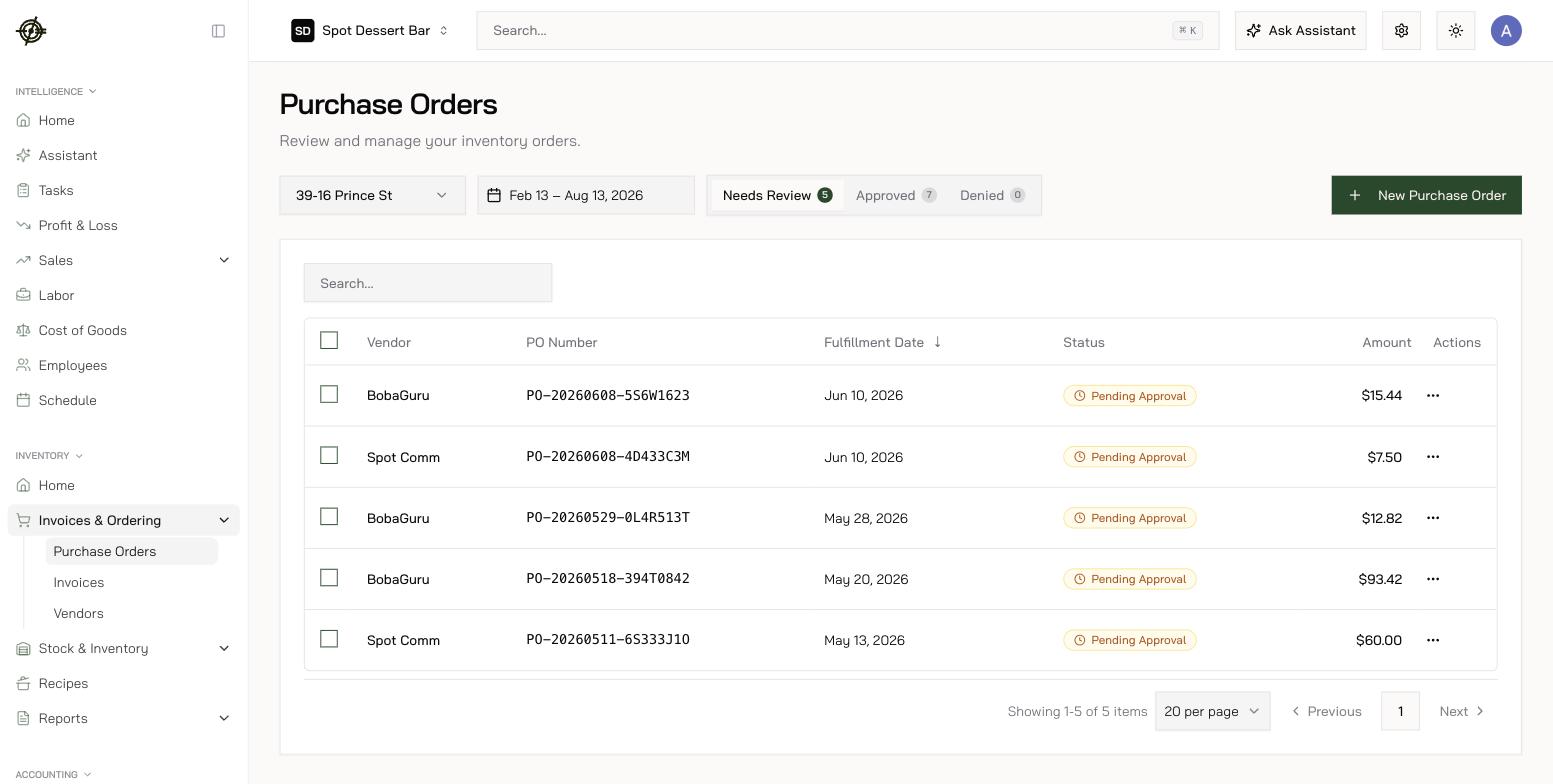 1. Go to **Inventory → Invoices & Ordering → Purchase Orders** and press **New Purchase Order** — or start from a saved **template**, so the weekly order is a review rather than a rebuild. Ordering works from the [Garde app](/mobile/inventory#place-a-purchase-order) too — build the order standing in front of the shelf, not from memory at a desk.
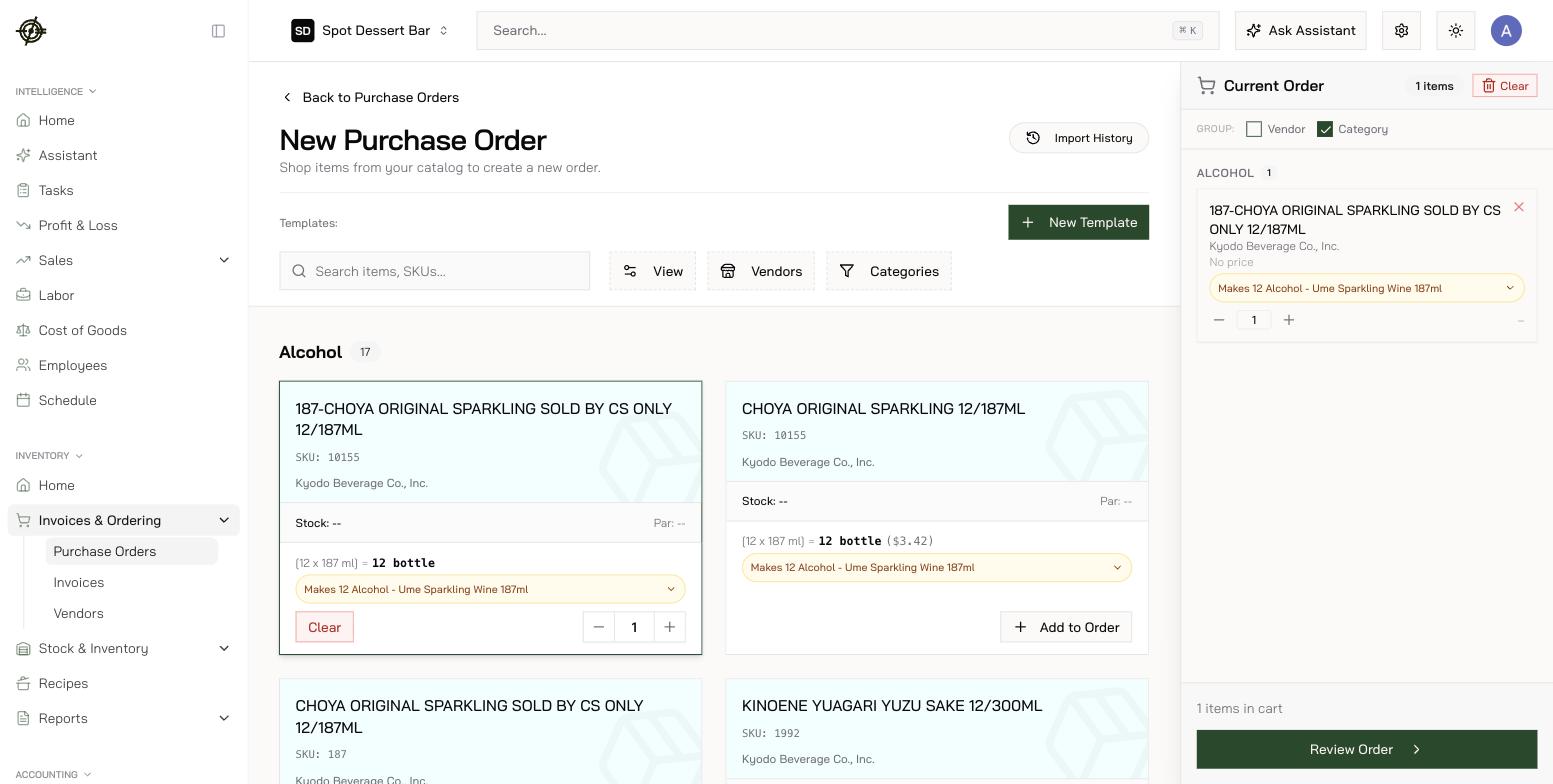
2. Shop the catalog — it covers your vendors and your commissary alike (see [Ordering from commissary](/operating-guide/ordering-from-commissary)). Each card shows the pack, price, stock vs par, and for prep ingredients, batches per pack. When Garde has usage data, **Add Suggested** fills a card's quantity for you — or add everything flagged **Low Stock** in one press.
3. **Add to Order** builds the **Current Order** panel on the right — group it by vendor or category, adjust quantities inline.
4. Press **Review Order**, check quantities and totals, submit.
5. Non-managers' orders wait for approval; managers can approve and send on the spot.
1. Go to **Inventory → Invoices & Ordering → Purchase Orders** and press **New Purchase Order** — or start from a saved **template**, so the weekly order is a review rather than a rebuild. Ordering works from the [Garde app](/mobile/inventory#place-a-purchase-order) too — build the order standing in front of the shelf, not from memory at a desk.
2. Shop the catalog — it covers your vendors and your commissary alike (see [Ordering from commissary](/operating-guide/ordering-from-commissary)). Each card shows the pack, price, stock vs par, and for prep ingredients, batches per pack. When Garde has usage data, **Add Suggested** fills a card's quantity for you — or add everything flagged **Low Stock** in one press.
3. **Add to Order** builds the **Current Order** panel on the right — group it by vendor or category, adjust quantities inline.
4. Press **Review Order**, check quantities and totals, submit.
5. Non-managers' orders wait for approval; managers can approve and send on the spot.
 ## Send and track
* **In-network vendors** (including your commissary) get the order electronically in their own Garde dashboard.
* Everyone else gets it by **SMS or email** via **Send to Vendor**.
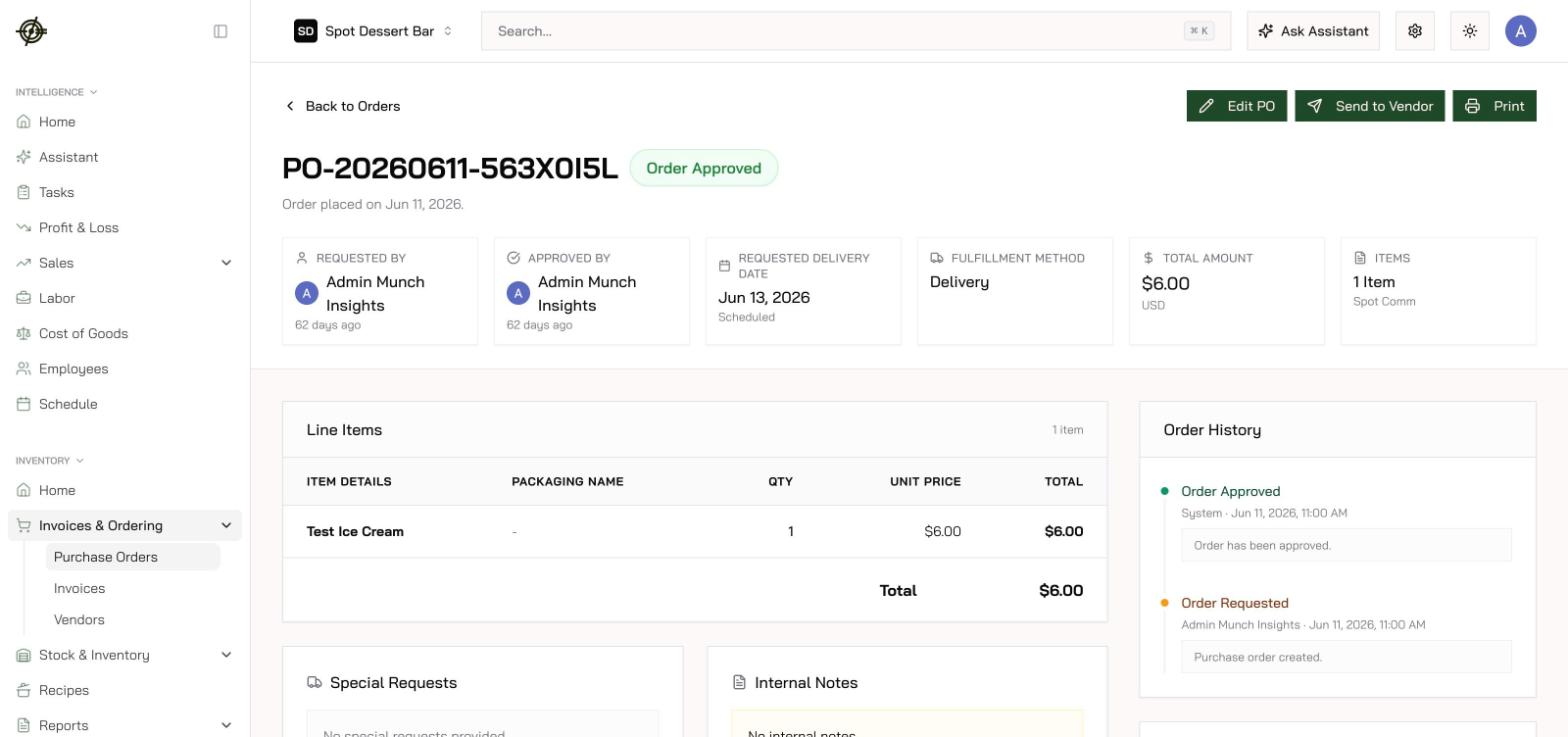
* The order's **history timeline** tracks created → approved → vendor confirmed → delivered. **Cancel** or **Decline** before acceptance if plans change.
## Send and track
* **In-network vendors** (including your commissary) get the order electronically in their own Garde dashboard.
* Everyone else gets it by **SMS or email** via **Send to Vendor**.
* The order's **history timeline** tracks created → approved → vendor confirmed → delivered. **Cancel** or **Decline** before acceptance if plans change.
 Commissary orders **can't be edited by the store once the warehouse accepts them**. Get changes in before the cutoff, or call the warehouse.
## Receive — Goods Receipts
If receiving is enabled for your chain, every delivery is logged against its PO:
1. **Inventory → Invoices & Ordering → Goods Receipts** is the receiving log.
2. Open a delivery — or press **Received** on the purchase order to start one — and record what actually arrived: shorts and substitutions get captured instead of lost.
3. **Match each receipt to its invoice** when the bill lands — Garde keeps a list of receipts still unreconciled against an invoice, closing the ordered → received → billed loop.
Confirming a receipt adds the goods to your stock **immediately**. If the same delivery's invoice is processed without matching, that stock lands twice.
Auto-approval can be enabled per location (**Settings → Chain Settings → Auto-Approve Purchase Orders**) — convenient, but only where you trust every orderer.
Commissary orders **can't be edited by the store once the warehouse accepts them**. Get changes in before the cutoff, or call the warehouse.
## Receive — Goods Receipts
If receiving is enabled for your chain, every delivery is logged against its PO:
1. **Inventory → Invoices & Ordering → Goods Receipts** is the receiving log.
2. Open a delivery — or press **Received** on the purchase order to start one — and record what actually arrived: shorts and substitutions get captured instead of lost.
3. **Match each receipt to its invoice** when the bill lands — Garde keeps a list of receipts still unreconciled against an invoice, closing the ordered → received → billed loop.
Confirming a receipt adds the goods to your stock **immediately**. If the same delivery's invoice is processed without matching, that stock lands twice.
Auto-approval can be enabled per location (**Settings → Chain Settings → Auto-Approve Purchase Orders**) — convenient, but only where you trust every orderer.