> ## Documentation Index
> Fetch the complete documentation index at: https://guide.garde.app/llms.txt
> Use this file to discover all available pages before exploring further.
# Building the schedule
> Copy last week or let the AI draft it — review, accept, publish.
**Who:** the GM or whoever owns the schedule.
**When:** once a week, before the week starts.
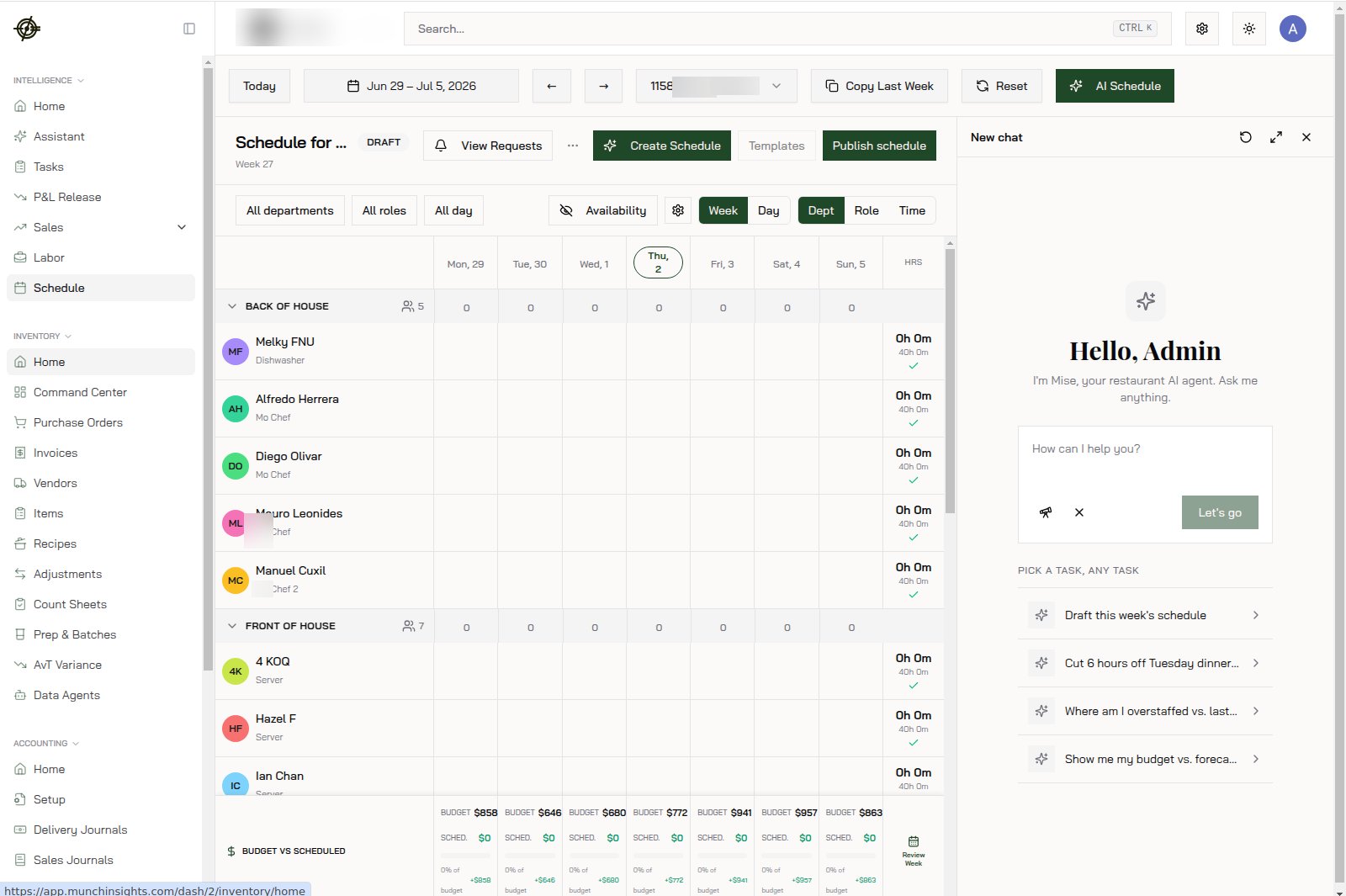
Go to **Schedule**. You get a week grid per location — group rows by department, role, or time, or switch to **Day** view for hour-by-hour **Coverage** with peak markers.
 ## The fast path
1. **Copy Last Week** if your schedule is stable — then adjust.
2. Or press **Create Schedule** and let the **AI draft it**: add constraints in plain English (*"Sarah can't work Sunday brunch. Extra bar coverage Friday night."*), press **Generate**. Skip the priority checkboxes for now — selections save, but weighting isn't applied yet.
3. The draft appears as a banner with the shift count and any **overtime risks** flagged. **Accept schedule** — or **Revert** to throw it away.
4. **Publish schedule** — employees only see a published schedule, in the [Garde app](/mobile/schedule).
## Requests
**View Requests** shows the pending queue — **Availability**, **Time Off**, **Shift Changes**. Clear it *before* building the week, not after.
## Guardrails
In **Schedule Settings**, set your **Daily Labor Budget %** per day of week — the labor-cost target (as a share of forecasted sales) the AI schedules against.
[Home](/dashboard/home) and [Labor](/dashboard/labor) read **actual worked hours from your POS** — not the schedule. The schedule is the plan you hold those pages against: the **Budget vs Scheduled** breakdown shows what the week costs before you commit.
## The fast path
1. **Copy Last Week** if your schedule is stable — then adjust.
2. Or press **Create Schedule** and let the **AI draft it**: add constraints in plain English (*"Sarah can't work Sunday brunch. Extra bar coverage Friday night."*), press **Generate**. Skip the priority checkboxes for now — selections save, but weighting isn't applied yet.
3. The draft appears as a banner with the shift count and any **overtime risks** flagged. **Accept schedule** — or **Revert** to throw it away.
4. **Publish schedule** — employees only see a published schedule, in the [Garde app](/mobile/schedule).
## Requests
**View Requests** shows the pending queue — **Availability**, **Time Off**, **Shift Changes**. Clear it *before* building the week, not after.
## Guardrails
In **Schedule Settings**, set your **Daily Labor Budget %** per day of week — the labor-cost target (as a share of forecasted sales) the AI schedules against.
[Home](/dashboard/home) and [Labor](/dashboard/labor) read **actual worked hours from your POS** — not the schedule. The schedule is the plan you hold those pages against: the **Budget vs Scheduled** breakdown shows what the week costs before you commit.