Creating and Submitting a New Commissary Purchase Order
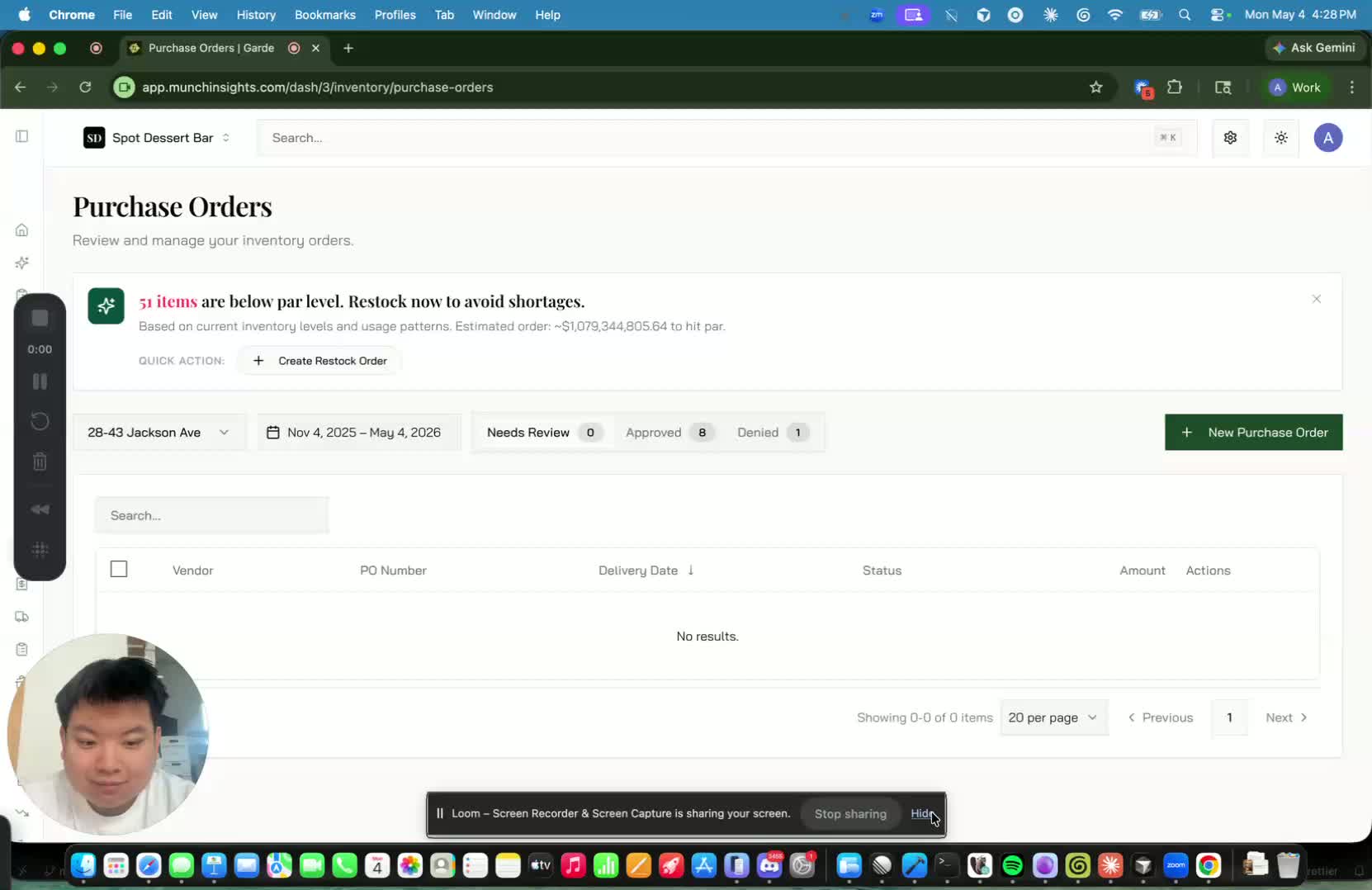
- Open the platform at app.munchinsights.com.
- Log in using your assigned credentials.
- Confirm you have access before proceeding to the ordering workflow.
2. Navigate to Purchase Order under Inventory 0:17

- From the main navigation bar, locate Inventory.
- Select Purchase Order from the Inventory menu.
- Click New Purchase Order on the right side of the screen to begin a new order.
3. Review the restock order screen and stock suggestions 0:28
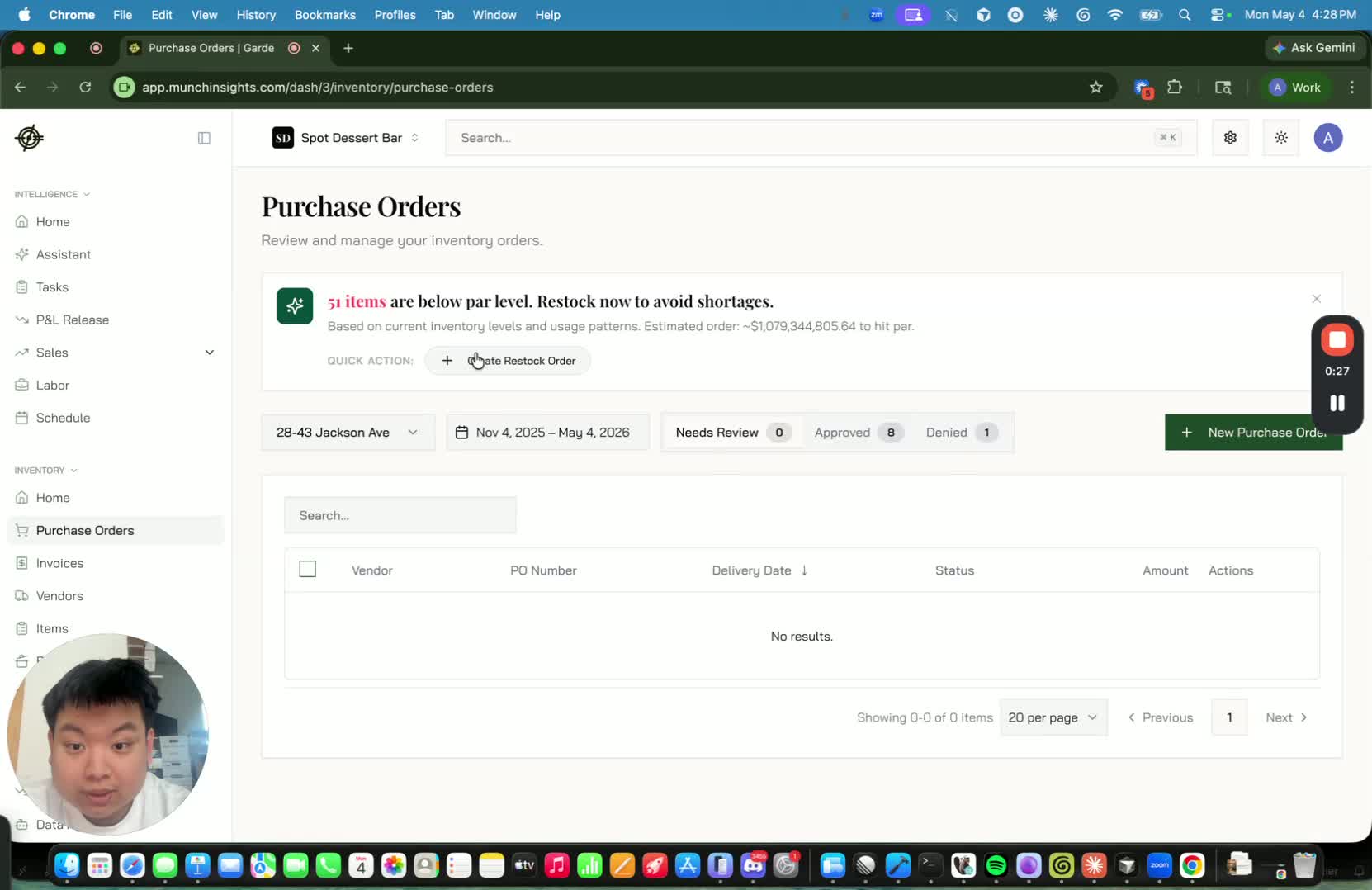
- The system may display a Create Restock Order view with suggested stock levels.
- If inventory counts have not yet been entered consistently, the suggested stock values may be inaccurate.
- For the initial rollout period, ignore the suggested stock quantities until the system has had time to learn accurate levels.
4. Open the commissary vendor 0:47
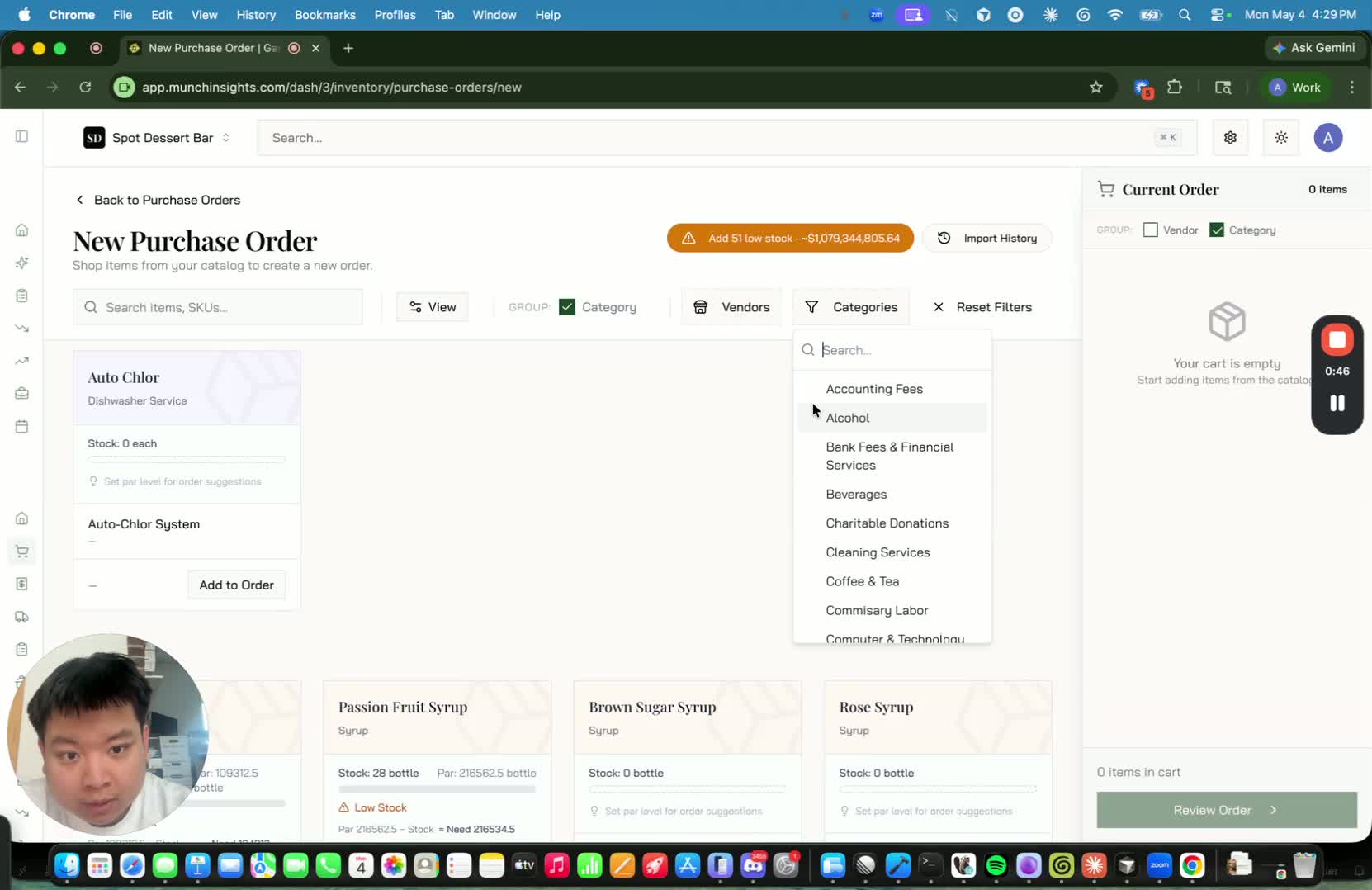
- Go to Vendors.
- Select the commissary vendor.
- Use the commissary as the ordering source for now, since this is the current supported vendor workflow.
5. Add items to the order 1:06
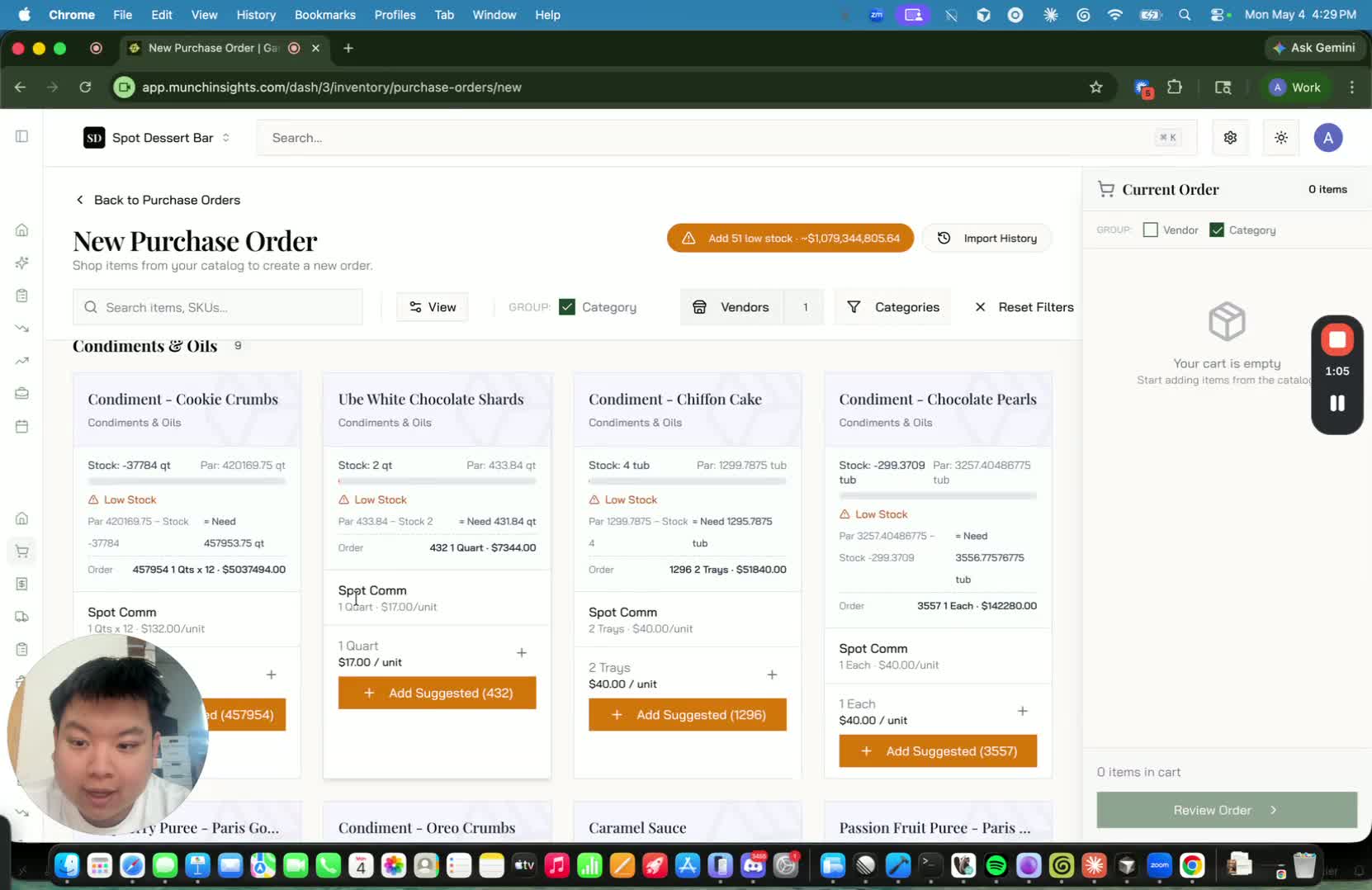
- Add the items you need to the purchase order.
- Enter the quantities required for each item.
- Do not rely on the suggested stock values yet if inventory counts are still being established.
6. Place and approve the order 1:14
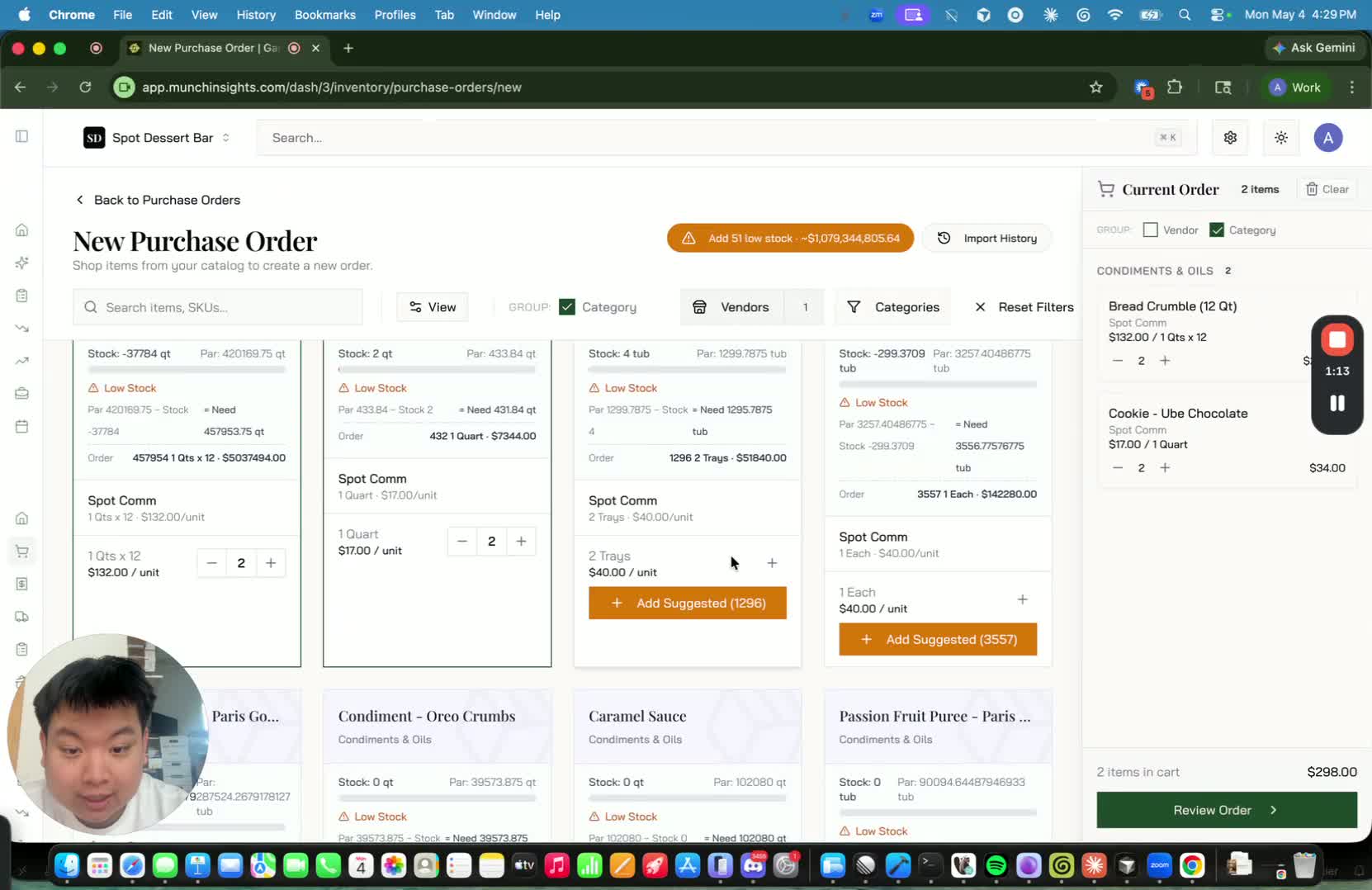
- Once all items and quantities are entered, click Place Order.
- Review the order for accuracy.
- If everything looks correct, click Approve to send the order to the commissary.
7. Understand the commissary review and fulfillment process 1:20
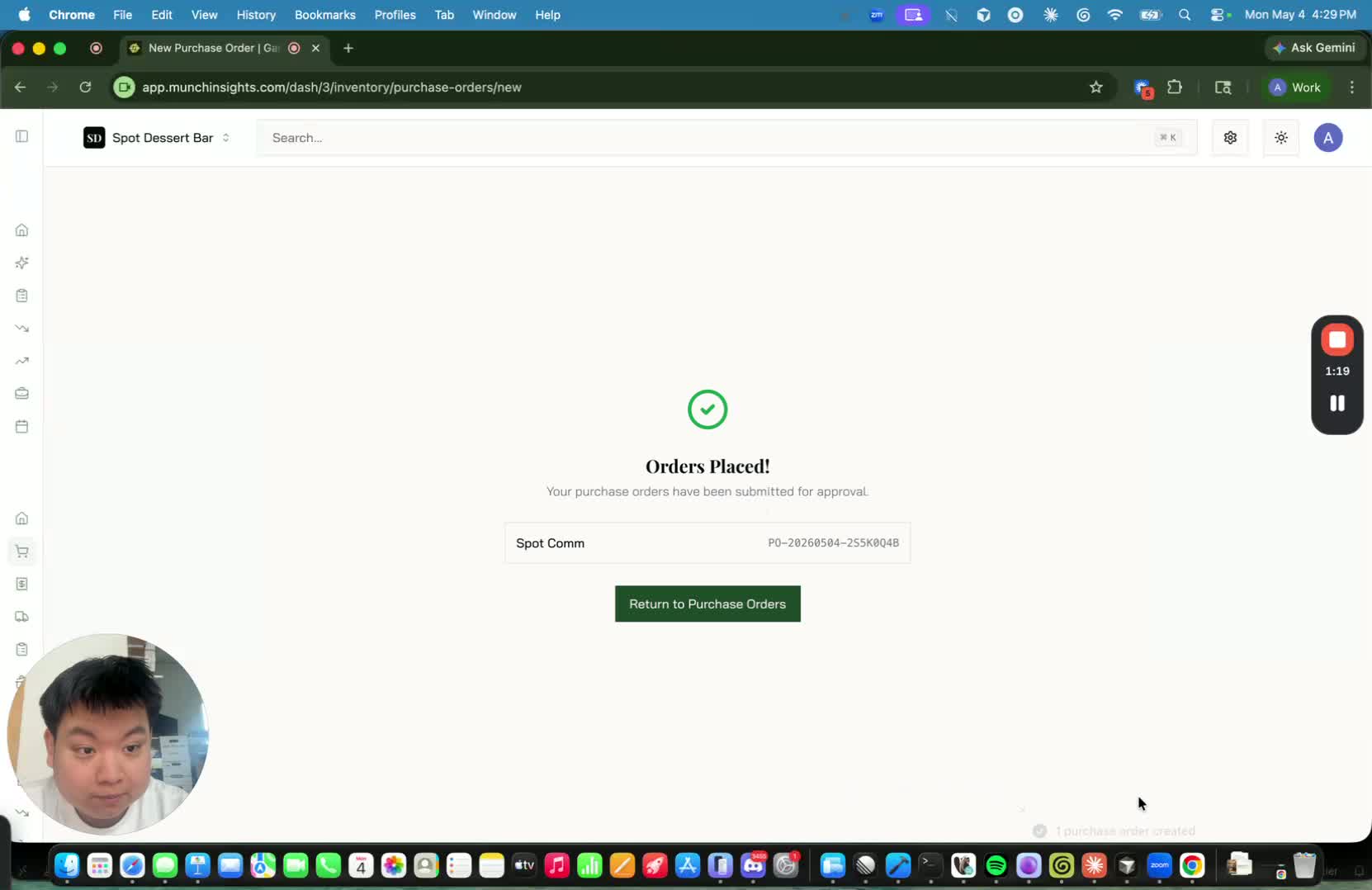
- The commissary will review the order after submission.
- They may approve or deny the order.
- If certain items are unavailable, those items may be removed from the order before approval.
8. Confirm invoice and inventory updates 1:36
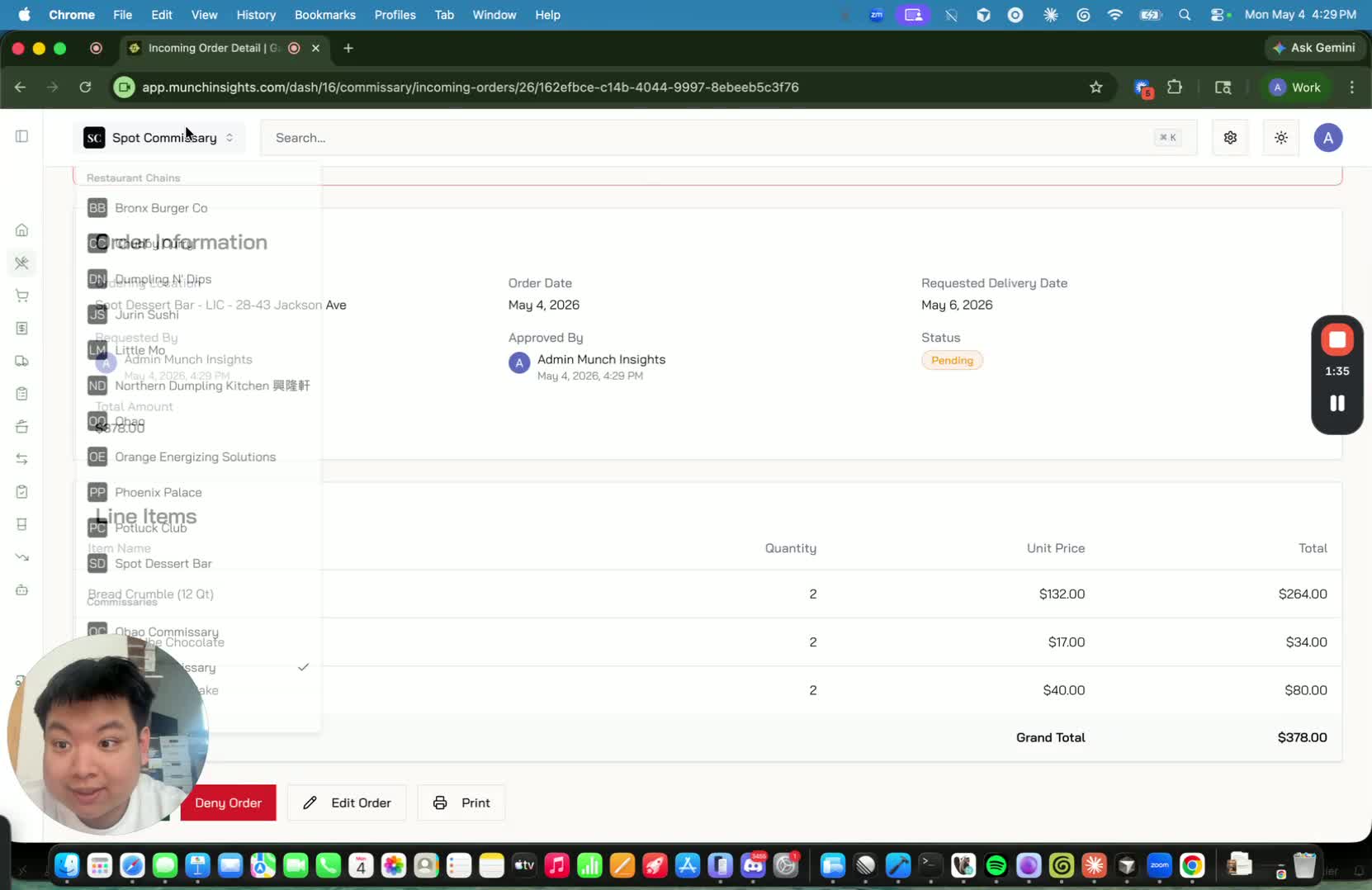
- After approval, the invoice flows automatically into the invoicing system.
- Inventory stock is updated automatically once the invoice is processed.
- This replaces manual forms and helps centralize ordering and accounting.
Cautionary Notes
Do not rely on suggested stock levels until the system has been populated with accurate inventory counts over time. Inventory accuracy may take about a month to stabilize, depending on how consistently counts are entered.
- Only use the commissary vendor for this workflow until additional vendors are enabled.
- Review the order carefully before approving to avoid submitting incorrect quantities or items.
- Be aware that the commissary may remove unavailable items before final approval.
Tips
- Keep a consistent inventory counting routine so suggested stock levels become accurate faster.
- Use the platform instead of manual forms to reduce data entry and accounting errors.
- Verify item quantities before clicking Approve to avoid rework.
- Once the system is fully configured, use the centralized ordering workflow to streamline future vendor purchases and stock management.

