

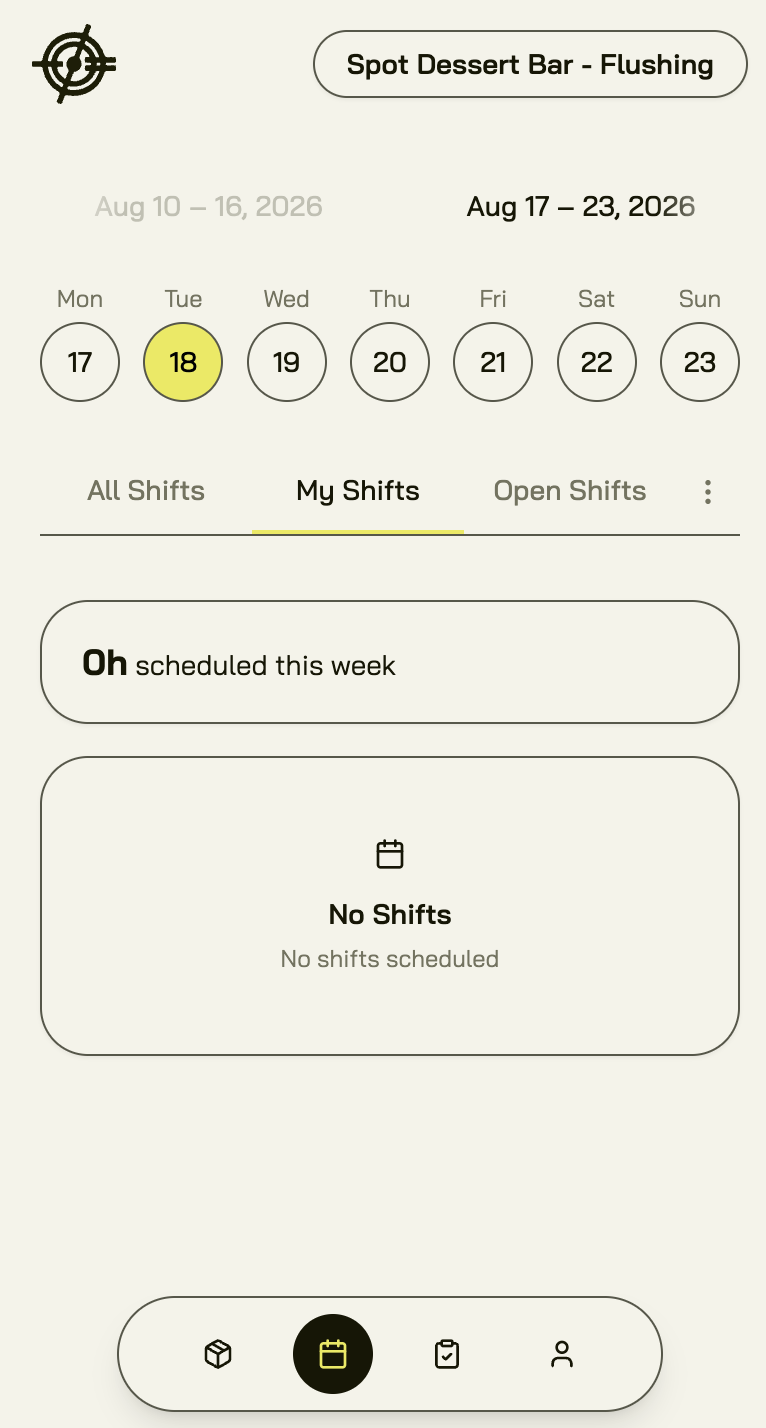
Check your shifts
The schedule home shows your shifts for the week. Switch weeks to look ahead. Working at more than one location? Use the location switcher at the top to change stores.Pick up an open shift
Open shifts are shifts nobody owns yet.- Find the open shift in the weekly view.
- Tap it and claim it.
- It’s yours once a manager approves it (where approval is required).
Give away or trade a shift
Can’t make a shift? Handle it in the app, not over text.- Tap the shift you can’t work.
- Offer it to coworkers, or trade it for one of theirs.
- The app shows conflicts before you submit, so you can’t trade into a double-booking.
- Wait for the coworker (and manager) to accept.
Set your availability
Tell managers when you can work before the schedule is built, not after.- Go to Schedule → Availability.
- Set your available days and times. Mark full days if you’re open all day.
- Submit. Your request stays pending until a manager approves it.
Request time off
- Go to Schedule → Time off.
- Pick a single day or a date range.
- Choose the type: paid, unpaid, sick, or other.
- Add a note if the manager needs context.
- Submit and watch the status: pending, approved, or denied.