

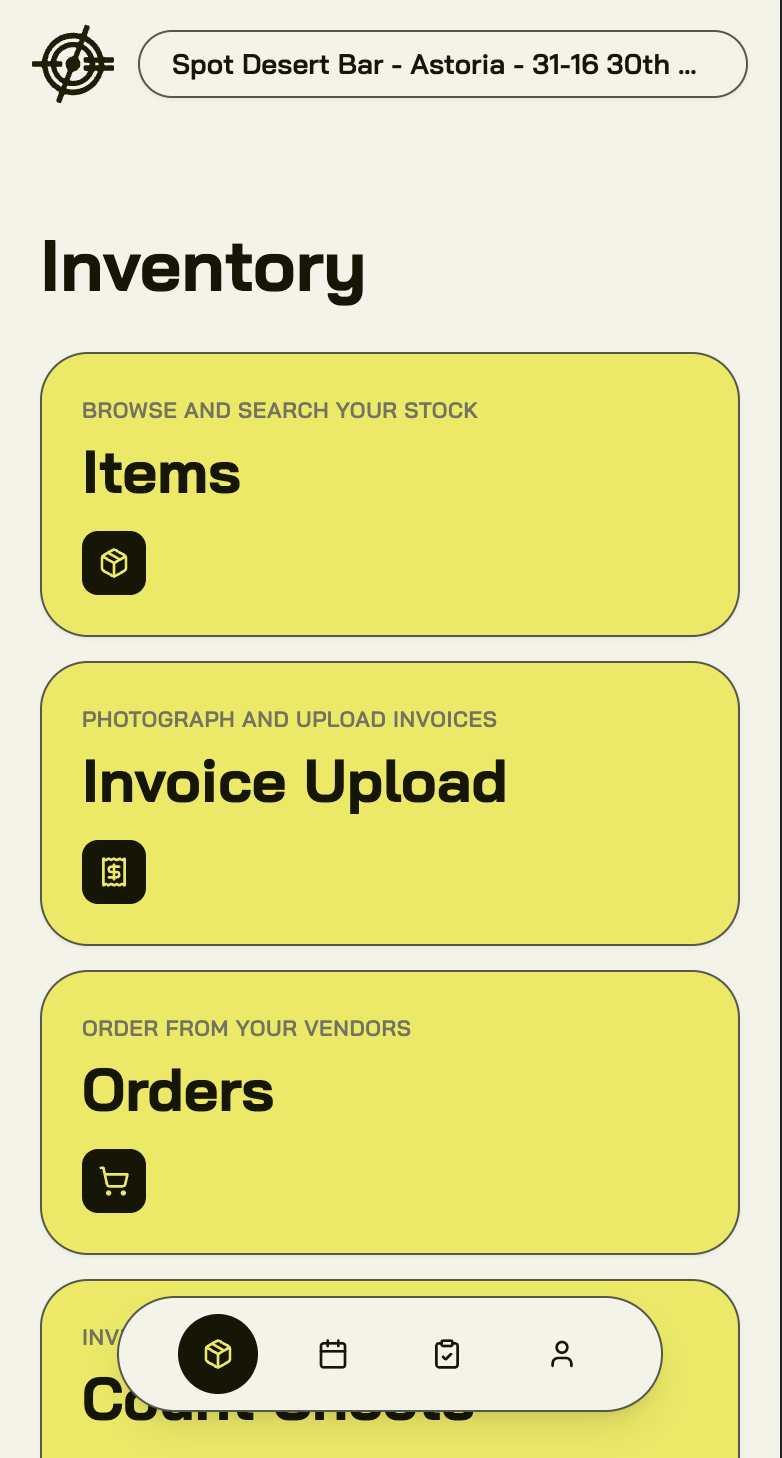
Upload an invoice
Do this the moment the delivery hits the door. Don’t let paper pile up.- Open Inventory and tap Invoice Upload.
- Take photos of the invoice, or pick a PDF from your phone.
- Multi-page invoice? Photograph every page before you submit.
- Submit it. Parsing takes a few minutes.
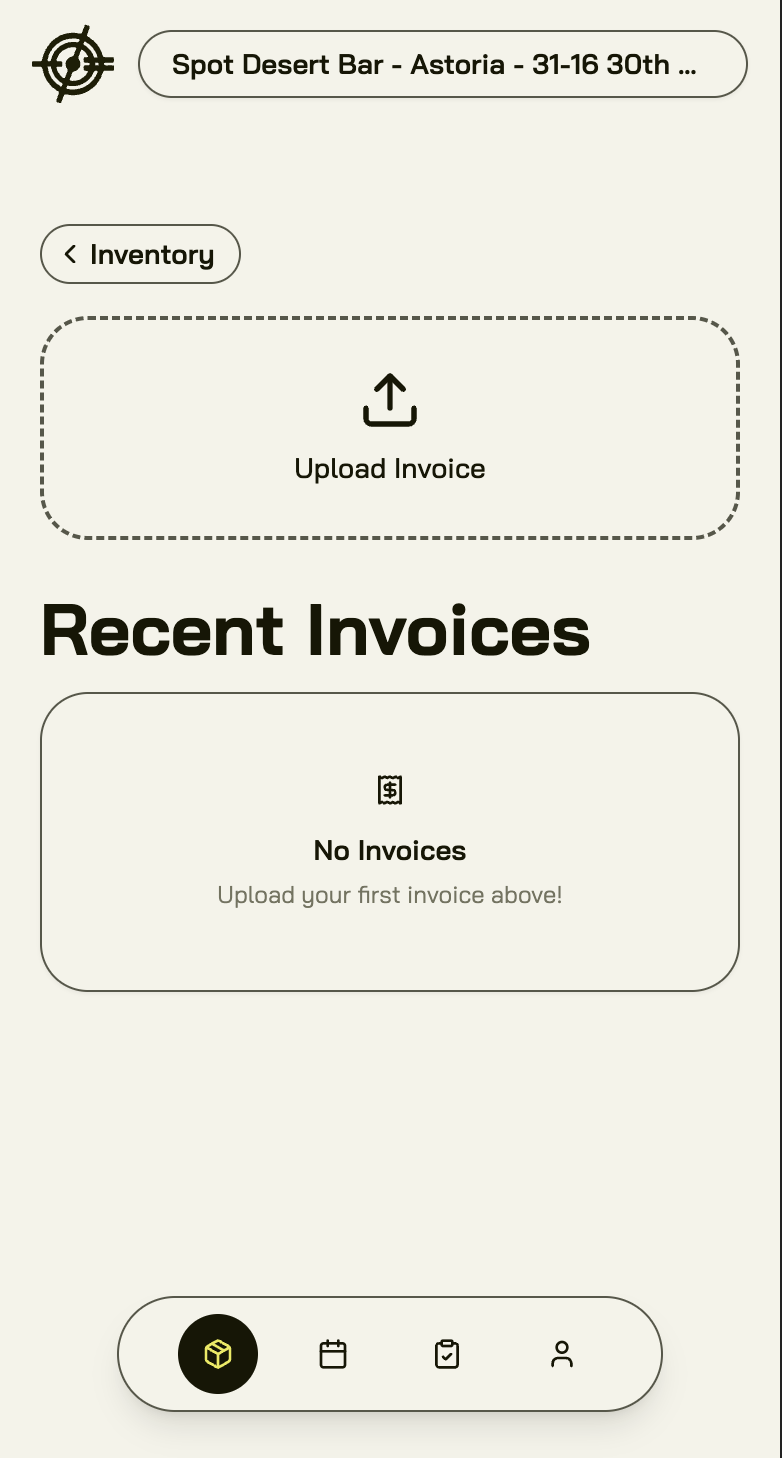
Review and approve an invoice
- Open the invoice from the Invoice Upload list.
- Check the vendor match. Fix it if the system guessed wrong.
- Go line by line. Confirm items, quantities, and prices. Add or edit lines the parser missed.
- Check taxes, credits, and extra charges.
- Approve it if it’s right. Deny it if it’s not.
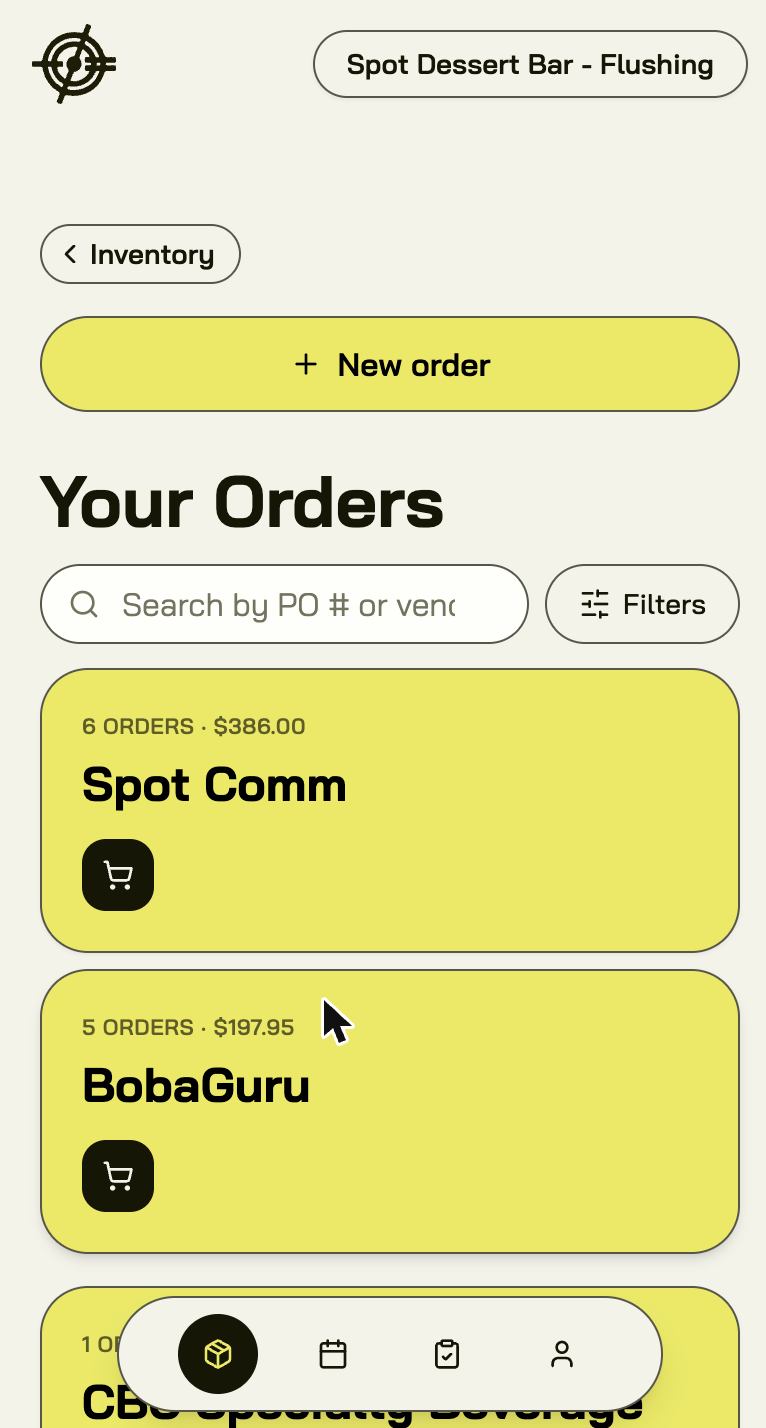
Place a purchase order
- Tap Orders, then start a new order.
- Pick the vendor. Use search if the list is long.
- Add items and quantities to the cart.
- Review the order, then send it.
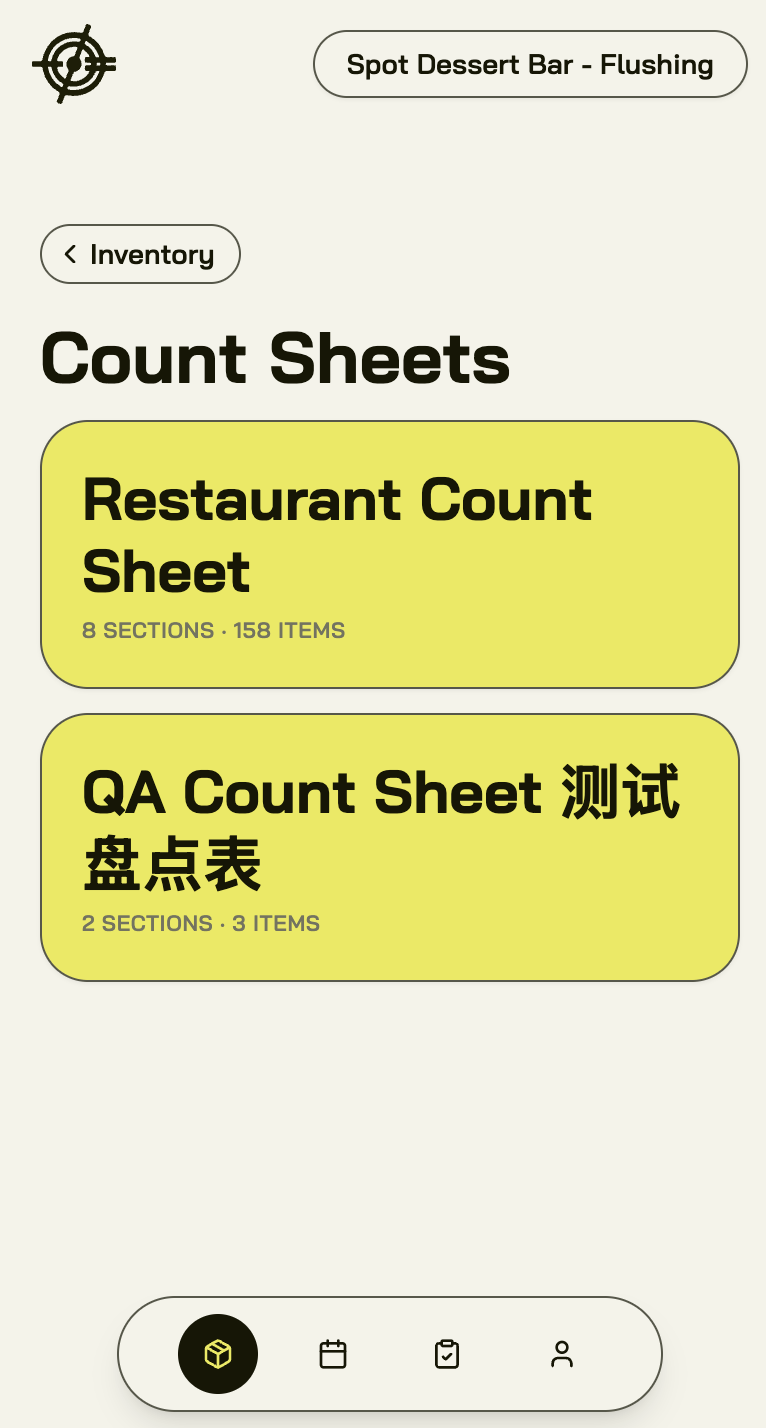
Run a count sheet
- Tap Count Sheets and pick the sheet for your location.
- Start the count for today’s date.
- Walk the shelves and enter counts item by item.
- Finish and complete the count when you’re done.
Counting in the walk-in
No signal in the cooler or basement? Keep counting. The app works offline once the sheet is loaded and syncs when you’re back online. If a coworker edited or completed the same count while you were offline, the app shows you the conflict and lets you resolve it. Don’t guess. Check the shelf again if the numbers disagree.Log waste from a preset list
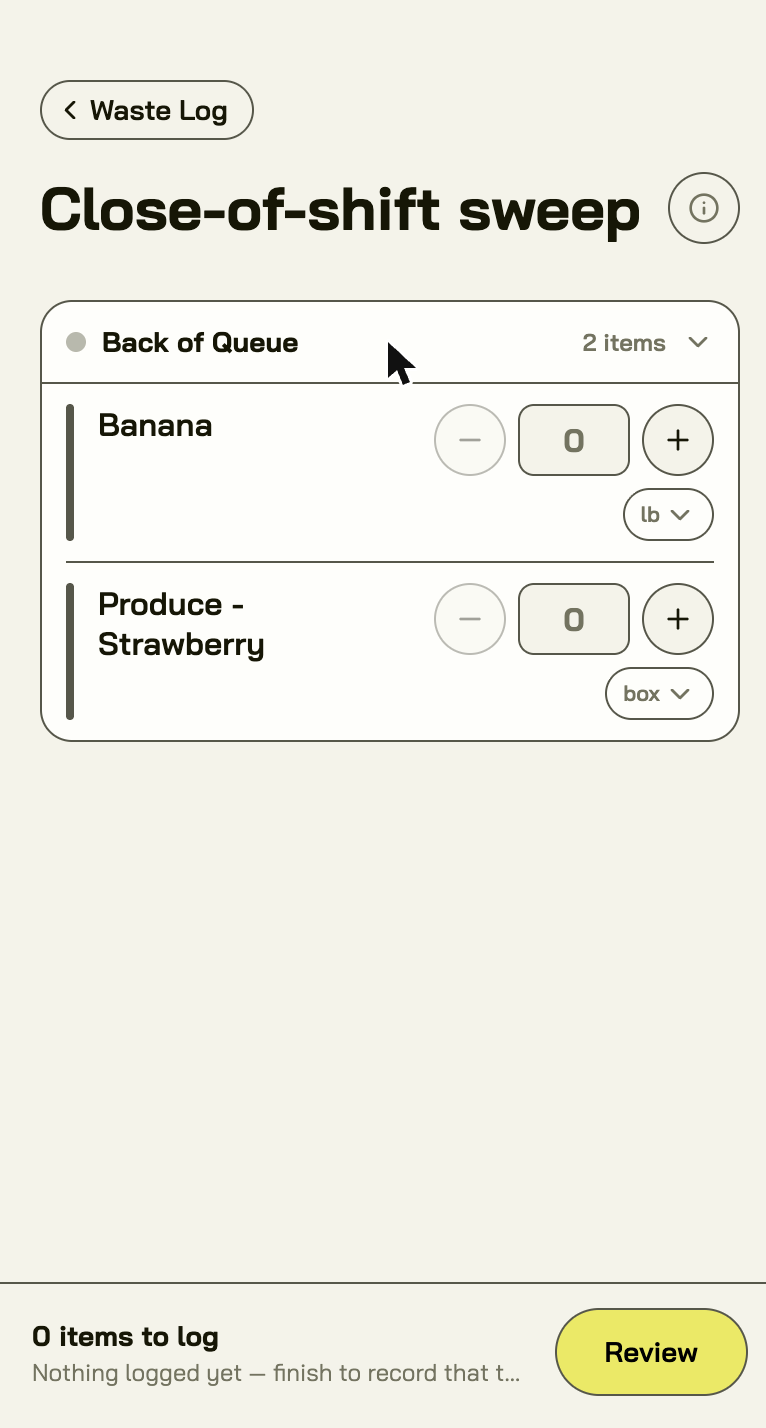
Waste Log is the fastest way to make waste logging a ritual instead of a chore: a manager builds a template of the items you throw away most, and the closer steps through it once a shift.- Tap Waste Log and pick the template (or Create template to build one).
- Step through the list — tap + on what got tossed, adjust quantities and units as needed.
- Submit the sweep. It’s filed as a waste adjustment for the date.
Waste, refunds & transfers — Adjustments
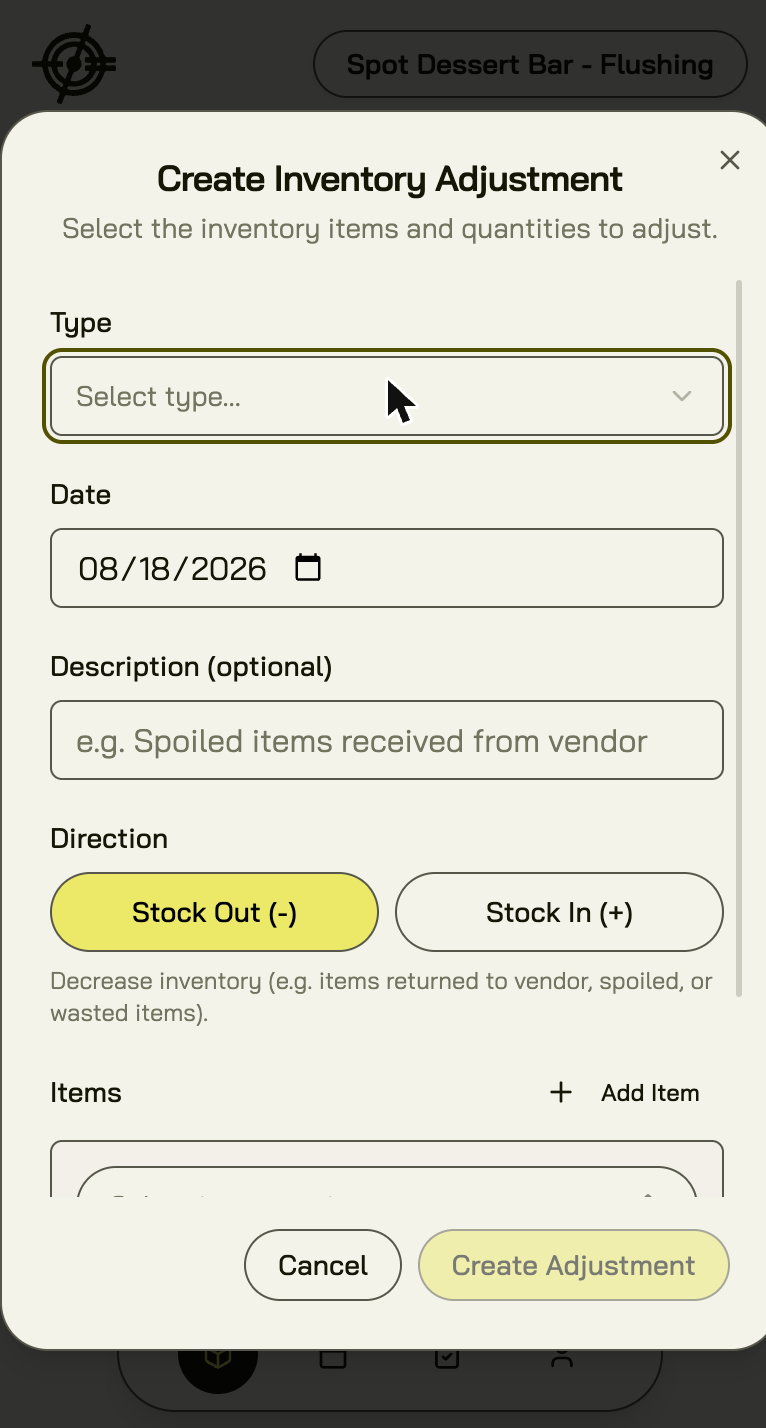
For one-off entries that don’t fit a template, tap Adjustments:- Create an adjustment and pick the type — waste, refund, or transfer.
- Set the Direction — Stock Out (-) for waste and refunds; transfers ask for a Transfer to destination instead.
- Add items, quantities, and units; date it; add an optional description (“End of day waste from prep line”).
Look up an item
Items is your stock reference on the floor: browse and search every inventory item at your location. Answer “how much did we pay for this?” and “how much should be left?” from the shelf, without walking to the office.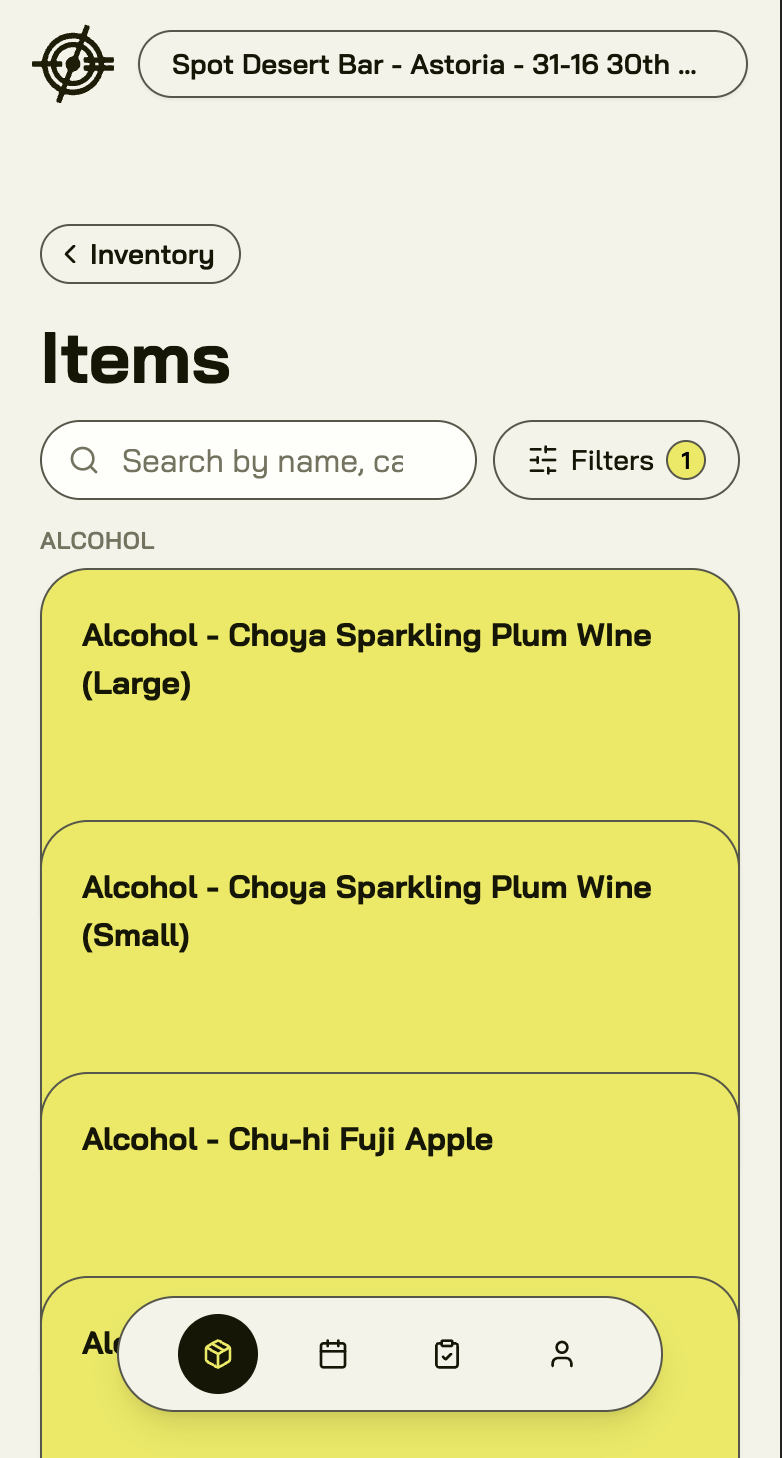
Rules of thumb
- Invoice in hand? Photograph it before it leaves your hand.
- Count what’s actually on the shelf, not what should be there.
- Log waste the shift it happens — a rough daily log beats a perfect weekly one.