

Log an adjustment
- Go to Inventory → Stock & Inventory → Adjustments.
- Press New Adjustment.
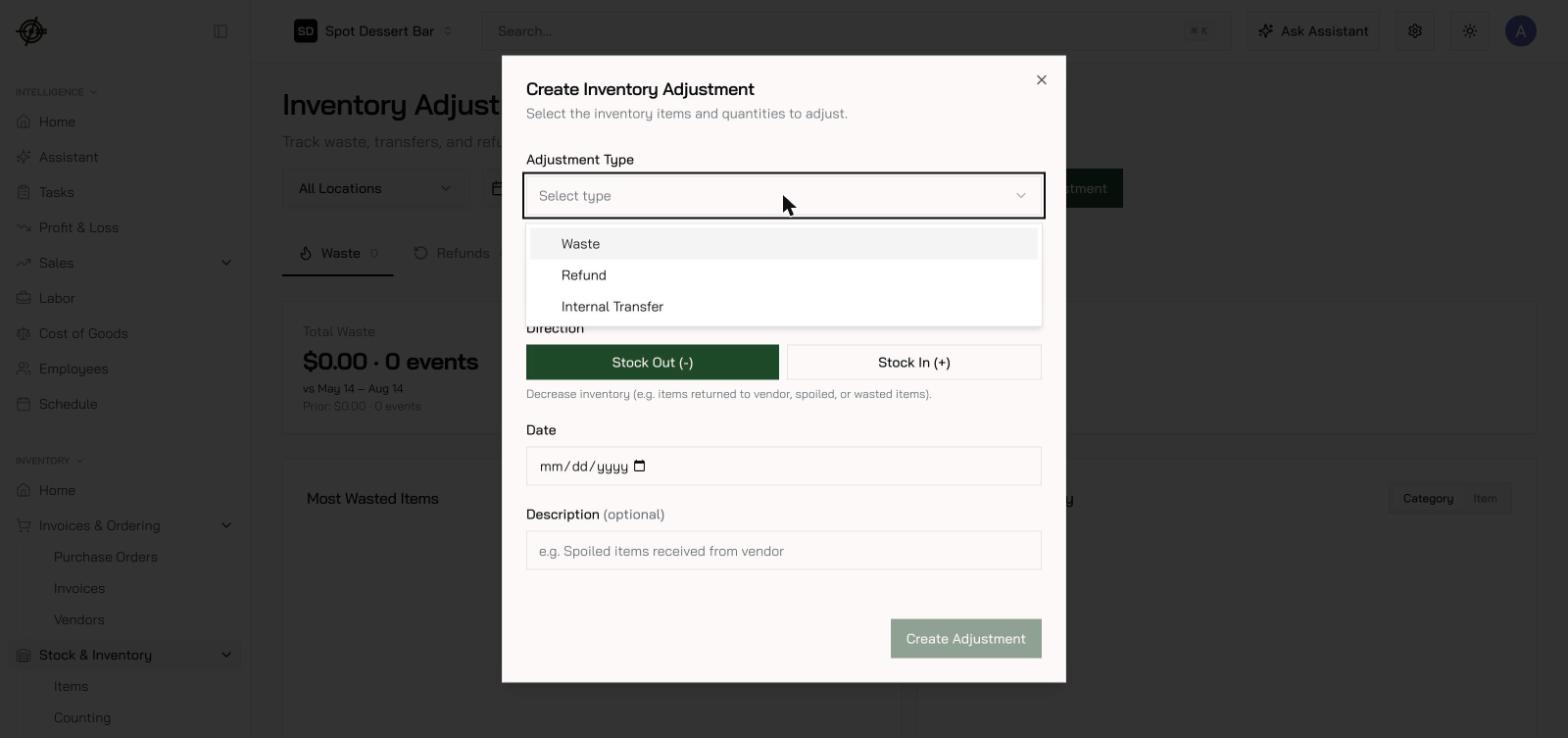
- Pick the Adjustment Type:
- Waste — spoilage, spills, over-portioning, tracked comps.
- Refund — product going back to the vendor for credit.
- Internal Transfer — product moving between your locations.
- Set the Direction — Stock Out (-) for waste and refunds. Only refunds can flip to Stock In (+) for a correction the other way; waste locks to Stock Out, and transfers ask for locations instead.
- Select item, quantity, unit, and date. Transfers also need a From location and a Transfer to destination.
What happens next
- Waste and refunds adjust stock immediately.
- Transfers create an approval request — the receiving side confirms before inventory moves, which keeps both locations’ counts honest. The sending side can edit while the request is pending, the other side gets an email at every step, and each transfer keeps a full activity history.
- Do this on the phone: the Garde app’s Waste Log turns the close-of-shift sweep into a preset list, and its Adjustments card covers one-off waste, refunds, and transfers — log it where you found it.