

Place an order
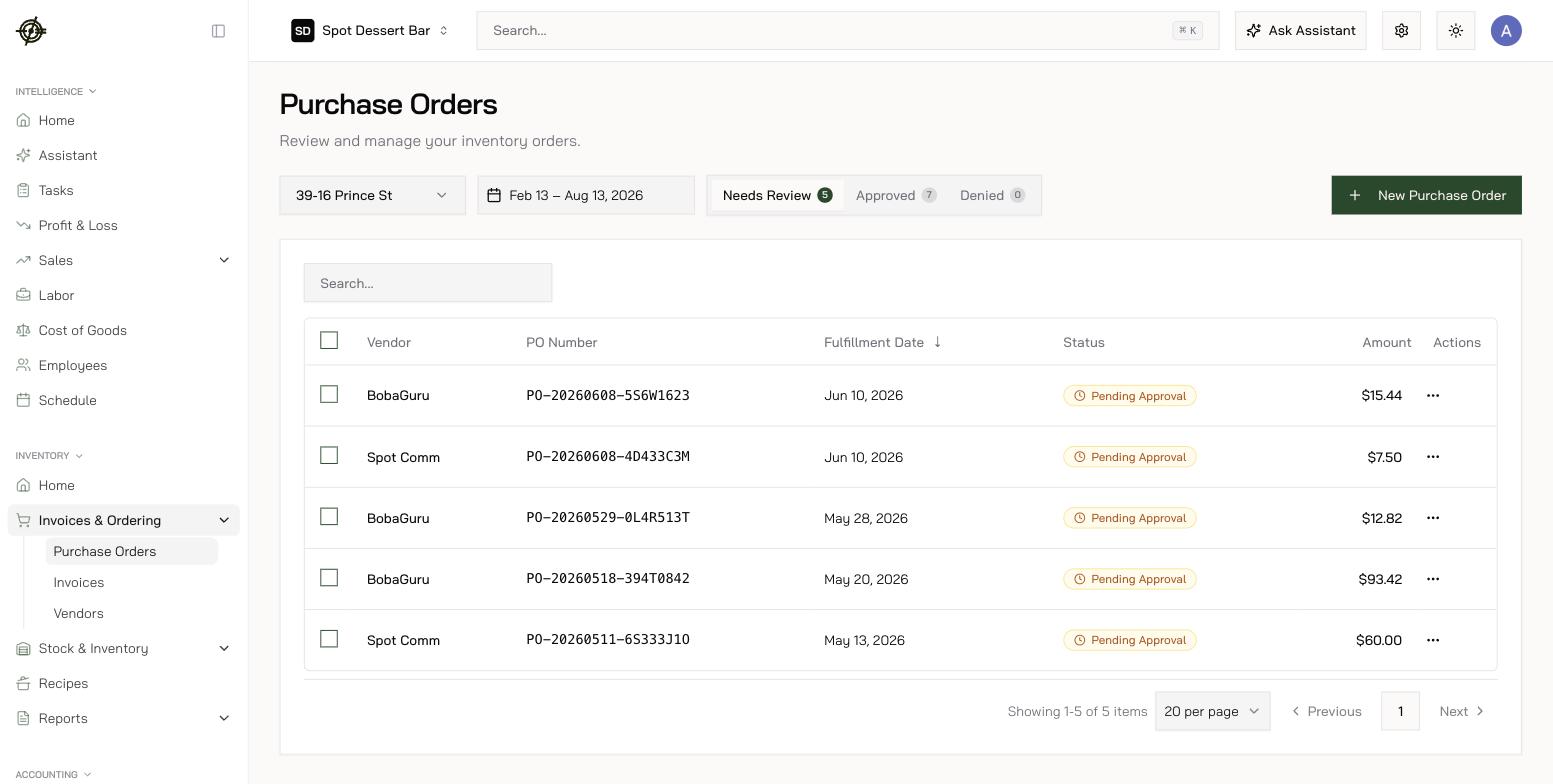
- Go to Inventory → Invoices & Ordering → Purchase Orders and press New Purchase Order — or start from a saved template, so the weekly order is a review rather than a rebuild. Ordering works from the Garde app too — build the order standing in front of the shelf, not from memory at a desk.
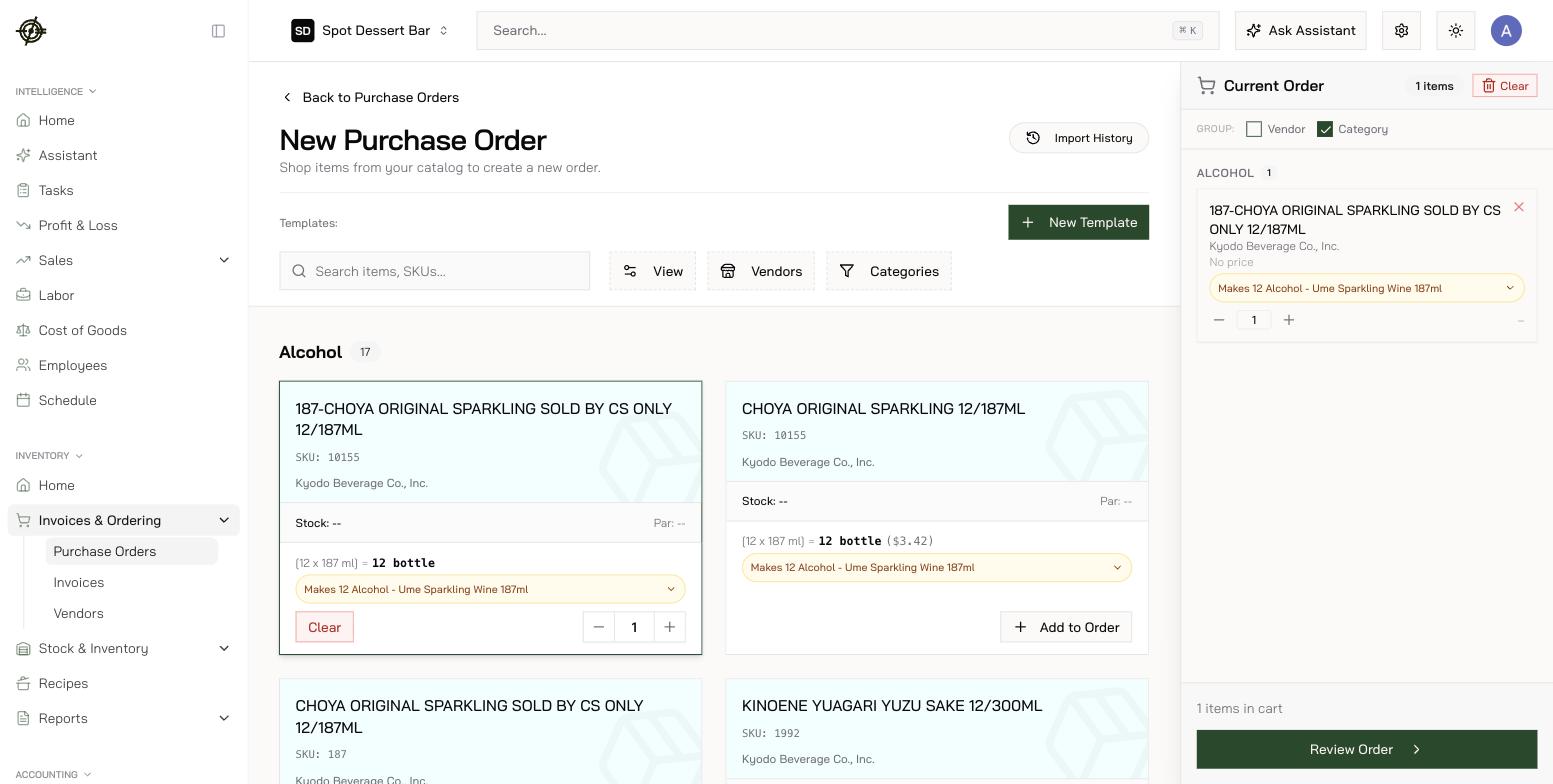
- Shop the catalog — it covers your vendors and your commissary alike (see Ordering from commissary). Each card shows the pack, price, stock vs par, and for prep ingredients, batches per pack. When Garde has usage data, Add Suggested fills a card’s quantity for you — or add everything flagged Low Stock in one press.
- Add to Order builds the Current Order panel on the right — group it by vendor or category, adjust quantities inline.
- Press Review Order, check quantities and totals, submit.
- Non-managers’ orders wait for approval; managers can approve and send on the spot.
Send and track
- In-network vendors (including your commissary) get the order electronically in their own Garde dashboard.
- Everyone else gets it by SMS or email via Send to Vendor.
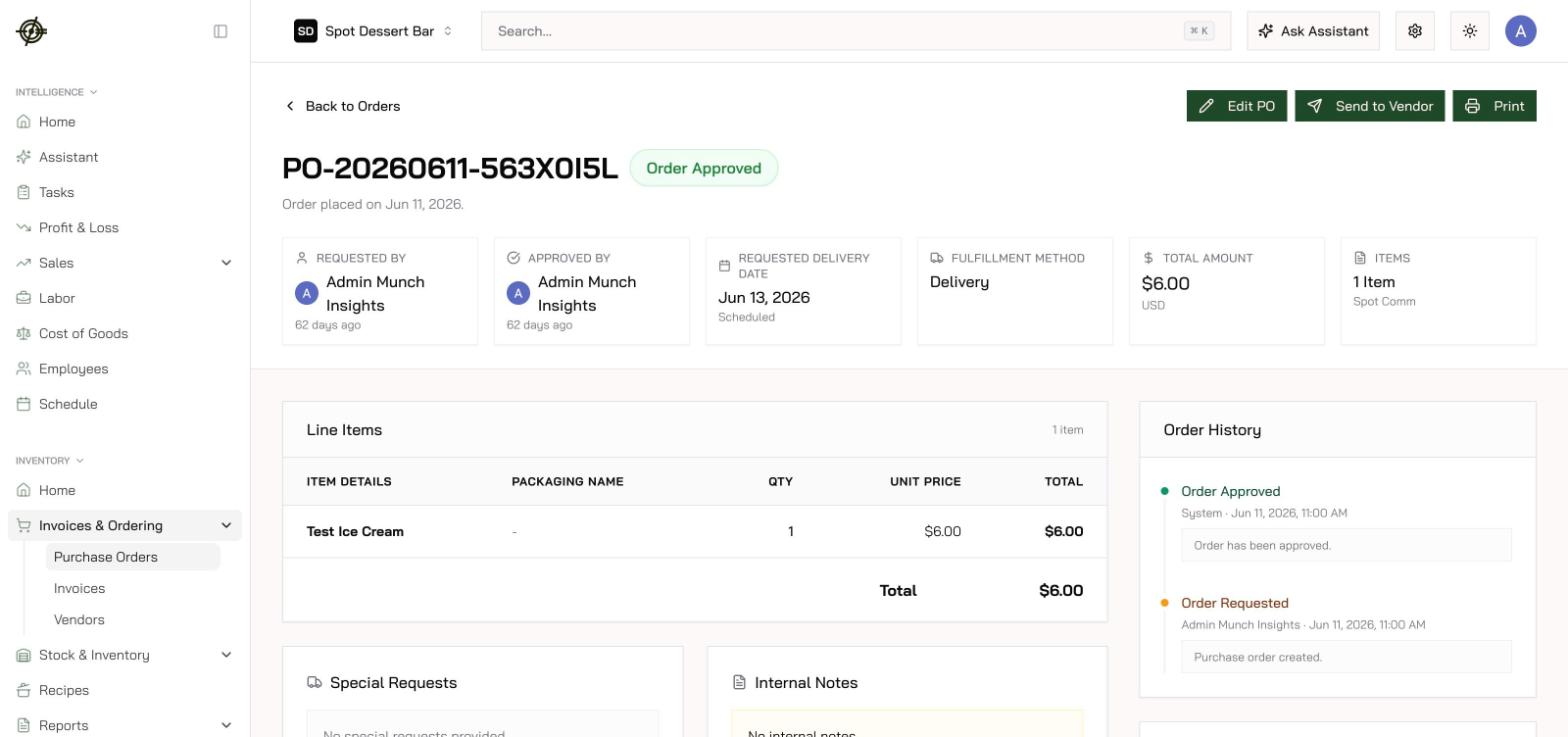
- The order’s history timeline tracks created → approved → vendor confirmed → delivered. Cancel or Decline before acceptance if plans change.
Receive — Goods Receipts
If receiving is enabled for your chain, every delivery is logged against its PO:- Inventory → Invoices & Ordering → Goods Receipts is the receiving log.
- Open a delivery — or press Received on the purchase order to start one — and record what actually arrived: shorts and substitutions get captured instead of lost.
- Match each receipt to its invoice when the bill lands — Garde keeps a list of receipts still unreconciled against an invoice, closing the ordered → received → billed loop.