

Record a batch
- Go to Inventory → Stock & Inventory → Prep & Batches.
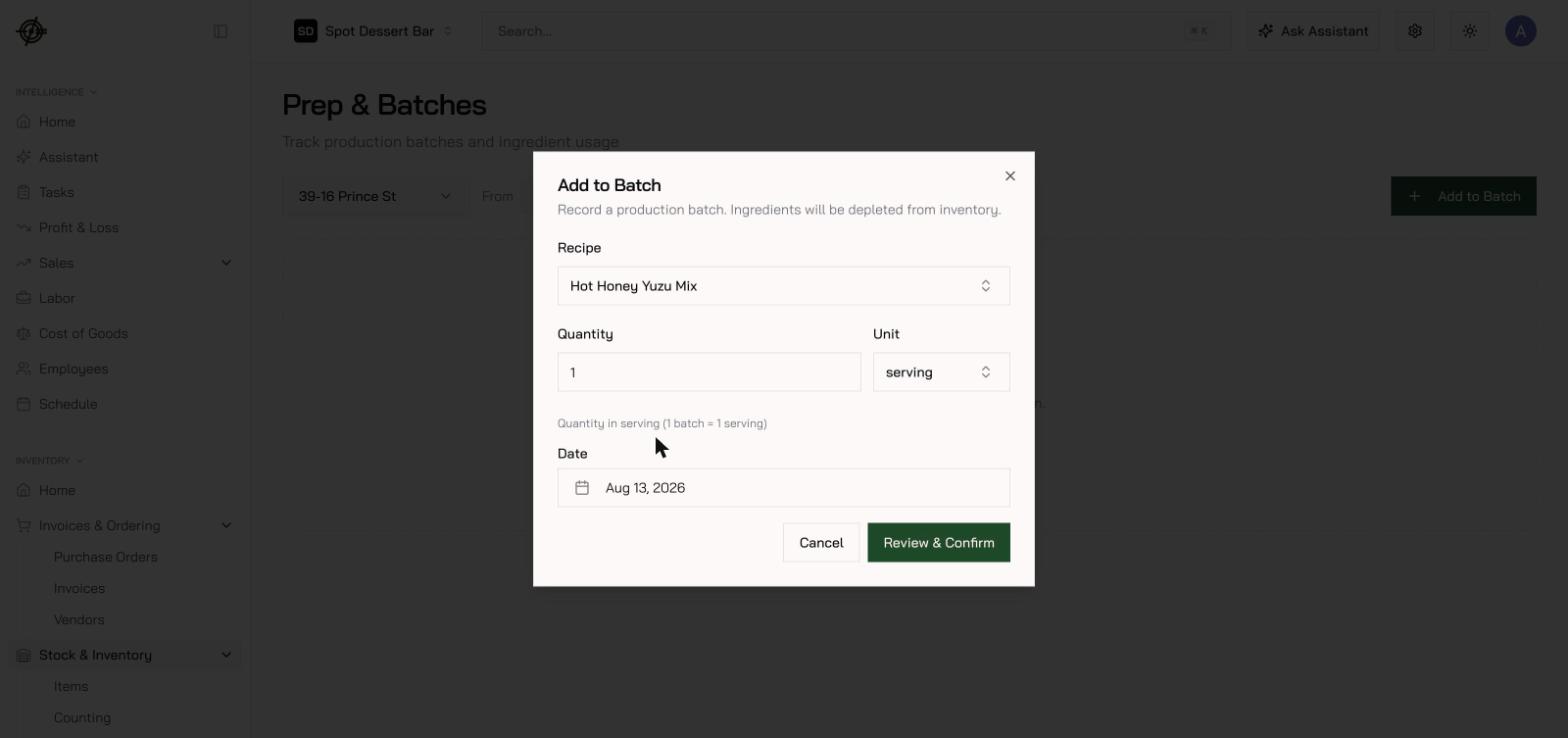
- Press Add to Batch.
- Choose the recipe and enter the quantity — number of batches, or an amount in the batch unit (the dialog shows the yield, e.g. 1 batch = 4 qt).
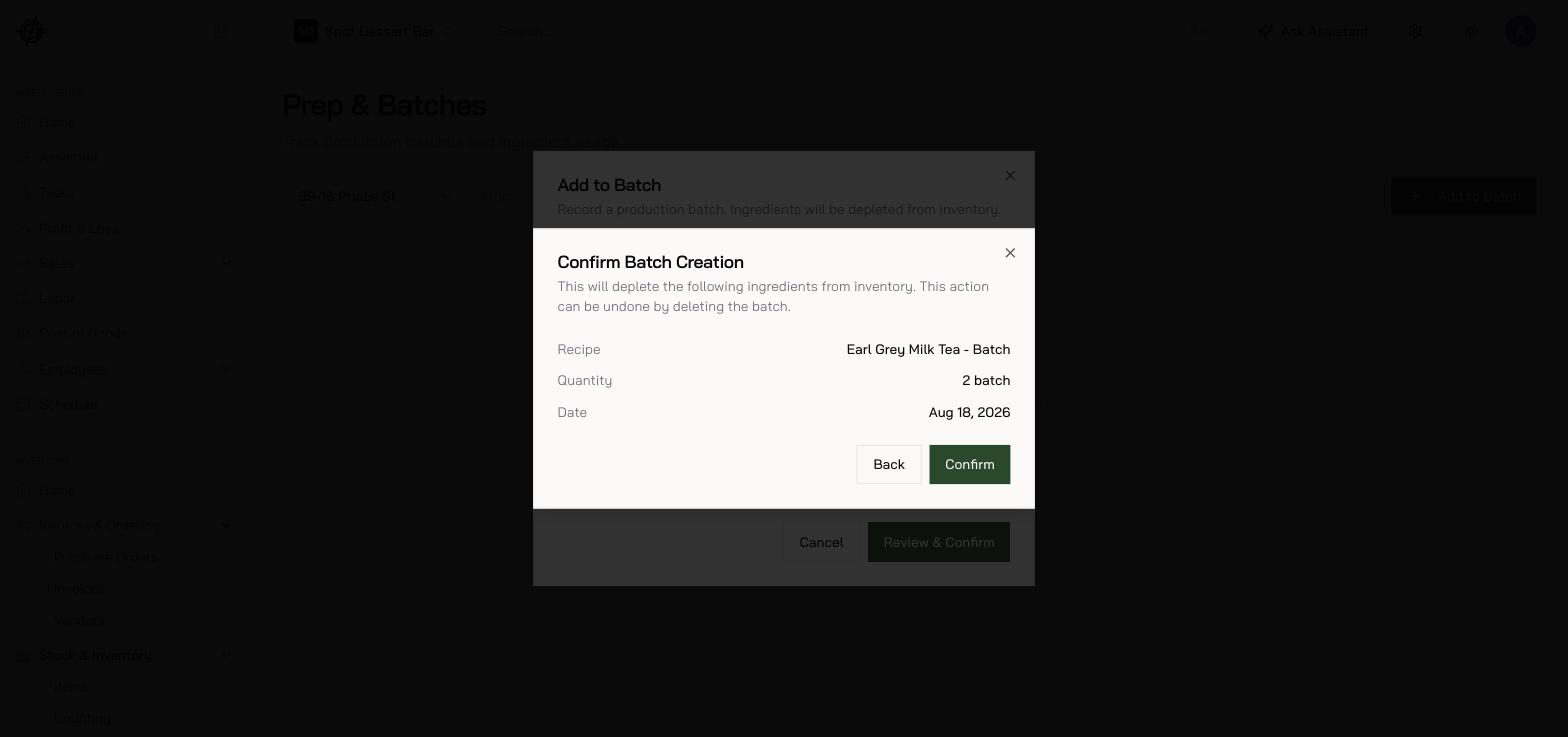
- Set the date, then press Review & Confirm to see exactly what will leave inventory.
- Confirm.
Fix mistakes
Deleting a batch reverses all of its depletions — a wrong entry is safe to delete and re-enter.If a prep recipe won’t come up here, it isn’t marked as a Prepared Item (Sub-recipe) — that flag, with its Prepared Yield, is what lets Garde translate “3 batches” into real quantities. See Recipes & menu costing.