Introduction
We use Conductor as our QuickBooks Desktop integration provider. They charge per connection, so the most common way to set it up is to have a central QuickBooks instance open on your central QuickBooks server. For any questions that are not answered on this page, you can search for answers in the official Conductor documentation: https://docs.conductor.is/help/faq/end-user-faq.Setup Checklist
If you’re encountering issues, double check that:- QuickBooks Desktop is opened on your server.
- Any popups should be closed. The Web Connector popup should be closed (click Hide). If you click “Hide” and it doesn’t close after 10 seconds, then go down the checklist.
- Intuit Sign-In: Intuit requires you to sign into your QuickBooks Desktop instance once in a while for security purposes.
- Upgrades: Occasionally, QuickBooks Desktop will ask you to upgrade or not. We recommend updating, if possible.
Logging into the Company File on Server
A quick fix is for you to log into the company file on the QuickBooks instance on the server directly and sync. Afterwards, you must close the company file or else you will prevent others from syncing with other company files.Common Issues & Solutions
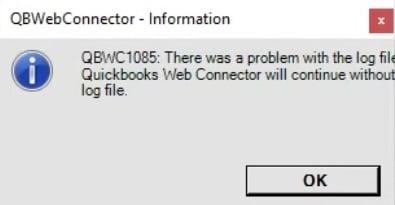
This section covers all of the common issues that you may encounter. You can find a more thorough list of potential errors and solutions in the official documentation here: https://docs.conductor.is/help/connection-errors/connection-not-activeQBWC1085: There was a problem with the log file
You may see a popup like: