

New Export: Financials > Reports
This is the new method to export your Grubhub deposits data. It’s more accurate (handles Ad Spend, Grubhub Direct better). Log into your merchant account. SelectFinancials > Reports
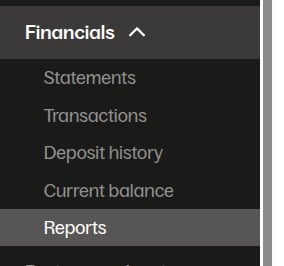
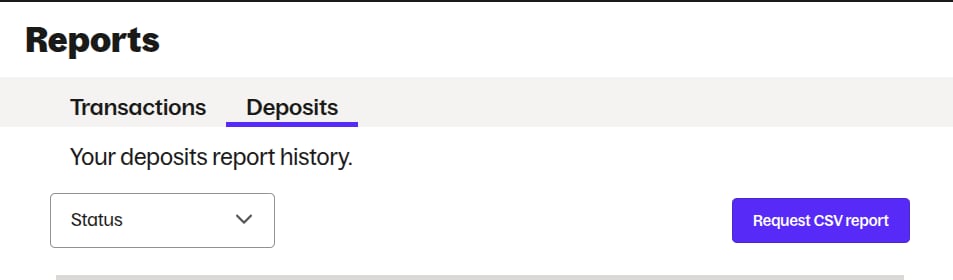
Deposits and Request CSV report
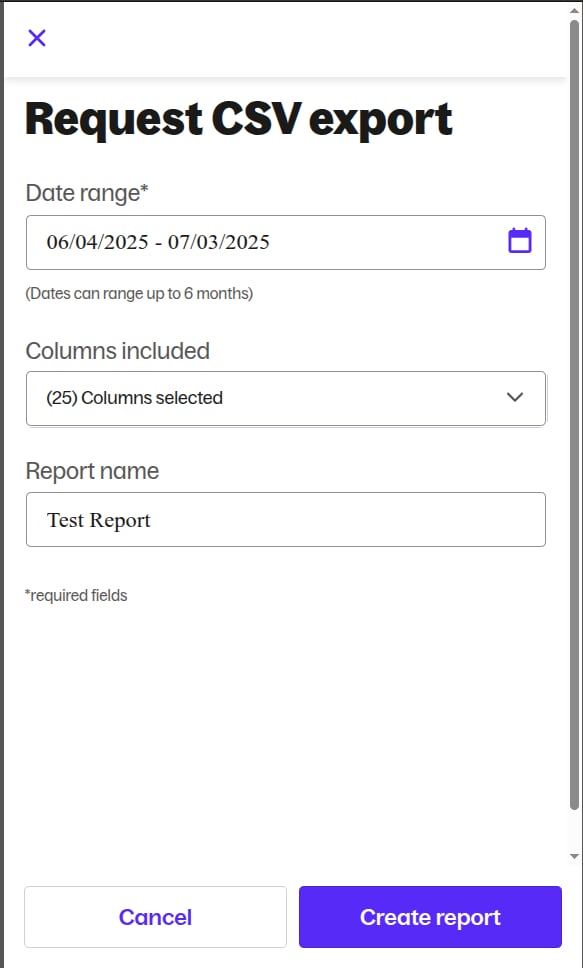
Create Report
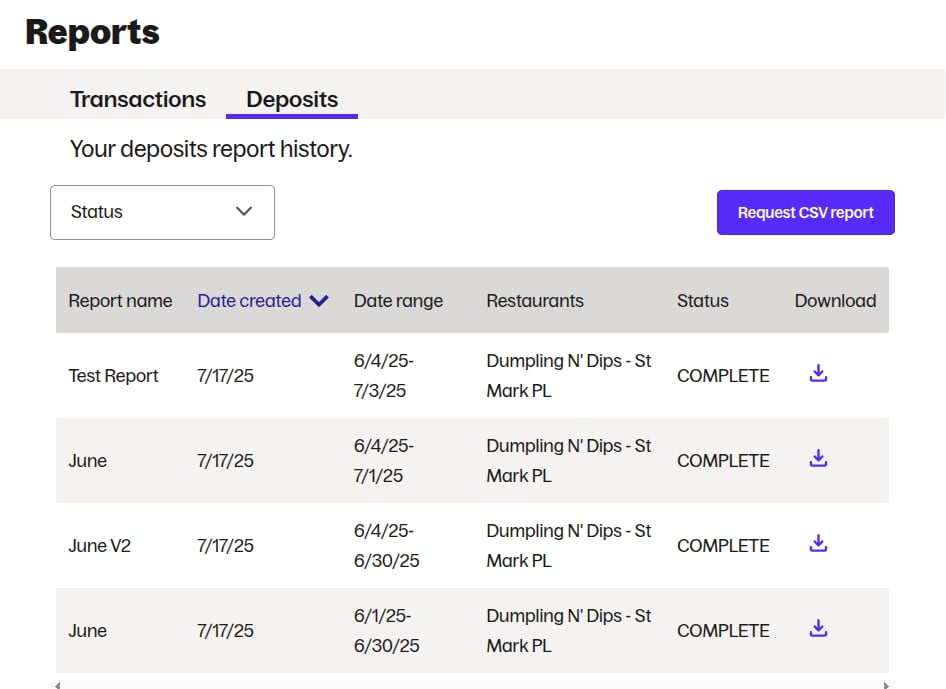
IMPORTANT: If you want your exported CSV to match the date ranges on the PDF monthly statement, you need to select a date range like06/04/2025-07/03/2025instead of06/01/2025-06/31/2025because the date range is for payout dates, not the order dates.
Old Export: Via Reports
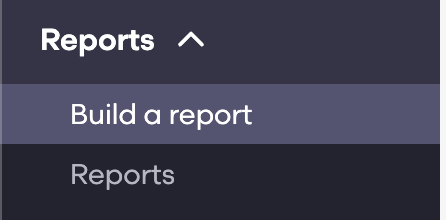
Log into your merchant account. Then selectReports > Build a Report
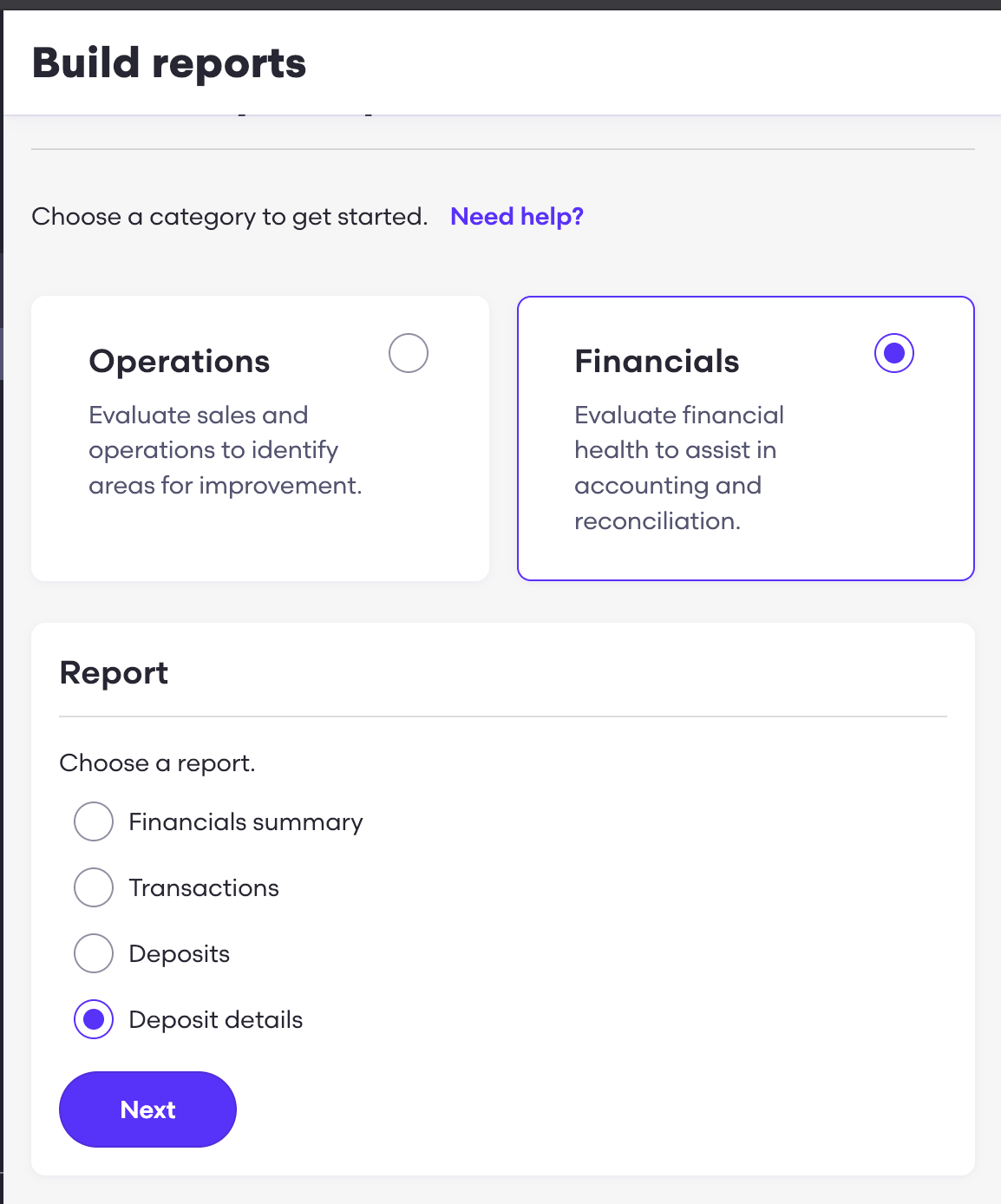
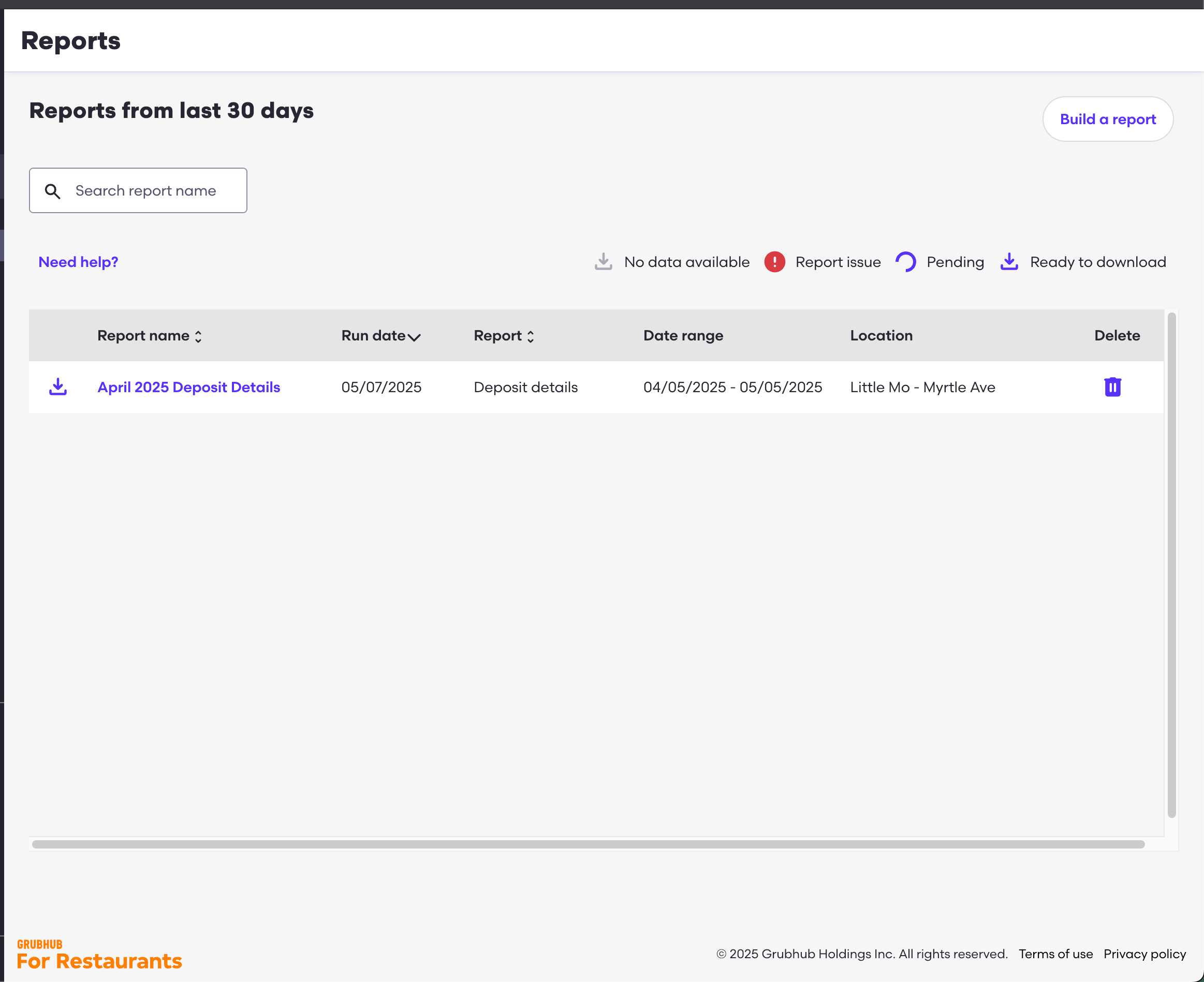
This means that if you want the exported report to match Grubhub PDF monthly statement, you need to select a date range that starts a bit later than the 1st-End of Month. For example, for April 2025, select April 5th, 2025-May 5th 2025. This must be done because Grubhub’s payouts are always a couple days after the actual transaction dates.Lastly, specify the Locations and Name and click Request Report. The reports dashboard should end up like:
Uploading the Report
Upload the.csv file normally. You can rename it to however you’d like!
Common Issues
Unbalanced Entry
If you have an unbalanced entry, download the monthly PDF statement compare the deposits. Each entry corresponds to a line in the deposit entry.Right now, Ad Spend is currently not available in the exported CSV. You’ll need to manually add it into one of the lines (i.e. Marketing Fees).