

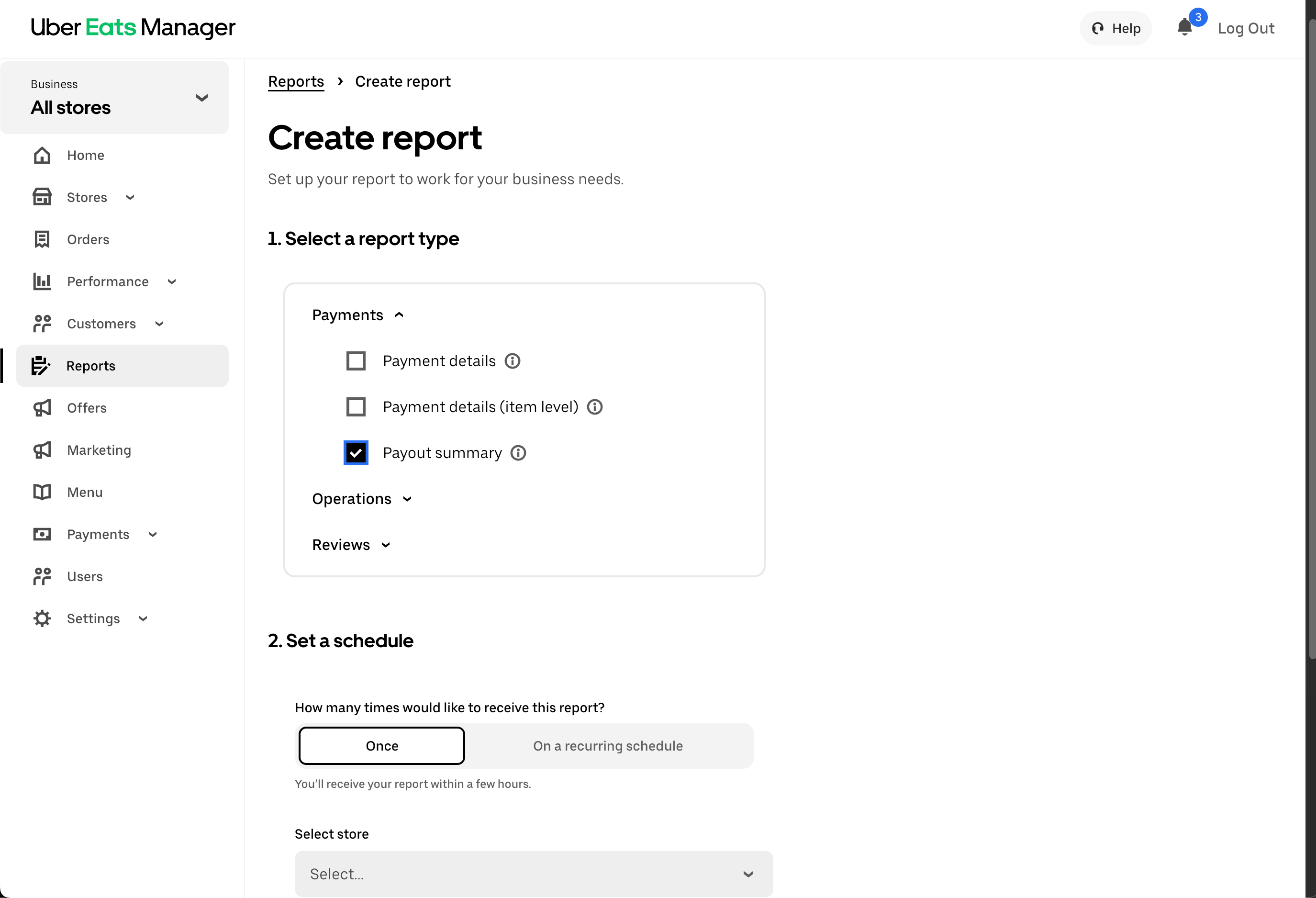
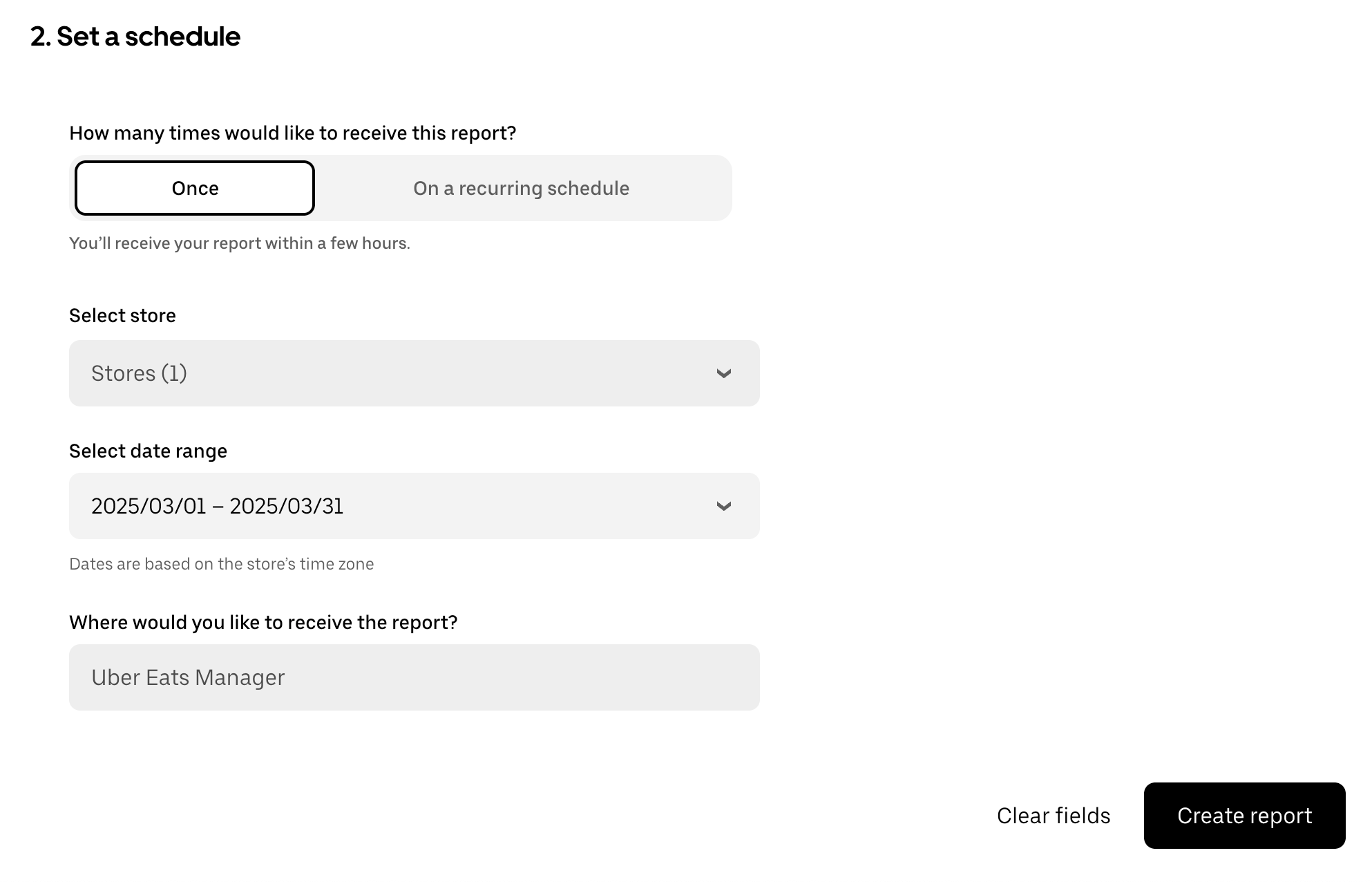
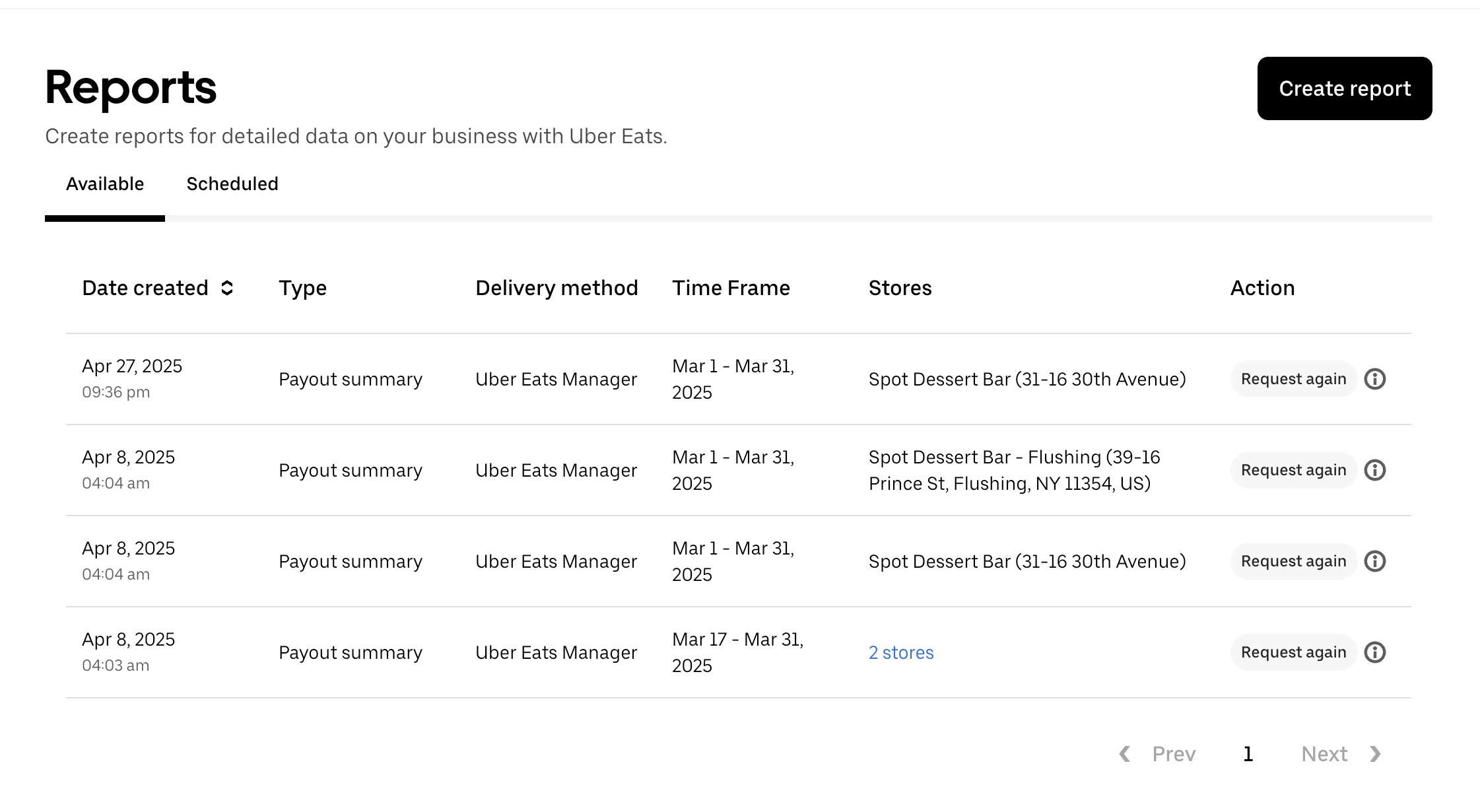
Uploading the Report
Just upload the.csv file and you should be good to go! You can rename it however you’d like!
Double check whether the csv file is same location as your selected location on the dashboard!
Download and upload Uber Eats payout reports.
.csv file and you should be good to go! You can rename it however you’d like!
Double check whether the csv file is same location as your selected location on the dashboard!